
How to set up camera auto-scoring in DartsOn
Place your phone by the board, turn on Auto-Scoring and let the camera score each dart. What you need, where to put the phone and how each turn works.
Camera auto-scoring reads each dart through your phone’s camera and enters its score for you. It works in every game mode and in online matches. Set it up once, and it stays on for your next games.
What you need
- An iPhone, iPad or Android phone or tablet with a camera.
- A steel-tip dartboard and darts. Auto-scoring works with most of them.
- A tripod, shelf or holder that keeps the phone still beside the board.
- An internet connection the first time, to download the scoring model. After that, scoring runs on your phone and works offline.
- A charger, if you can reach a socket. Reading the camera feed uses more battery than normal play.
Turn on Auto-Scoring
- Start a game, or open one from the Home tab.
- Tap the camera button at the top right of the game screen.
- The first time you do this in an X01 game, offline or online, the Auto-Scoring guide opens. Read it and tap Enable. Not now closes it and leaves Auto-Scoring off.
- If the camera view shows Scoring model required, tap Download.
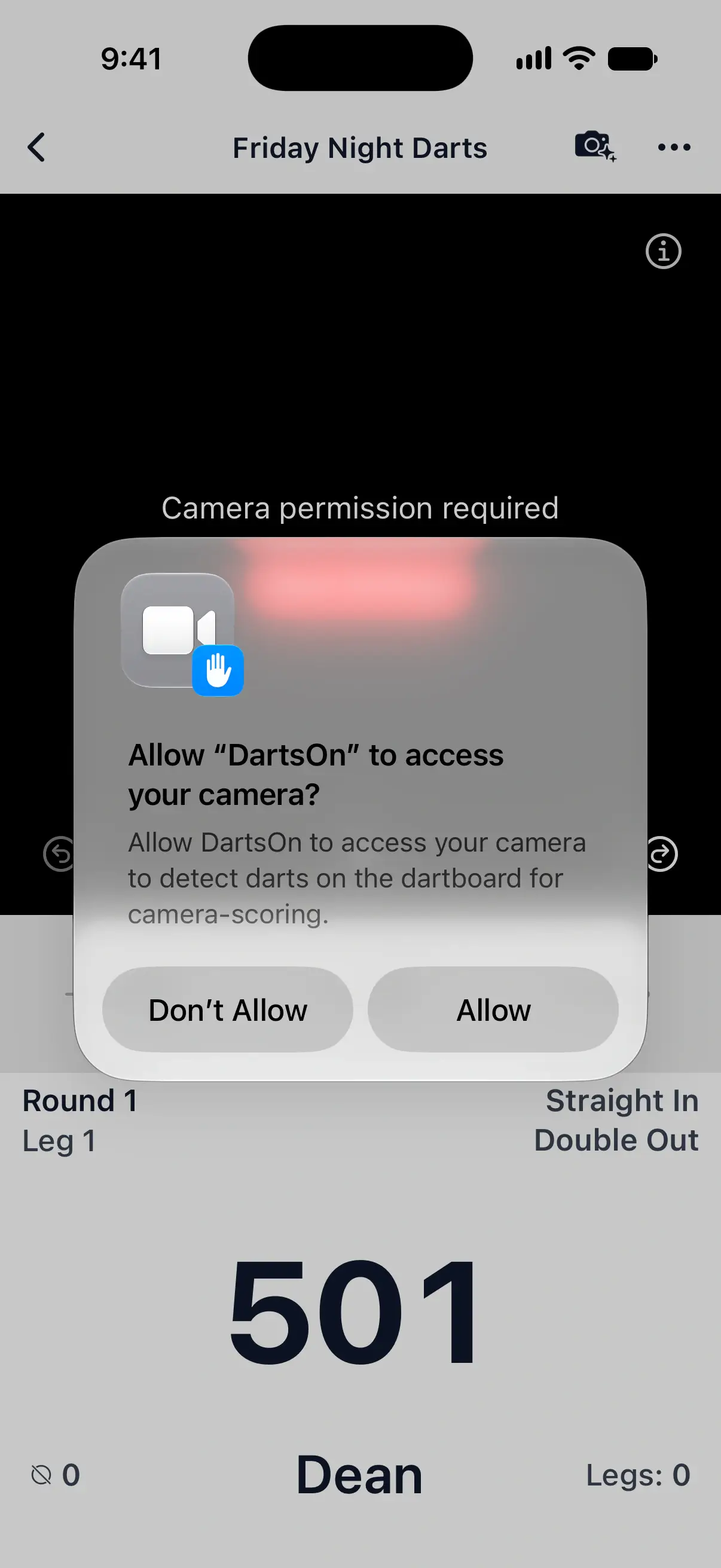
- When your phone asks for camera access, allow it for DartsOn.
The camera view takes the place of the keypad, with your scores below it. Auto-Scoring stays on for your next games, in every mode, until you turn it off.

To turn it off, tap the camera button again, or tap ••• and choose an input under Input Mode, such as Numeric.
On iPhone and iPad, tapping Enable for the first time may also ask Help Us Improve Auto-Scoring? Your answer decides whether DartsOn may collect camera frames when you correct a dart. See what it shares.
The model download needs an internet connection. Some phones then prepare the model for their hardware, which can take a few minutes and only happens once.
Place your phone
Portrait and landscape both work, so pick whichever suits your stand.
- Keep the phone still for the whole game, on something that can’t move or shake.
- Center the whole board in the camera view and let it fill most of the picture.
- Move the phone closer before you zoom. Heavy zoom lowers image quality and makes darts harder to see.
- Set the phone off to one side at a moderate angle. Avoid straight in front of the board, and avoid a very steep angle.
- Light the board evenly. A dartboard light with several light sources works best.
Follow the on-screen guidance
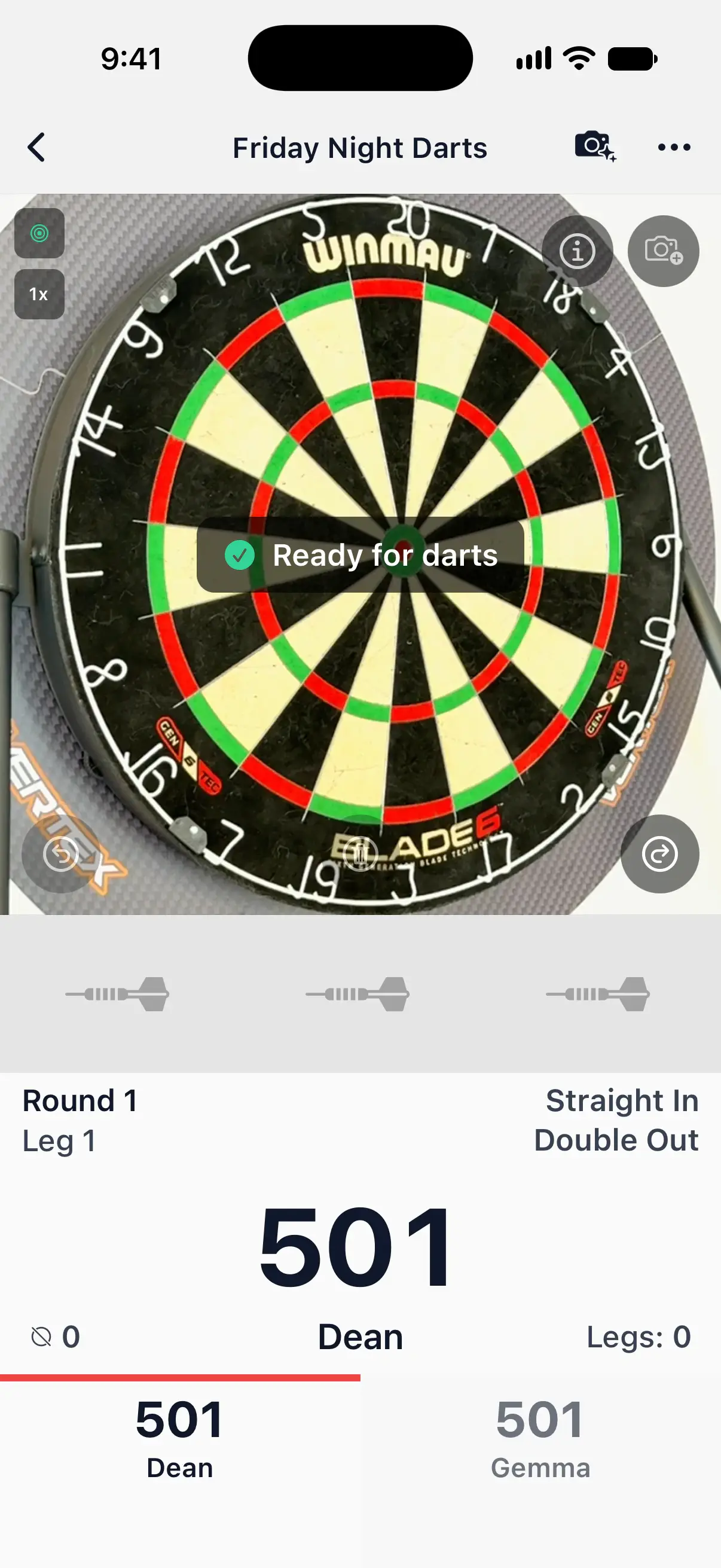
While you set up, a message over the camera view says what to change. When the board is found and the picture is good, it reads Ready for darts.
| Message | What to do |
|---|---|
| Cannot find the dartboard. Try repositioning the camera. | Turn the phone until the whole board is in view. |
| Center the board and zoom in or move closer for better accuracy | The board looks too small. Move the phone closer, or pinch to zoom a little. |
| Move camera farther back to fit the full board | Part of the board is cut off. Move the phone back. |
| Too straight on. Move the camera more to the side | Move the phone further to one side of the board. |
| Too much angle. Face the board more directly | Move or turn the phone so it faces the board more. |
| Too dark. Try improving lighting | Add light on the board, or use the torch. |
| Too bright. Reduce lighting or glare | Dim a light that shines on the board or straight into the camera. |
| Hold camera steady | Wait for the phone to settle, or fix it more firmly. |
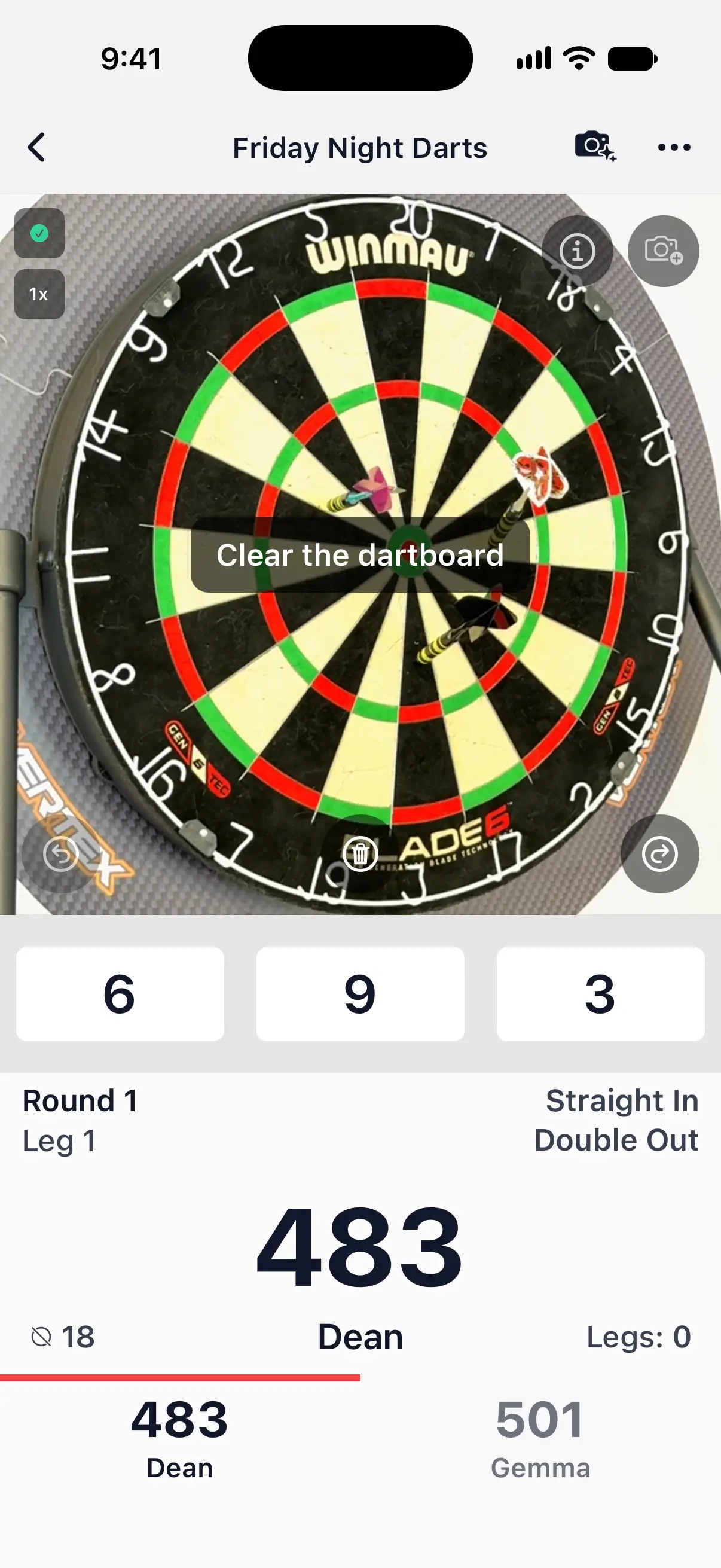
| Clear the dartboard | Pull out every dart. A turn starts only on an empty board. |
The badge at the top left of the camera view shows whether DartsOn has found the board. Tap it for Auto-Scoring Status, a short note on what the camera is doing right now.
How a turn works
- Throw as usual. Each dart appears in its slot below the camera view as it lands.
- After the last dart of your turn, pull the darts out.
- Once the board is clear, DartsOn ends the turn and the next one starts.
If a scored dart is wrong, tap its slot and pick the right value. In X01, a checkout the camera scores waits for you to tap Confirm before the leg ends. Correct an auto-scored dart.
When a dart is hidden
A dart can land with its tip hidden behind another dart. The camera view then says Remove detected darts to reveal occluded darts. Pull the darts out one at a time, starting with the one closest to the camera. Each dart you remove gives the camera a clear view of the board behind it, and DartsOn scores the hidden dart.
When a dart lands out of view
Clear the board as usual. As long as the camera saw at least one of your darts, DartsOn fills the empty slots with MISS and moves on. If it saw none of them, tap Next turn, the arrow at the bottom right of the camera view.
Zoom and the torch
Pinch the camera view to zoom in or out. The zoom level shows at the top left, and DartsOn remembers it for your next game.
On a phone with a flash, you can light the board with it. Go to Settings → Auto-Scoring Settings and turn on Show Torch Button. A torch button then appears on the camera view. All Auto-Scoring Settings.
Free games and Premium
Auto-Scoring is free for a limited number of games. When you’ve used them, turning it on shows Free Games Limit Reached and opens DartsOn Premium, which removes the limit. Extra cameras don’t count toward your free games. About DartsOn Premium.
Questions and answers
Does camera auto-scoring work without internet?
Yes, once the scoring model is on your phone. The model runs on the phone itself, so you only need a connection to download it the first time and to get model updates.
Can I mount my phone in landscape for auto-scoring?
Yes. Auto-scoring works with the phone in portrait or landscape. Pick whichever fits your stand, and keep the whole board in the camera view.
Which dartboards work with camera auto-scoring?
Auto-scoring works with most steel-tip dartboards and darts. You don't need an electronic board or extra hardware, only your phone's camera.
How many games can I auto-score for free?
A limited number. After that, Auto-Scoring needs DartsOn Premium, which removes the limit.
Which game modes can I auto-score?
Every game mode in DartsOn, and online matches too.
Related
- How to correct an auto-scored dart in DartsOn Fix a dart the camera scored wrong, move between turns with Previous, Clear and Next turn, and confirm a camera checkout before the leg ends.
- How to change Auto-Scoring Settings in DartsOn Pick the scoring model, set Energy Mode, check how fast auto-scoring runs on your phone and free up space. Every row of Auto-Scoring Settings explained.
- How to fix camera auto-scoring problems in DartsOn What to try when DartsOn misses darts, scores the wrong number, won't start the next turn, can't open the camera or says your phone is too slow.
- Darts auto-scoring with your phone camera | DartsOn Turn your phone into an automatic darts scorer. DartsOn's on-device AI reads every dart through your camera. No electronic board, no tapping, fully offline.