
Back up and restore your DartsOn data
Keep a copy of your darts matches. Use automatic iCloud backups on iPhone, restore a backup or a file, or export and import a backup file on Android.
On this page
A backup is a copy of your matches, players and bots from the moment DartsOn made it. On iPhone and iPad, DartsOn keeps backups in iCloud and makes them for you. On Android, you export a backup file and keep it where you like.
Backups and sync do different jobs. Sync keeps every signed-in device up to date, deletions included. A backup lets you go back to how your data looked on a particular day.
On both platforms, you’ll find them in Settings → Backups. You can make a backup while you’re signed in to a DartsOn account, but to restore or import one you need to log out first. See backups when you’re signed in.
Backups on iPhone and iPad
Automatic iCloud backups
While you’re signed out, DartsOn backs up your data to iCloud about every 36 hours. The backup runs a few seconds after you open DartsOn, while you’re on the Home tab, never during a game. If nothing has changed since the last backup, DartsOn doesn’t make a new one.
DartsOn always keeps your 5 newest backups. Beyond those, it removes backups older than a week each time it makes a new one.
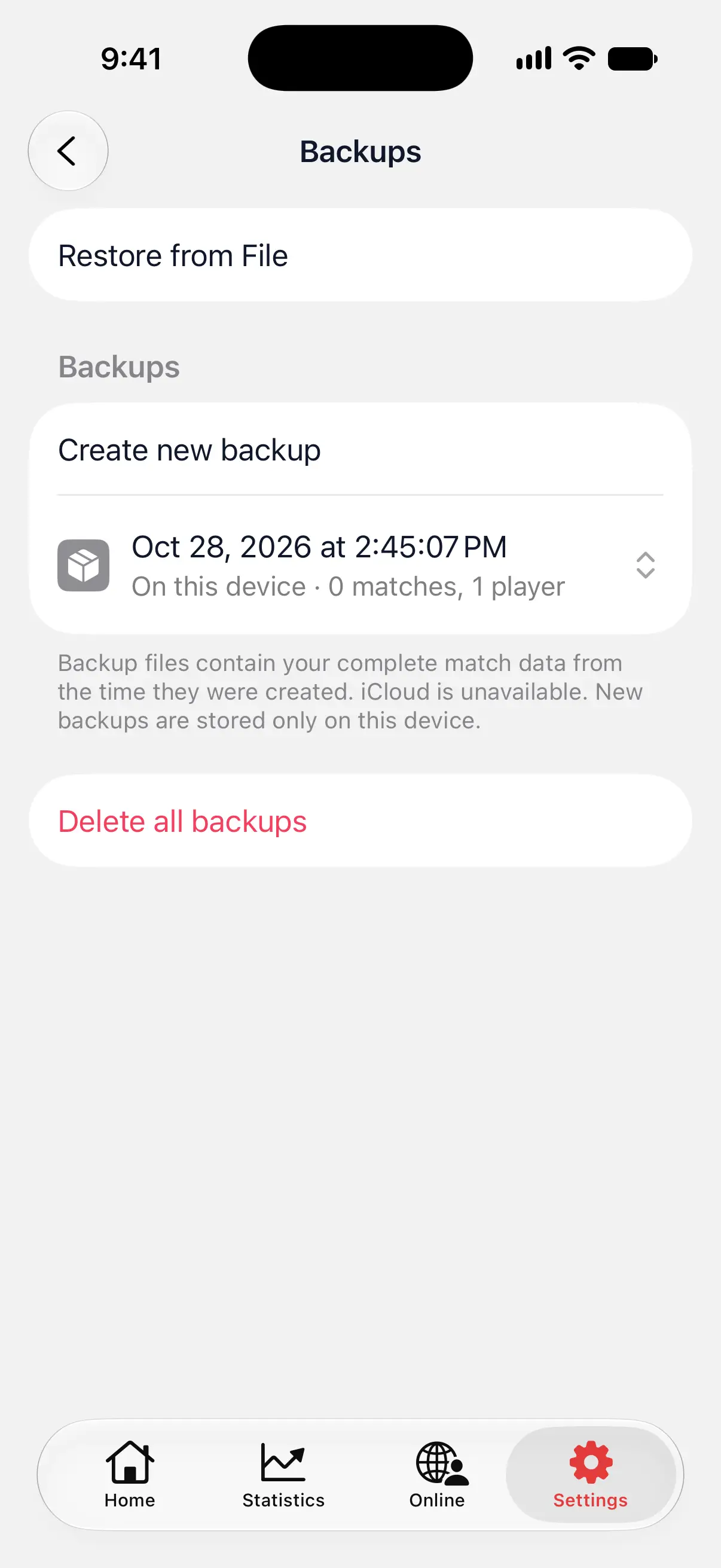
If iCloud isn’t available on the device, the screen says iCloud is unavailable. New backups are stored only on this device. Those backups stay on the iPhone and don’t help if you lose it.
When you sign in to a DartsOn account, automatic backups stop, because your account syncs instead.
Create a backup
- Open Settings → Backups.
- Tap Create new backup.
The new backup appears in the list with its date and time, where it’s stored, iCloud or On this device, and how many matches and players it holds.
Make one before you change anything big, such as restoring another backup.

Restore, share or delete a backup
Tap a backup in the list to open its menu:
- Restore from Backup replaces your current DartsOn data with the backup. Confirm with Restore.
- Share Backup opens the share sheet, so you can save the file to Files, AirDrop it or email it.
- Delete removes that backup.
Delete all backups at the bottom removes every backup in the list after you confirm.
Restore from File
Use Restore from File to restore a backup file you saved yourself, such as one shared from another iPhone or exported from Android.
- In Backups, tap Restore from File.
- Pick the file. DartsOn backup files end in .rsbkp.
- Tap Restore to confirm.
Restore when you set up DartsOn
On a new iPhone or iPad signed in to the same iCloud account, DartsOn finds your backups when you first open it. If you haven’t signed in to a DartsOn account on this device before, the welcome screen shows Load Backup below Skip for Now.
- Tap Load Backup.
- Tap the backup you want, then Restore from Backup.
- Tap Restore.
Backups on Android
Android has no automatic backups. Export a file now and then, and keep it somewhere safe, such as Google Drive.
Export a backup file
- Open Settings → Backups.
- Tap Export Data.
- Choose where to save or send the file in the share sheet.
Import a backup file
- Open Settings → Backups.
- Tap Import Data and pick a .rsbkp file exported from DartsOn.
- Tap Restore to confirm.
Importing replaces all DartsOn data on the phone with the data in the file.
Backups when you’re signed in
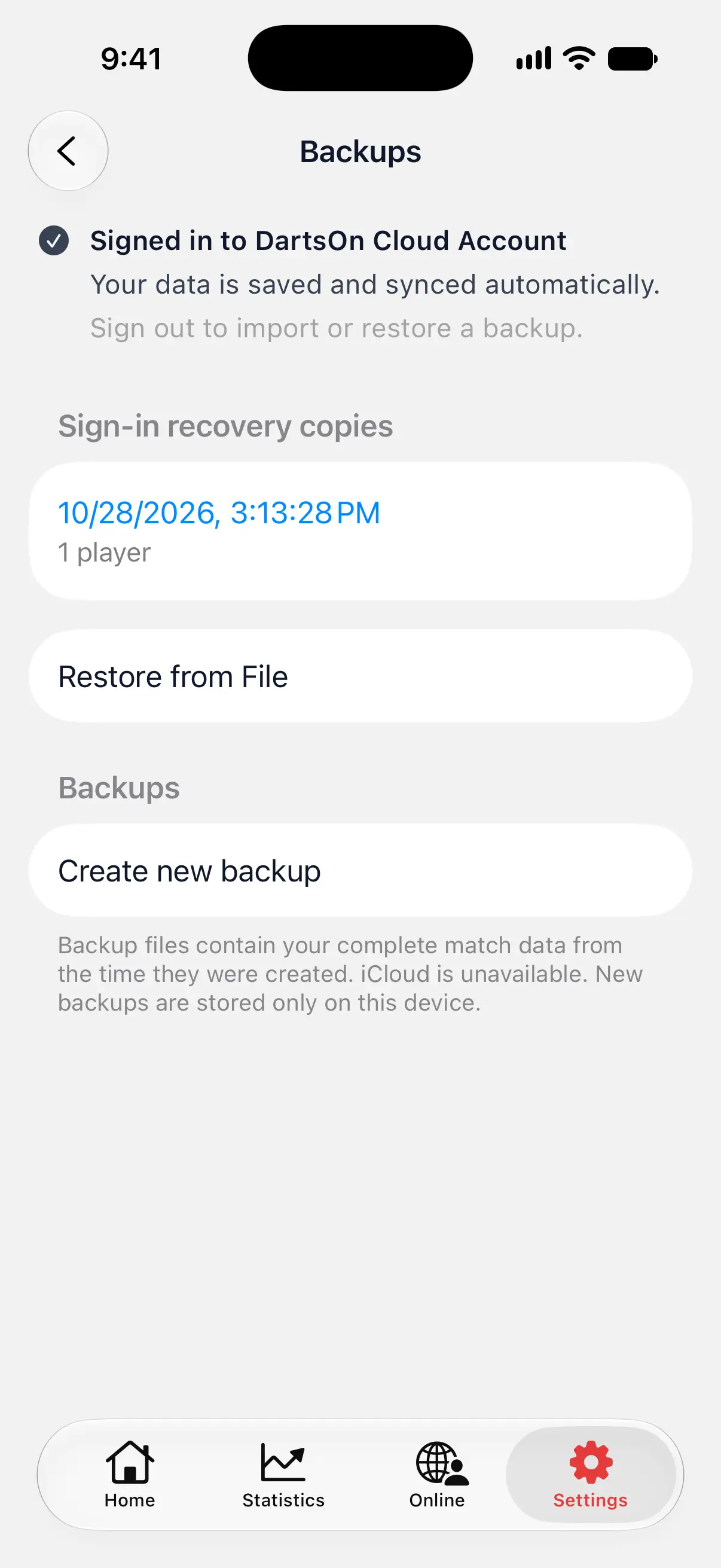
Signed in, Backups shows Signed in to DartsOn Cloud Account at the top. Your account keeps your current data in sync between devices. Make a backup anyway if you want a copy to go back to after deleting or changing games.
You can still create, share and delete backups on iPhone, and export a file on Android. Restoring and importing are off while you’re signed in.
To restore a backup into your account:
- Log out.
- Restore the backup or file.
- Sign in again. DartsOn reviews the restored data against your account and asks how to combine them, as on first sign-in.
Sign-in recovery copies
When a choice you made while signing in replaced data, DartsOn saved the replaced data as a recovery copy. That happens when you keep only one side’s data, and when Keep all data uses your account’s version of a record that differed on your phone. Recovery copies appear under Sign-in recovery copies in Backups.
Tap a copy to see what it holds. Restore device history puts it back on the device, after saving your current history as another recovery copy. It needs you to sign out first. Delete recovery copy removes it for good.
Recovery copies stay on the device until you delete them. Removing DartsOn from the device removes them too.
Questions and answers
How do I move my DartsOn games to a new phone?
The simplest way is to sign in to your DartsOn account on the new phone, and your matches sync. Without an account, restore an iCloud backup with Load Backup when you set up DartsOn on a new iPhone, or export a backup file on the old phone and open it with Restore from File or Import Data on the new one.
Does restoring a backup delete my current games?
Yes. Restoring replaces all DartsOn data on the device with the data in the backup. Create a new backup first if you might want your current games back.
Why can't I restore a backup while I'm signed in?
While you're signed in, your account keeps your data in sync, and DartsOn turns off restoring. Log out, restore the backup, then sign in again and choose how to combine it with your account.
Does a backup include Action Replays, settings or badges?
No. A backup holds your matches, players and bots. Action Replays, app settings and earned badges aren't part of it.
Related
- Sync your darts matches across devices Signed in, DartsOn syncs your matches, players, bots and badges between iPhone, iPad and Android. Check the sync status and fix sync problems.
- How to sign in to DartsOn with games already on your phone When you sign in with games on your phone, DartsOn asks how to combine them with your account. Learn what each choice keeps and what it replaces.
- Log out of DartsOn or delete your account Log out and keep or clear the games on this device, or delete your DartsOn account and its cloud data, optionally with device data and backups.