
How to add friends in DartsOn
Find friends by username or QR code, answer friend requests, see who's online or in a match, and remove a friend in DartsOn.
Friends can see when you’re online, challenge you to a match and watch your online matches. Add them by username or by QR code, then find them on the Online tab.
Friends need a DartsOn account on both sides. If you haven’t signed in yet, see create an account.
Open your friends
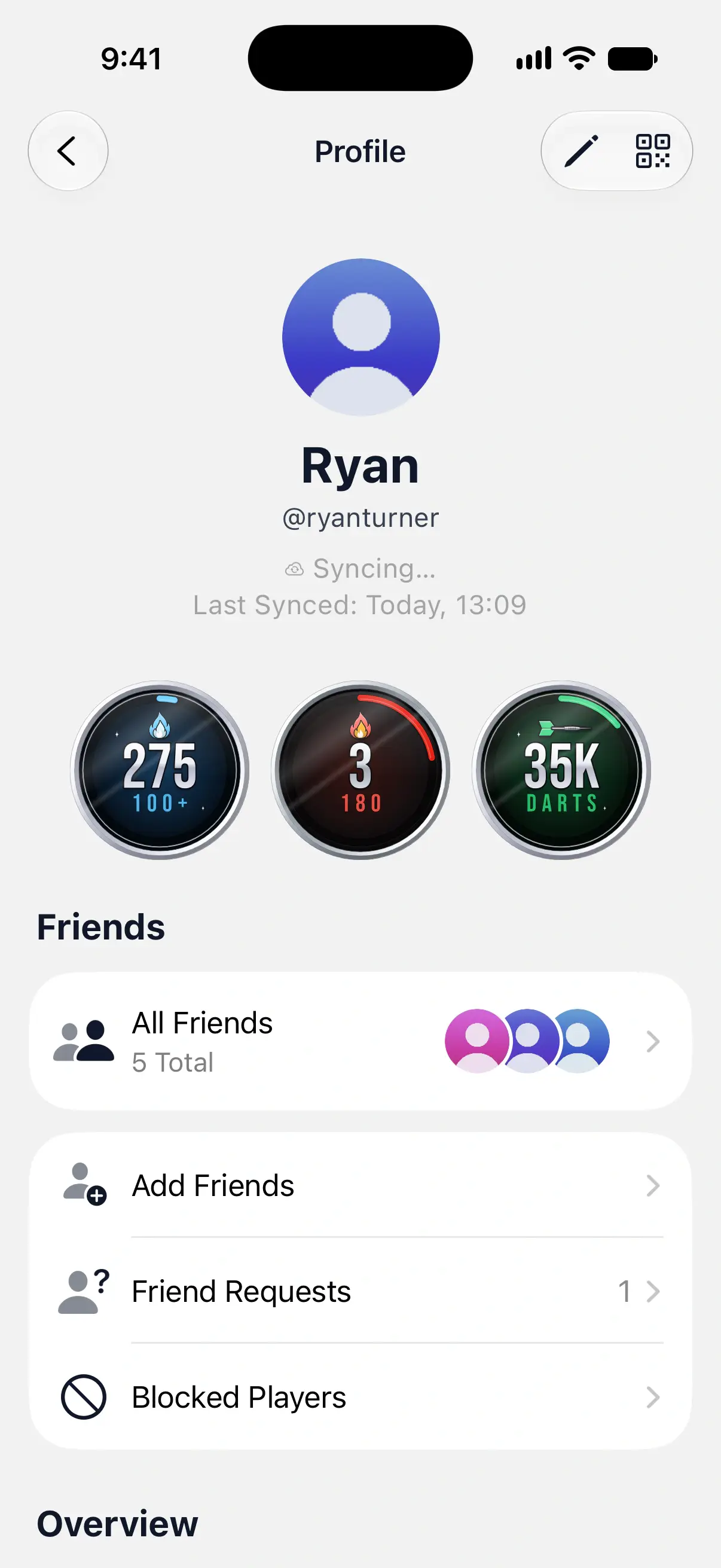
Your friends live on your profile. In Settings, tap your name at the top to open Profile. Under Friends you’ll find:
- All Friends: everyone you’re friends with, and the requests you’ve sent.
- Add Friends: search by username, or use a QR code.
- Friend Requests: requests waiting for your answer, with a count when there are any.
- Blocked Players: see report and block players.

Find a friend by username
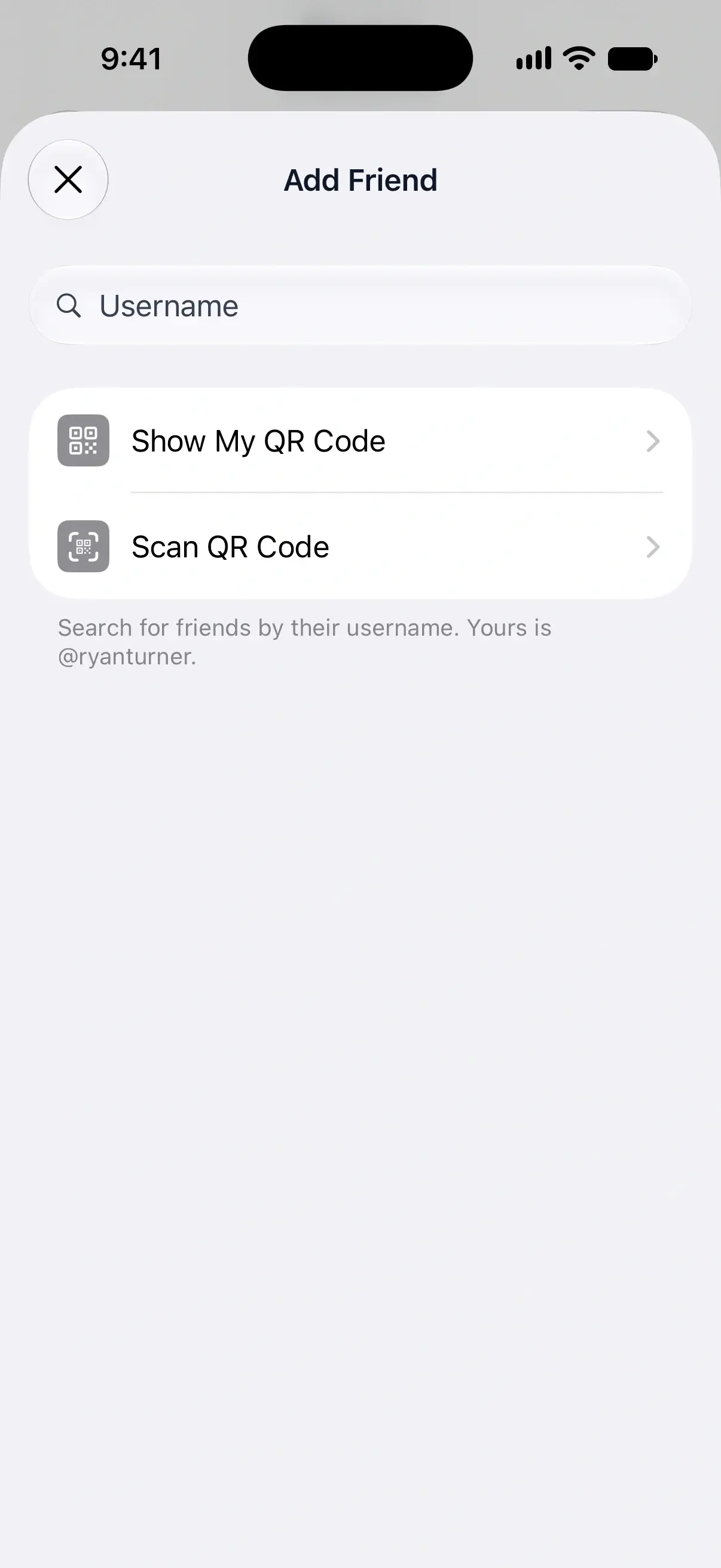
- On Profile, tap Add Friends. On the Online tab, you can also tap the add friend button at the top right.
- Type at least the first 3 characters of your friend’s username.
- Next to the right person, tap Add.
Your friend gets the request in the app, and by notification if they’ve turned notifications on. They show up under Sent Requests in All Friends until they answer.
Each search result shows where you stand with that person. Add is for someone new, Accept means they’ve already asked you, Pending means your request is waiting, and Friends means you’re friends already. Your own username appears under the search field, so you can tell friends what to type.
Search matches the start of a username, not a player’s name, and finds only accounts that have Online Play turned on. Turning off Settings → General → Enable Online Play hides you from search too.
Add each other with a QR code
A fresh QR code is the quickest way when you’re in the same room. Its first scan within 4 hours adds the friend straight away; later scans send a request.
- On Add Friend, tap Show My QR Code. The QR button at the top of Profile opens the same screen.
- Your friend opens Add Friends → Scan QR Code in their DartsOn and points the camera at your screen.
On a fresh code’s first scan, you’re friends straight away and both get a message saying so. If it has already been used or is older than 4 hours, the person showing it receives a friend request instead.
Not together? Tap Share QR Code to send your code as a link. When your friend opens it, DartsOn asks Add Ryan as a friend?, and they tap Add Friend.
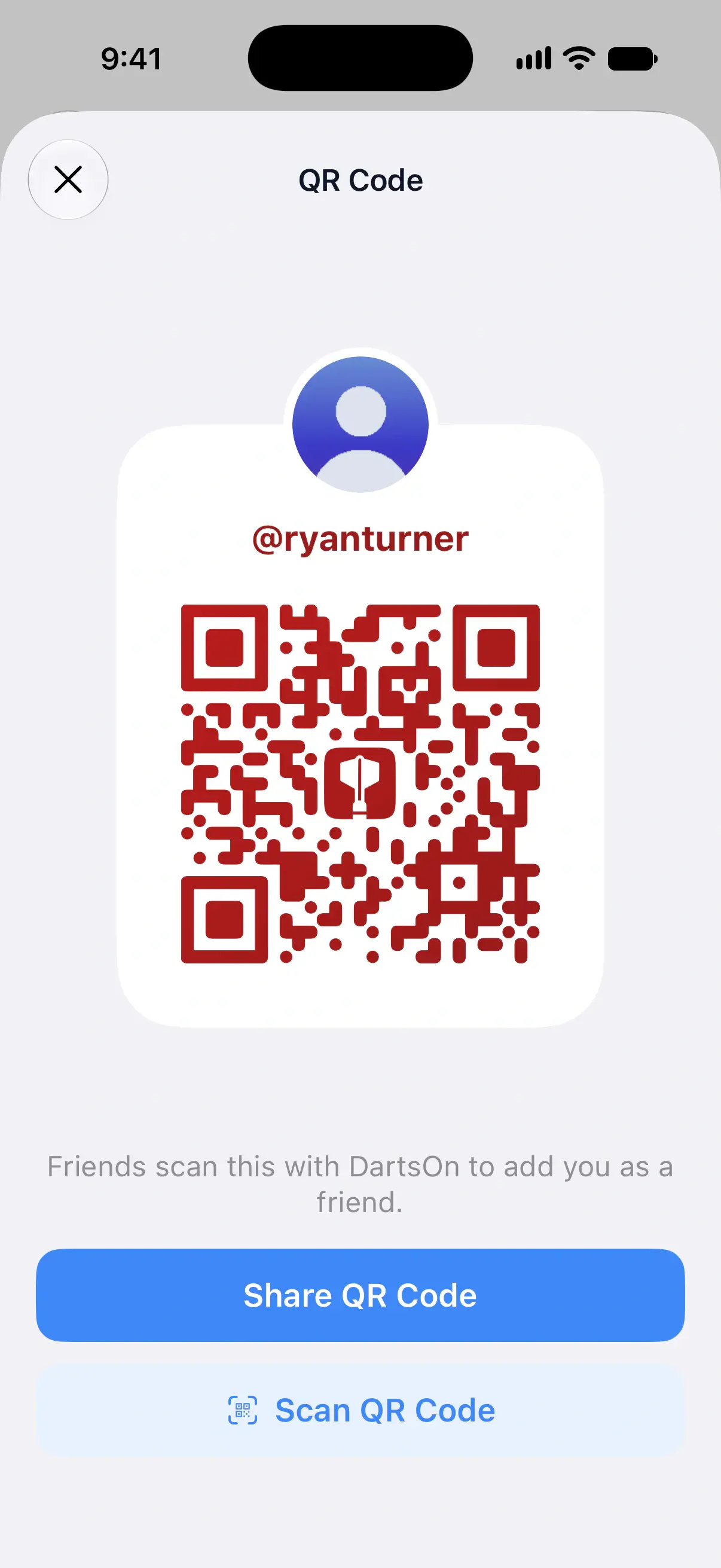
The first friend to scan a code within 4 hours is added straight away. After that, the code keeps working for a year, but each scan sends you a friend request to accept, so you can post it where others will find it. To add someone in person, open QR Code again for a fresh code.
Scan a friend’s code
On Scan QR Code, hold the camera over your friend’s code. If they sent you a screenshot of it, tap the photo button to choose it from your photo library. The flashlight button helps in a dark room. Codes are never typed in.
Answer a friend request
When someone adds you by username, you can answer from three places:
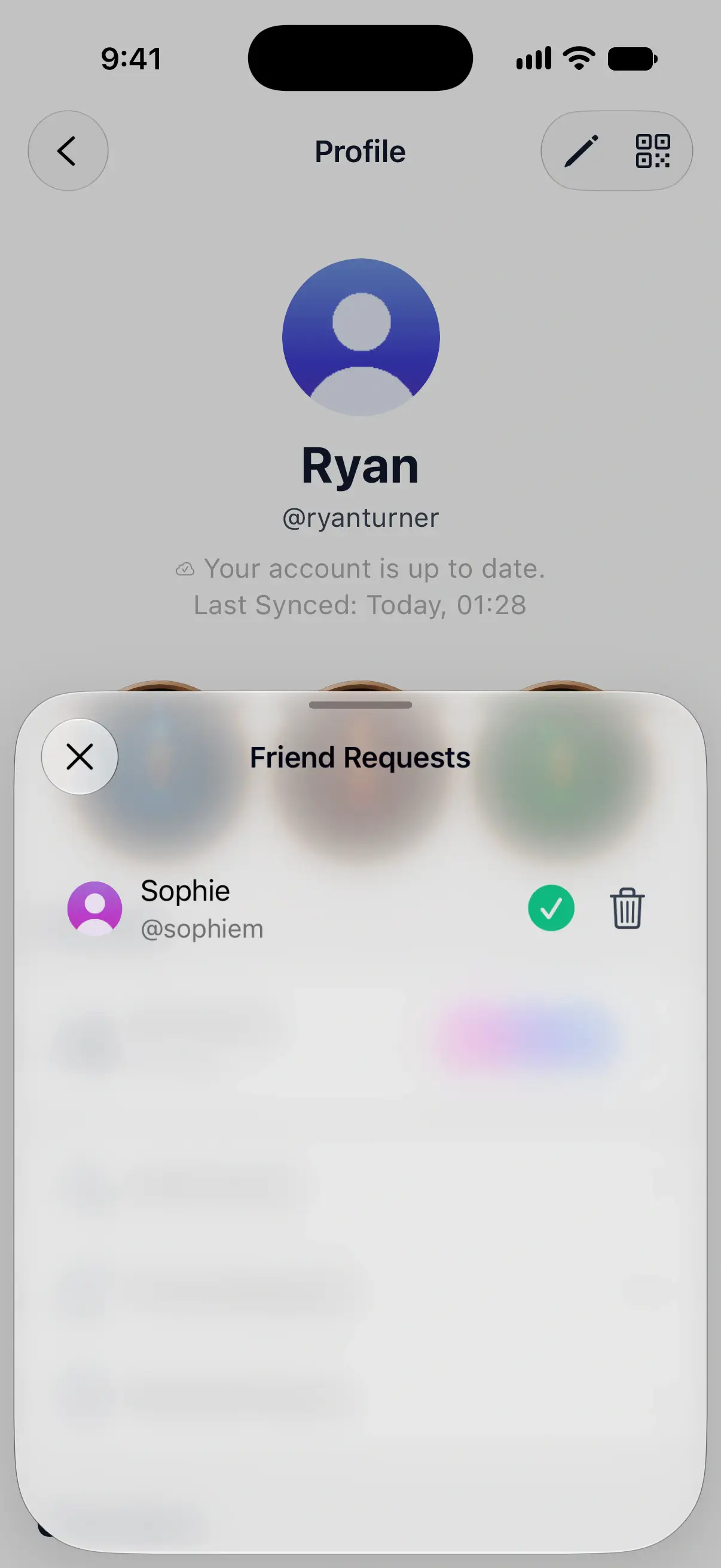
- Profile → Friend Requests.
- The bell at the top of the Online tab, which opens Notifications and shows how many requests are waiting.
- The notification itself. On iPhone and iPad, press and hold it for Confirm and Delete. On Android, tap it to open your requests.
Tap the green checkmark to accept.
Tap the trash button to decline. The request is deleted, and DartsOn doesn’t tell the other person.
You can also answer from the person’s Online Profile, which shows Accept and Decline under “Sophie sent you a friend request”.
Cancel a request you sent
- On Profile, tap All Friends.
- Under Sent Requests, tap the person.
- Tap Cancel Request.
On Add Friends, you can also tap Pending next to their name, then Cancel Request. If you have too many requests waiting for an answer, DartsOn won’t send more until you withdraw some or people reply.
See who’s online
The Online tab keeps your friends in one list, with players in matches first, then online friends, then the rest. Cards above the list show friends’ matches and lobbies:
- Watch follows a friend’s online match live. See watch online matches.
- Join enters a friend’s open lobby.
- Challenge invites an available friend to play. A green dot means they’re online. Offline friends can receive a challenge as a notification if they allow challenges while away. See challenge a friend.
A friend’s row can show when they were last online, if they’ve chosen to share that. Do Not Disturb and Invisible stop challenges. See pause challenges.
Tap any friend to open their Online Profile, with their stats and your matches against each other. All Friends on your profile lists the same people, with the same green and red dots on their photos.
Remove a friend
- Open your friend’s Online Profile, from the Online tab or All Friends.
- Tap Friends under their name, then Remove Friend. The … menu at the top right has Remove Friend too.
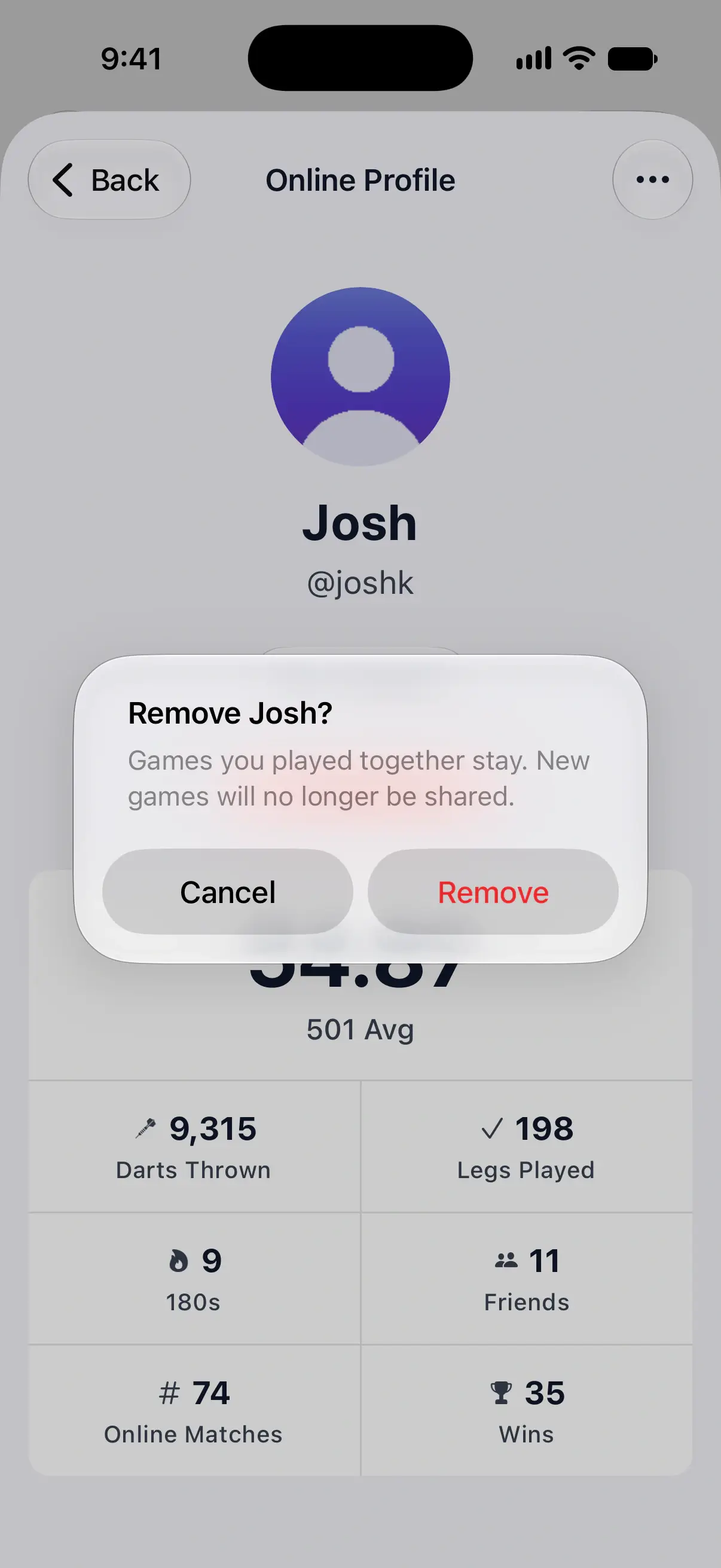
- Tap Remove to confirm.
Games you played together stay in both your histories. New games are no longer shared with them, and a player you linked to their account becomes an ordinary player on your phone.
Questions and answers
Why can't I find my friend by their username?
Type at least the first 3 characters of their username, not their name. Search only finds accounts with Online Play turned on, so ask your friend to check Settings → General → Enable Online Play, or add each other with a QR code instead.
Does my friend need to accept when I scan their QR code?
Not if you're the first to scan it within 4 hours of it appearing on their screen. Then you're friends straight away. A code that's older, or that someone else has used, sends them a friend request instead, and they accept it like one sent by username.
Does DartsOn tell someone when I decline or remove them?
No. A declined request disappears from their sent requests, and a removed friend drops off their list, but DartsOn doesn't send them a message.
What happens to our games when I remove a friend?
Games you played together stay in both your histories. New games are no longer shared, and any player you linked to that friend becomes an ordinary player on your phone.
Related
- How to challenge a friend to a darts match Send a friend a challenge to an online darts match, accept or decline the ones you get, and choose how challenges reach you in DartsOn.
- How to share darts games with a friend by linking a player Link a player on your phone to a friend's DartsOn account, so the games you play together reach their history and stats.
- Watch your friends' online darts matches live Follow a friend's online darts match dart by dart in DartsOn, watch public matches from the Global Lobby and see who else is watching.
- Play darts online | DartsOn Online Play darts online with live scores, camera auto-scoring, live video and audio. Challenge anyone to 501, Cricket, Killer and more on your own dartboards.