
Review a finished darts game in DartsOn
Find past games on Home, read their summaries leg by leg, continue an unfinished game and share any local game or online match as a PDF, text or CSV.
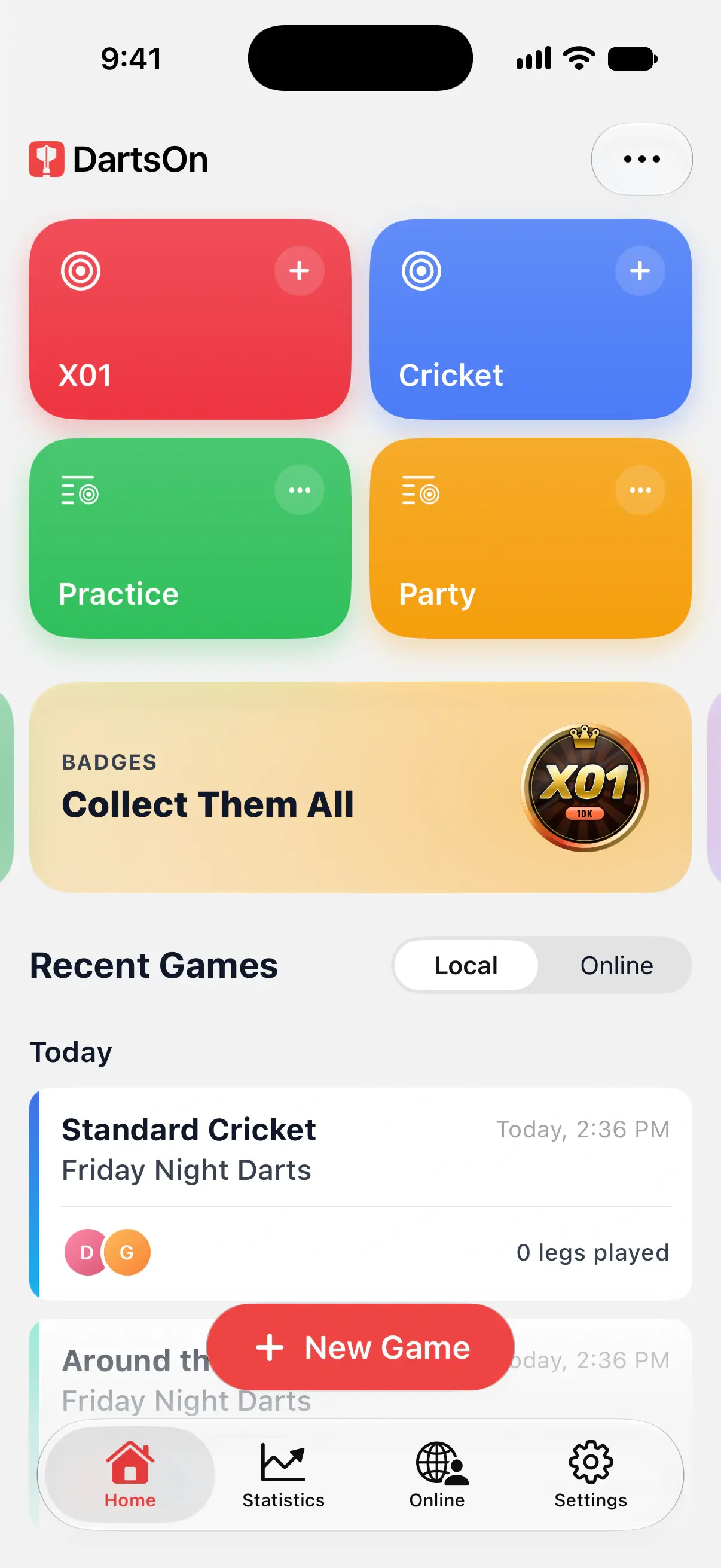
Every finished game keeps its summary. Open Home → Recent Games and pick Local or Online to find it. You can see who won, each player’s stats, the badges you earned and where everyone’s darts landed. In X01, Turn by Turn also shows each visit.
Find a finished game
- Tap Home.
- Under Recent Games, choose Local or Online, then scroll to the game. Local games are grouped by date, such as Today and This Week.
- Tap the game.
A finished local game has a green double check mark next to its date and opens on its summary. A recent game you haven’t finished opens where you left off. After 12 hours without activity, it is marked Unfinished and opens on its summary too. Use ••• → Continue Game to resume it.
Each card shows the game mode, the game’s name, the players and the legs played. A solo X01 game also shows your average, and a solo Cricket game your MPR.
To duplicate or delete a game, see manage games.

Read the summary
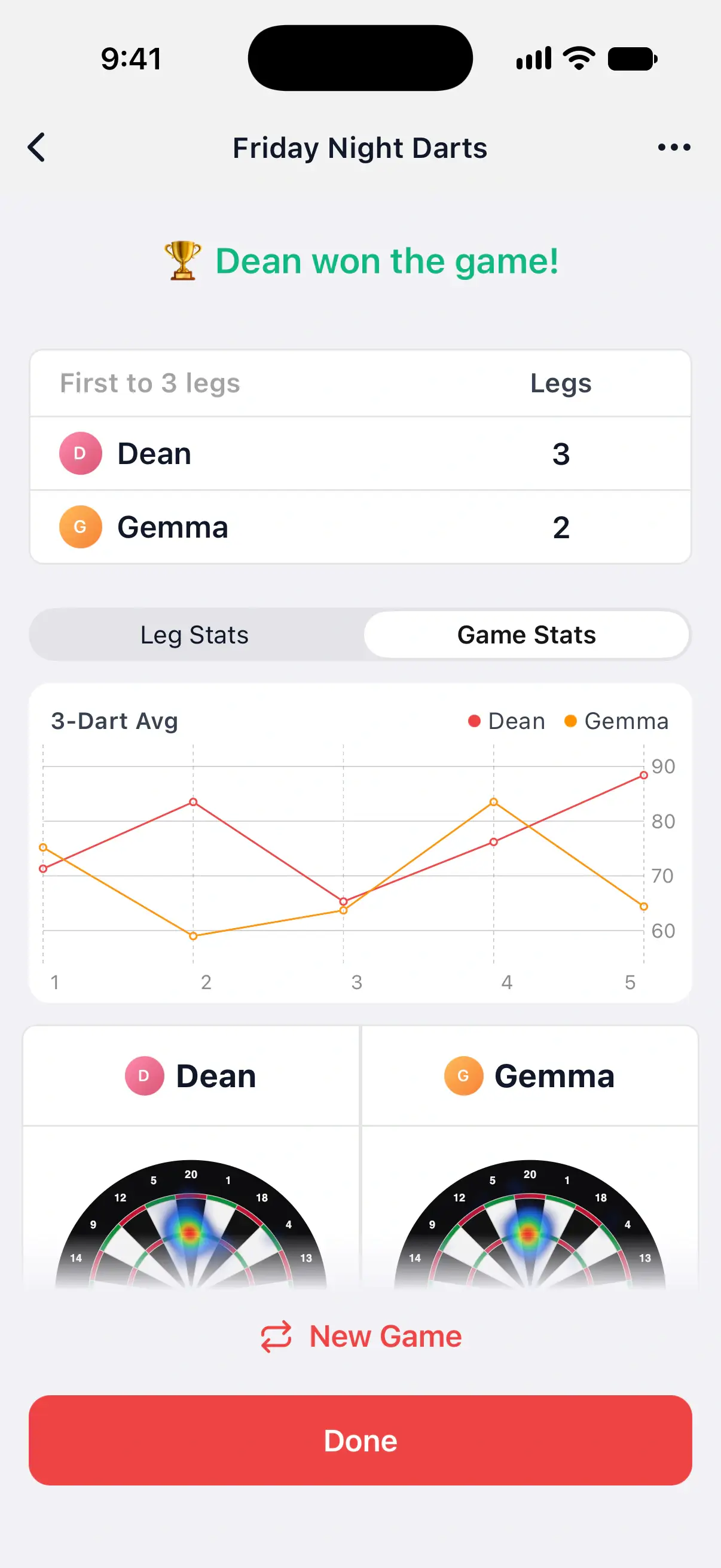
The top of the summary names the winner, with the legs and sets each player won.
Below that, a card for each player holds their stats for the game mode, such as Average, First 9 Avg and Checkout % in X01, or MPR in Cricket. When a player has darts with a position on the board, a heat map sits at the top of their card. Tap it to open it full screen. See heat maps.
When a local game unlocks badges for you, Badges earned near the top of its summary lists them. See badges.
At the bottom, New Game starts another game with the same players and settings.
For what each X01 number means, see X01 stats explained.
Look at one leg or the whole X01 game
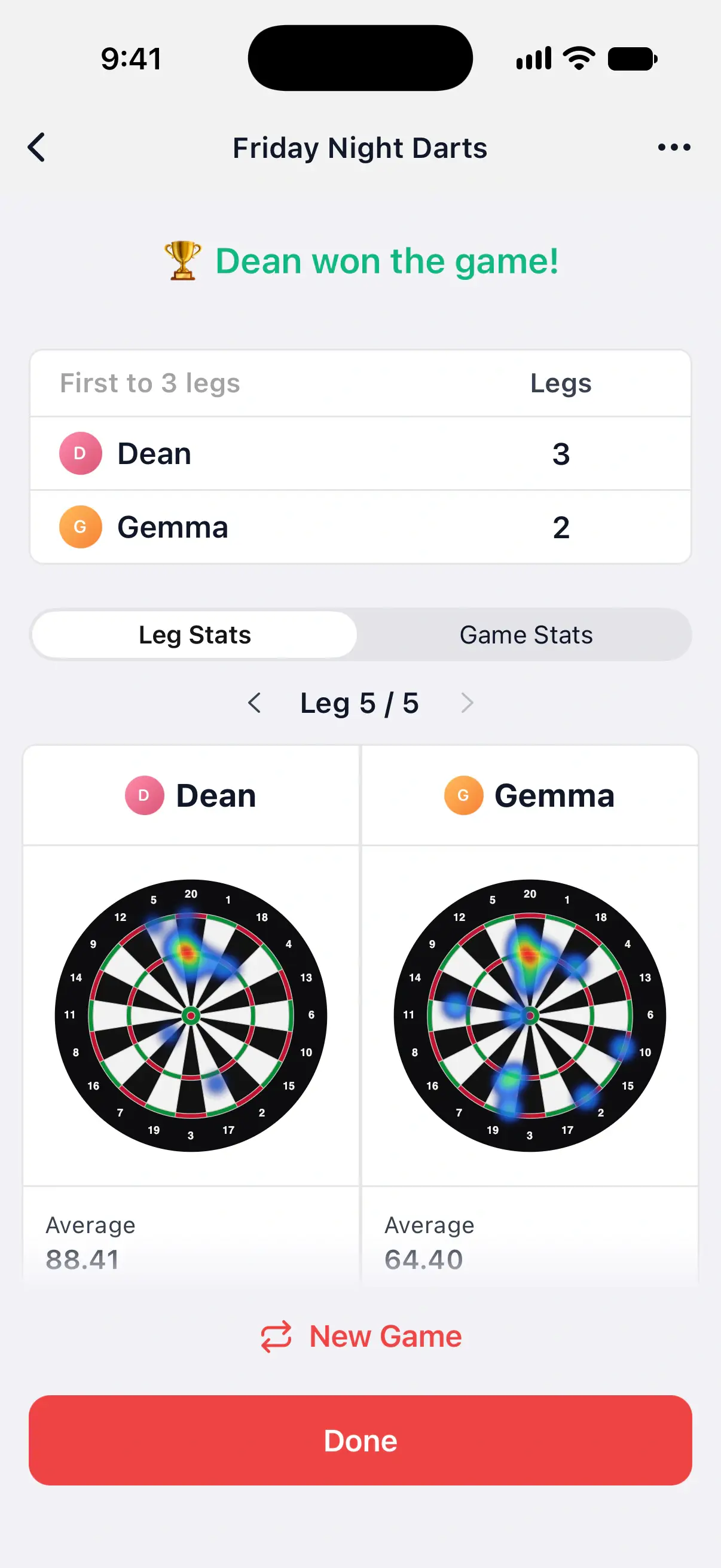
An X01 summary has 2 tabs:
- Leg Stats shows one leg. Use the arrows beside Leg 5 / 5 to step back to earlier legs. A leg that ended before anyone won it is marked Unfinished.
- Game Stats adds up every leg. With more than one leg, it starts with a 3-Dart Avg chart showing each player’s average leg by leg.
Use the chart to spot where a game turned, such as the leg where your average dropped.
The heat maps follow the tab. On Leg Stats they show the leg you’re looking at, and on Game Stats the whole game.
Summaries in other modes
Games of more than one leg let you step back through each leg in Cricket, Half It, Shanghai, Around the Clock, Round the World, Count Up, Singles Training and Doubles Training. Use the arrows beside the leg number to review earlier legs.
Half It and Shanghai include Best Leg, your highest-scoring leg, in their stats.
The tabs depend on the mode and the players:
- Cricket has Current Leg and Game, plus Current Set in a game with sets.
- Most other games with 2 or more players have Leg Stats and Game Stats.
- A solo game of Count Up, Bob’s 27 or JDC Challenge has Stats and Rounds, with your score round by round.
- A solo game of Singles Training or Doubles Training has Stats and Detailed.
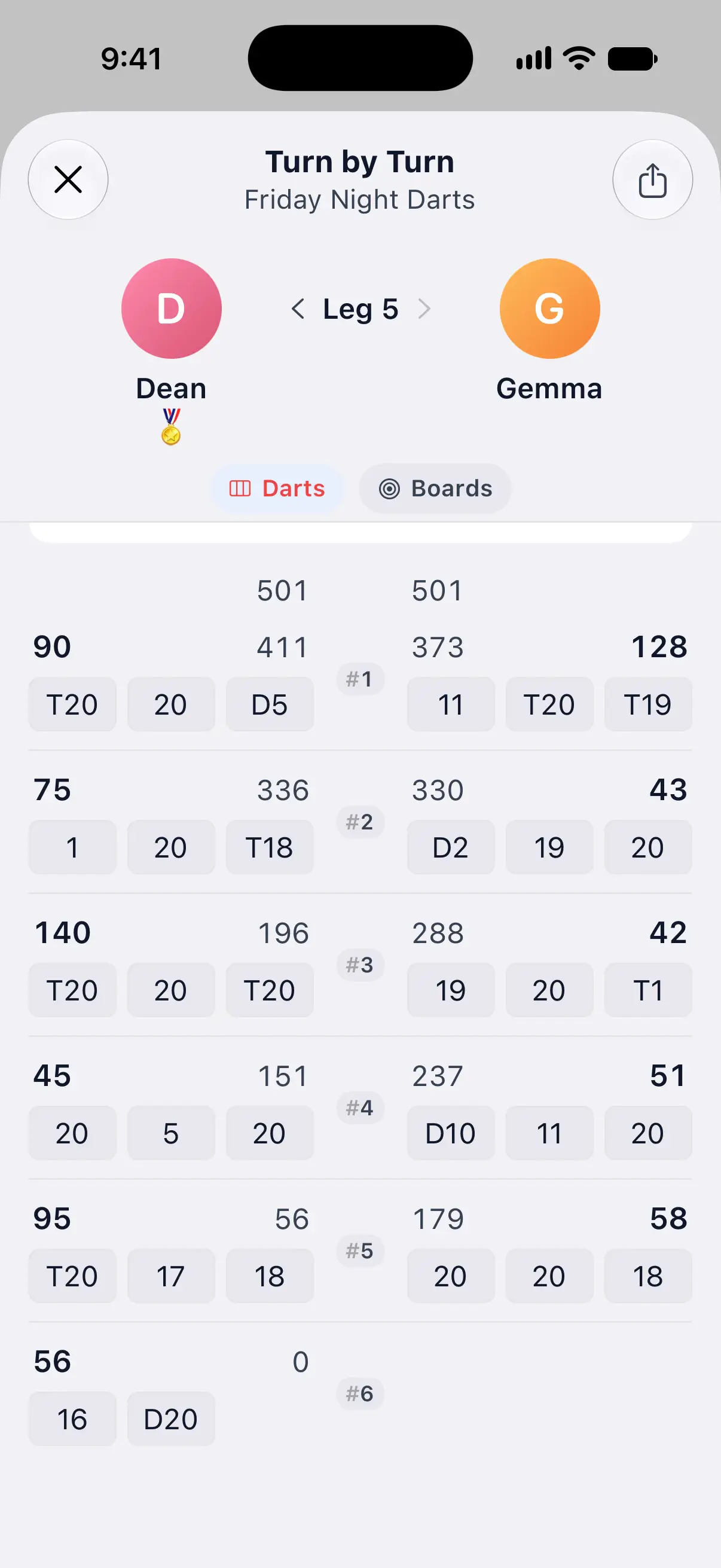
Go through an X01 game turn by turn
- On an X01 summary, scroll down and tap Turn by Turn.
- The newest leg opens first. Use the arrows to move to an earlier leg.
You can also open it during a game. Tap the menu button at the top right, then Game Info → Turn by Turn.
Each leg starts with every player’s average, first 9 avg and checkout for that leg. Below that, every turn is listed in the order it was thrown, with its Darts, Score and what was Left.
2 switches at the top change what each turn shows:
- Darts shows each dart of the turn, such as T20, 20, D16. It’s on until you turn it off.
- Boards adds a small dartboard to each turn with its darts where they landed. It appears only when the game has darts with a position, from camera auto-scoring or the dartboard.
Online X01 matches have Turn by Turn too, from their summary in your online Match History.
Share a match as a PDF, text or CSV
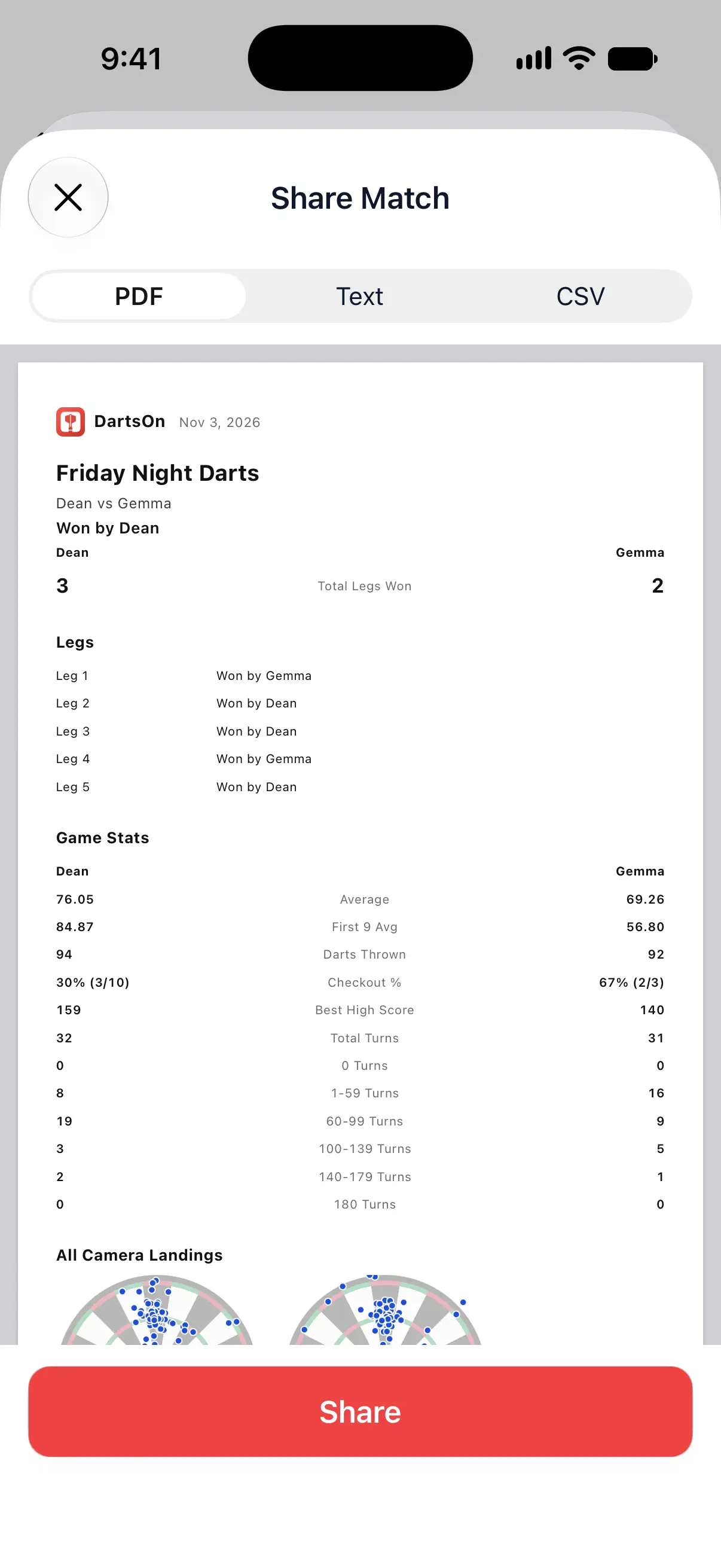
You can share any local game mode or online match in 3 formats. The report follows the game, so Cricket shows marks and X01 shows the score left:
| Format | What you get | Good for |
|---|---|---|
| The result, stats and recorded darts, laid out as pages | Sending a match report or printing it | |
| Text | Turns as readable lines, with the darts and the score or marks for that mode | Pasting into a chat |
| CSV | Recorded turns and darts in rows, with the mode’s scores or marks | Opening in a spreadsheet |
- Open a local game’s summary from Home, then choose ••• → Share Game.
- In X01, you can also open Turn by Turn and tap its share button.
- On Share Match, pick PDF, Text or CSV. The preview shows what you’ll send.
- Tap Share and choose where to send it.
For an online match, tap the Online tab, then the history button at the top left. Open the match and tap the share button at the top right of its summary. See online stats and profiles.
Questions and answers
Where do I find an old game in DartsOn?
On the Home tab. Your games are listed by date, and a finished game has a green double check mark next to its date. Tap it to open its summary.
Can I export a Cricket game as a PDF or CSV?
Yes. Every local game mode and online match can be shared as a PDF, text or CSV. Open a local game's summary, choose Share Game from its top-right menu, then pick the format in Share Match.
Can I see Turn by Turn while a game is still going?
Yes, in X01. Open the game menu, tap Game Info, then Turn by Turn. It shows every turn so far.
Why does a player have no heat map on the summary?
The heat map only shows darts with a position on the board, from camera auto-scoring or from tapping the dartboard. A player who typed every dart on the keypad gets a faint board with a keyboard icon instead.
Related
- Continue, duplicate or delete your darts games Find your games on the DartsOn Home tab, continue an unfinished game, duplicate or delete one, rename it in Game Info or start a rematch from the summary.
- X01 darts stats explained, from 3-dart avg to checkout % What each X01 number in DartsOn means and how it's counted, from 3-dart avg and first 9 avg to checkout %, high scores, records and Cricket MPR.
- Read your darts heat map and target accuracy See where your darts land on a DartsOn heat map, switch between Heat map and Landings, inspect an area, and check your hit rate on each target.
- Earn, track and share DartsOn badges How you earn DartsOn badges, what each category rewards, where to see locked badges and your progress, and how to share a badge as an image.