
How to connect DartsOn to a TV or monitor with a USB-C cable
Show your DartsOn match on a TV or monitor with a USB-C display cable or HDMI adapter. See which phones work and what the screen shows.
A cable connects your phone or tablet straight to a TV or monitor, with no Wi-Fi pairing. It suits a monitor mounted next to the board, or a room where the Wi-Fi is unreliable.
What you need
- A phone or tablet that sends video over USB-C:
- An iPhone or iPad with a USB-C port that supports video output. Most do, but a few iPhone models don’t, so check your model’s technical specifications.
- An Android phone or tablet with video output over USB-C, often called DisplayPort Alt Mode. Many have it and many don’t, so check your model’s specifications.
- A cable or adapter that carries video. Use a USB-C display cable for a monitor with a USB-C input, or a USB-C to HDMI adapter or cable for a TV. A charging-only cable won’t work.
An iPhone with a Lightning port can connect with Apple’s Lightning Digital AV Adapter, and DartsOn treats it like any other cable-connected screen.
Connect an iPhone or iPad
- Connect your iPhone or iPad to the TV or monitor with the cable or adapter, and switch the TV to that input.
- In a game, tap the menu button at the top right and tap External Screen.
- Choose the USB-C tab.
- Choose TV Layout for a full-screen scoreboard, or iPhone Mirror to show a copy of your screen. On iPad, it’s iPad Mirror.
With TV Layout, your phone shows Scoreboard is showing on your TV, and you keep scoring on your phone’s own screen. On iOS 26 and earlier, a screen that was connected before you chose TV Layout keeps mirroring. Unplug the cable and plug it back in.
TV Layout and iPhone Mirror work the same way as on AirPlay, and the two tabs share your choice. Compare TV Layout and iPhone Mirror.
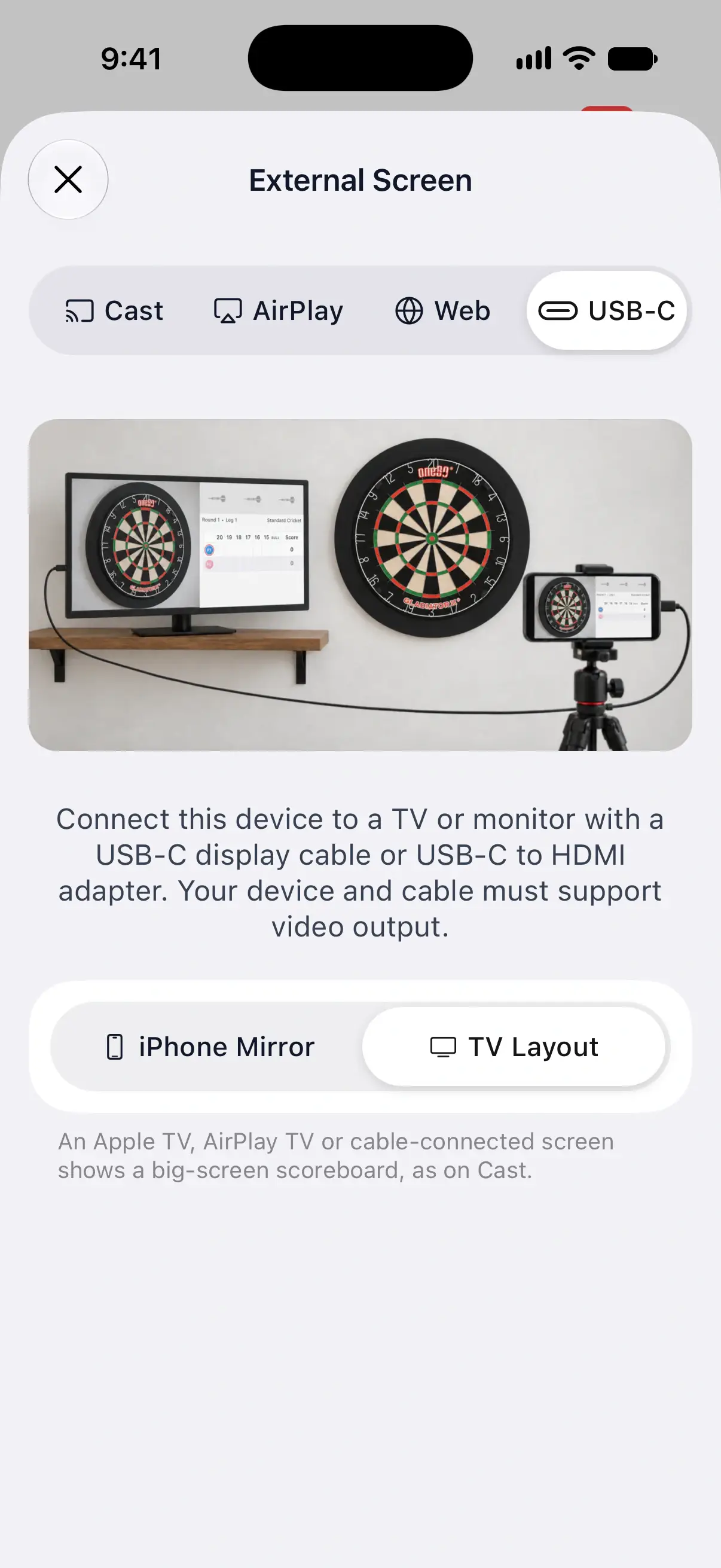

Connect an Android phone or tablet
On Android, the USB-C tab explains the connection but has no TV Layout choice. The connected screen shows what your phone sends over the cable, such as a copy of your screen.
For a scoreboard laid out for the TV, use Cast, or open the live link in the TV’s browser.
Network and cost
The picture travels over the cable, so it doesn’t need Wi-Fi. On iPhone and iPad, TV Layout loads its scoreboard over the internet. Without a connection, the screen shows “Connect this device to the internet to show the scoreboard on your TV.” iPhone Mirror works offline.
A cable connection is free, with no match limit.
Questions and answers
Which iPhones can connect to a TV with a USB-C cable?
Most iPhones with a USB-C port send video over the cable, but a few models don't. Check your model's technical specifications for video output over USB-C, sometimes listed as DisplayPort. Without it, use AirPlay instead.
Why does my TV stay blank when I plug in my phone?
The phone, cable or adapter may not carry video. Charging-only cables don't, and some phones have no video output over USB-C. Also check that the TV is set to the right HDMI input.
Do I need Wi-Fi to use a cable?
No. The picture goes over the cable. On iPhone and iPad, TV Layout loads its scoreboard over the internet, so the phone needs a connection for it, while iPhone Mirror works offline.
Related
- How to show your darts scoreboard on a TV Put your DartsOn match on a TV, monitor or browser with Google Cast, AirPlay, a live link or a USB-C cable, and pick the way that suits your setup.
- How to show the DartsOn scoreboard on an Apple TV with AirPlay Use TV Layout to put a full darts scoreboard on your Apple TV or AirPlay TV, or mirror your iPhone or iPad. Free with no match limit.
- External Screen Streaming for Darts | DartsOn Show your darts match on a big screen with Google Cast, Apple AirPlay, a Web Link, or USB-C.