
How to add an extra camera for multi-camera auto-scoring
Connect a second phone or tablet over Bluetooth so DartsOn sees the board from another angle and scores darts the main camera can't see.
A single camera can miss a dart whose tip is hidden behind another dart, and only scores it once you pull out the dart in front. An extra camera looks at the board from a different angle, so it can often see that dart straight away. The multi-camera setup guide in the app puts auto-scoring accuracy above 97% with one camera and above 99% with two or more.
The phone running the game is the main device, and any other phone or tablet you connect is an extra camera.
What you need
- A second iPhone, iPad or Android phone or tablet with a camera, and a stand for it. Mix devices any way you like.
- Android 12 or newer on any Android device.
- Bluetooth on for both devices, and allowed for DartsOn. The devices connect to each other over Bluetooth.
- The same version of DartsOn on both. If they differ, DartsOn shows App versions don’t match and tells you which phone to update.
The extra camera runs its own scoring model. If the model isn’t on it yet, it downloads it first.
Extra cameras don’t use up free Auto-Scoring games. Only the main device counts.
Set a device as an extra camera
On the device you want to use as the extra camera:
- On the Home tab, tap ••• at the top right.
- Under Auto-Scoring, tap Set this device as extra auto-scoring camera.
- Allow Bluetooth and the camera if DartsOn asks.
On iPhone and iPad you can also touch and hold the DartsOn app icon and tap Set as Extra Camera.
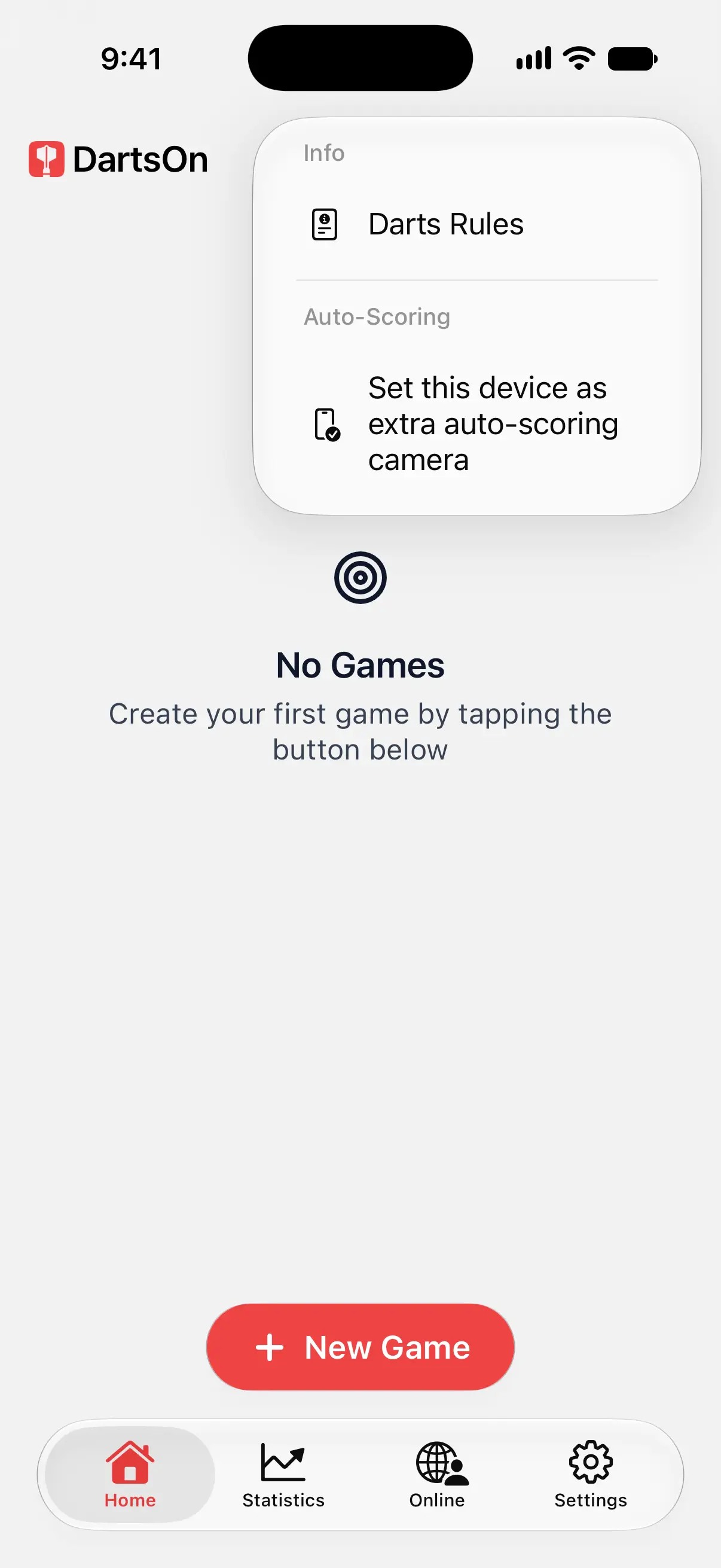

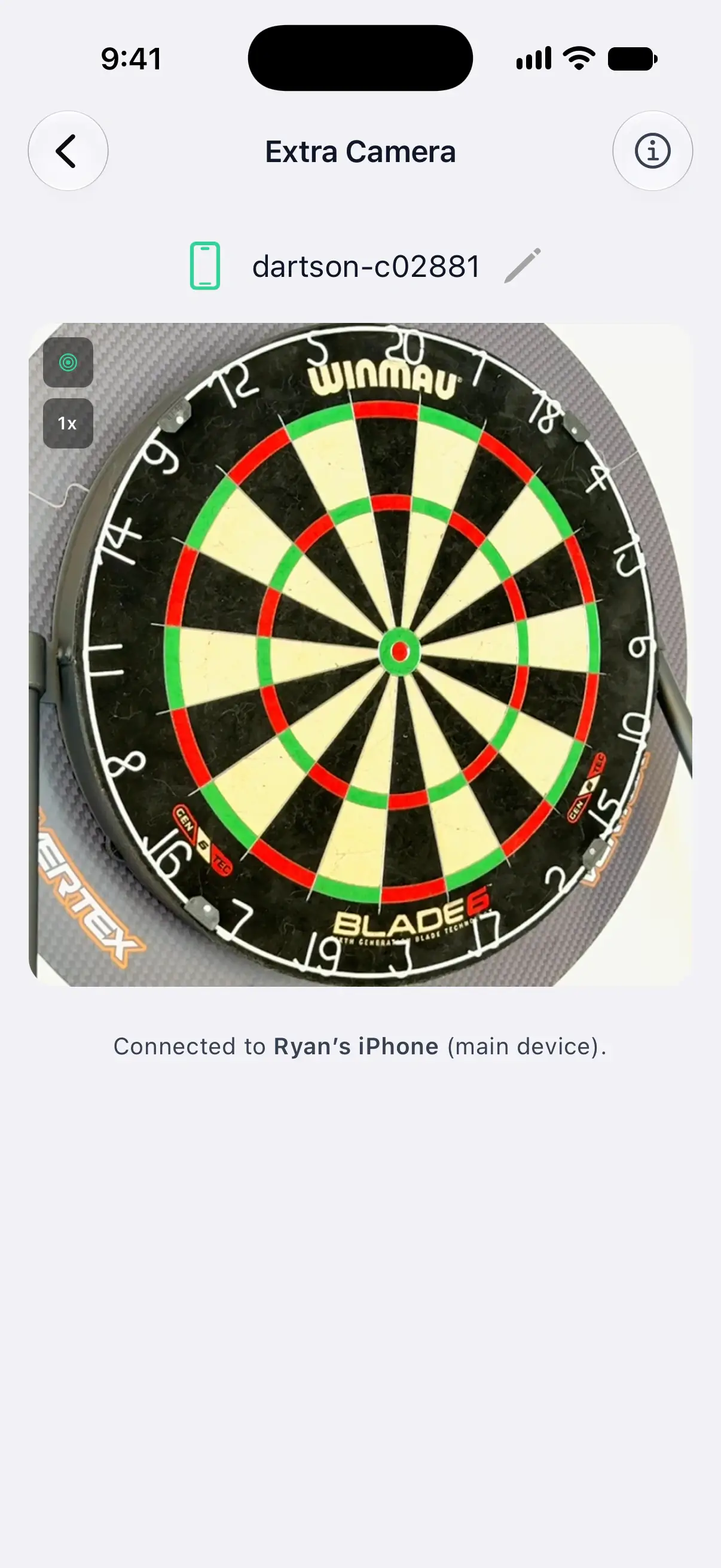
The Extra Camera screen opens and shows Ready to connect… once Bluetooth is on. Keep DartsOn open on this screen. The extra camera only works while the screen is in front.
The screen shows the device’s name, which the main device sees when it looks for cameras. Tap the name to give the device one you’ll recognize, such as “Kitchen iPad”.
Once the main device connects, the line under the camera view names it, such as Connected to Ryan’s iPhone (main device).
Add it on the main device
On the phone you play the game on:
- Open the Multi-Camera screen in one of two ways:
- In a game with Auto-Scoring on, tap the camera button with a plus at the top right of the camera view.
- Go to Settings → Auto-Scoring Settings → Add Extra Camera.
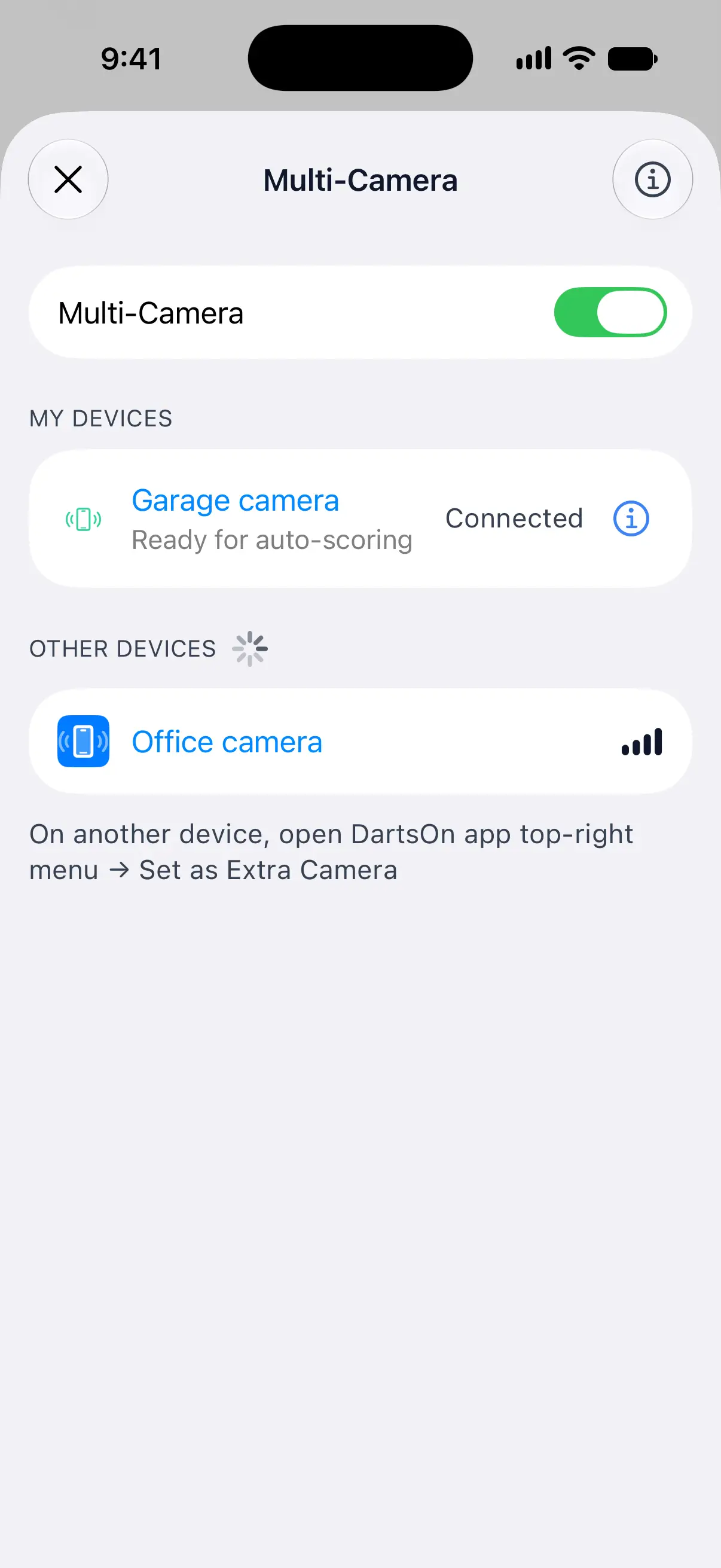
- Make sure the Multi-Camera switch is on, and allow Bluetooth if DartsOn asks.
- Tap the extra camera under Other Devices.
Once it’s connected, the camera moves to My Devices. You only do this once. A saved camera reconnects by itself whenever it shows the Extra Camera screen and DartsOn is open on the main device.
While the Multi-Camera screen is open over a game, scoring pauses. Close it to carry on.
Place the cameras
- Point both cameras at the center of the board.
- Put the extra camera at a clearly different angle from the main camera, such as the other side of the board.
- Each camera needs the whole board in view and finds the board on its own, so the placement advice for one camera applies to both. Place your phone.
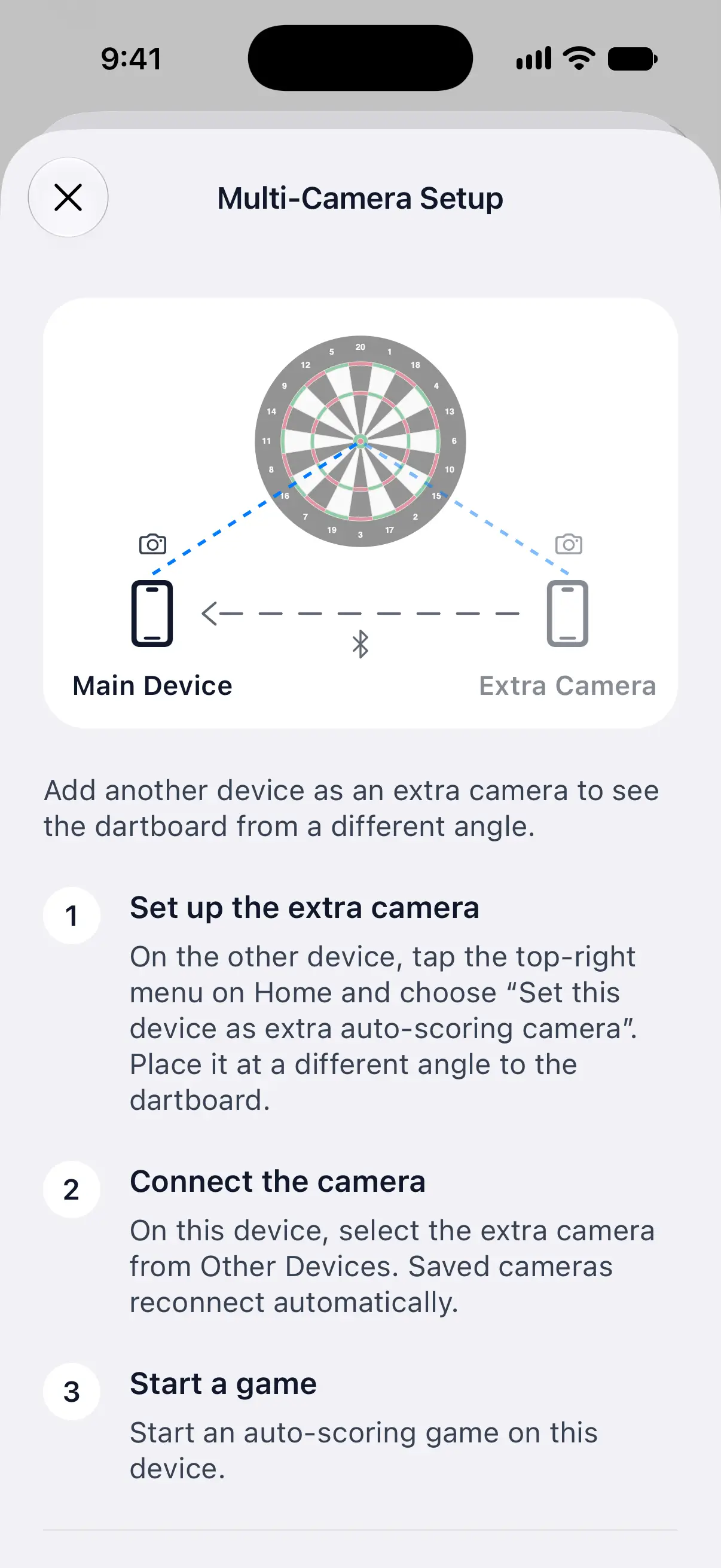
The info button on the Extra Camera and Multi-Camera screens opens Multi-Camera Setup, a short guide with a diagram of the two cameras.
Use the main device as a scoreboard only
You can leave a tablet or phone where you read and correct scores, while an extra camera at the board scores every dart:
- Connect and save an extra camera on the main device.
- In the camera list, turn off Use This iPhone’s Camera, Use This iPad’s Camera, Use This Phone’s Camera or Use This Tablet’s Camera. The wording follows your device.
- Keep the other device on its Extra Camera screen, pointing at the board, then turn on Auto-Scoring in your game.
Only one connected extra camera scores in this setup. The main device doesn’t need to point at the board. If the scoring camera disconnects, the main device waits for it to reconnect or for another saved camera to connect.
Action Replays and camera-frame reports aren’t available on the scoreboard-only device. Turn its camera back on to use those features there.
Check the cameras during a game
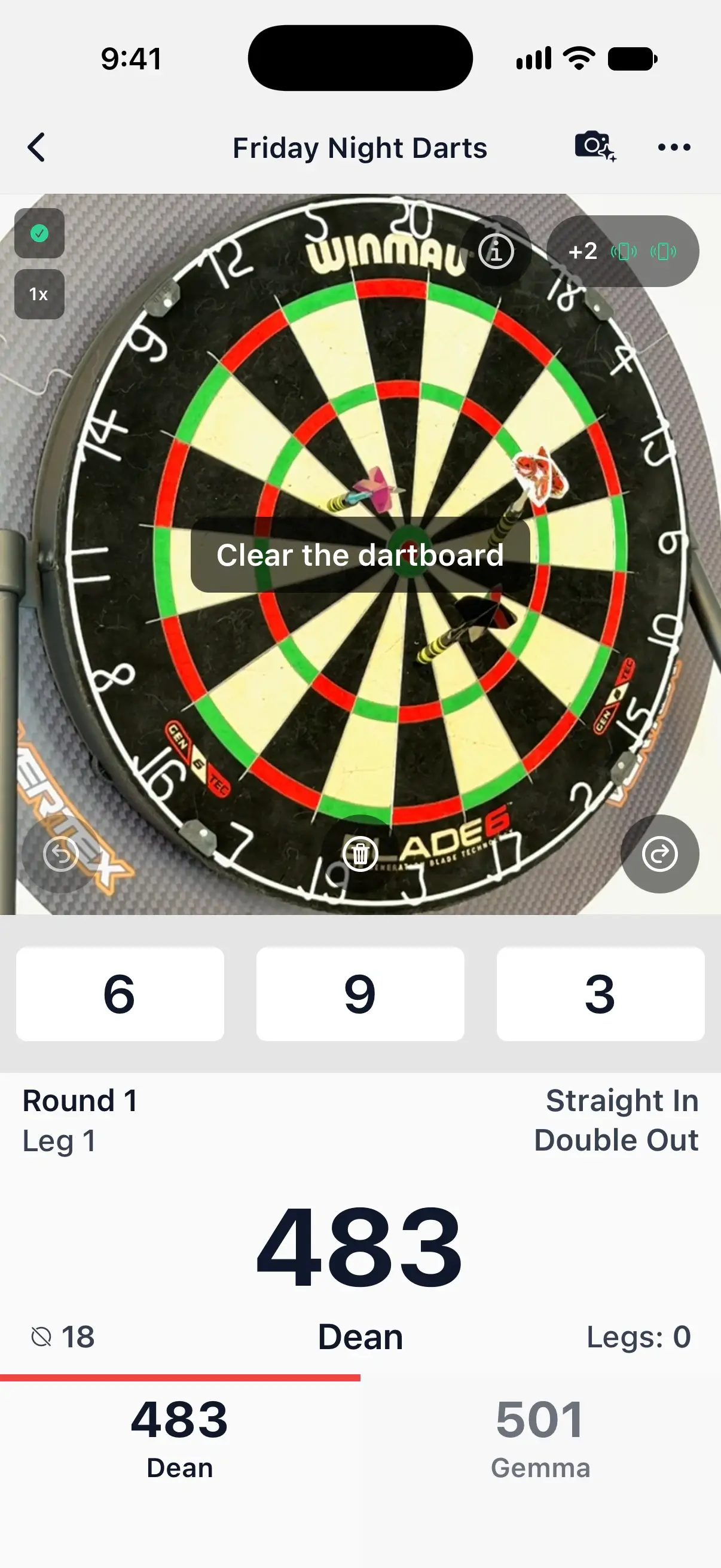
At the top right of the camera view, a chip shows how many extra cameras are connected, such as +1, with an icon for each. A green icon means that camera is ready. Yellow means it isn’t ready yet, for example because it hasn’t found the board. Tap the chip to open the Multi-Camera screen.
DartsOn also plays a sound and shows a message when an extra camera connects or disconnects, and tells you when one stops responding.
When the cameras disagree
Most of the time the cameras agree and you won’t notice anything. Two prompts can appear when they don’t:
- Review throws. The cameras can’t agree on the order the darts landed in, and the order matters, such as for a checkout or a bust. Pick the order you threw them.
- Confirm board cleared. The main camera sees an empty board, but a dart only the extra camera saw hasn’t been seen coming out. Pull out every dart, then tap Confirm board cleared to start the next turn.
Disconnect or forget a camera
- To stop using extra cameras for a while, turn off the Multi-Camera switch. Your saved cameras stay saved.
- To remove one, tap its info button under My Devices and tap Forget This Device. To use it again, pick it from Other Devices.
If a camera keeps dropping out, see Fix auto-scoring problems.
Questions and answers
Do extra cameras use up my free auto-scoring games?
No. Only the main device, the one running the game, counts toward the free games. An extra camera never uses one up.
Can I use an Android phone as an extra camera for my iPhone?
Yes. iPhone, iPad and Android devices work together in any mix. Android devices need Android 12 or newer.
Why does my extra camera say it's waiting for a game?
The extra camera only sends its view while the main device is in a game with Auto-Scoring on. Start or open a game on the main device and turn on Auto-Scoring.
Do both phones need the same version of DartsOn?
Yes. If the versions don't match, DartsOn shows App versions don't match and says which phone to update.
Related
- How to set up camera auto-scoring in DartsOn Place your phone by the board, turn on Auto-Scoring and let the camera score each dart. What you need, where to put the phone and how each turn works.
- How to change Auto-Scoring Settings in DartsOn Pick the scoring model, set Energy Mode, check how fast auto-scoring runs on your phone and free up space. Every row of Auto-Scoring Settings explained.
- How to fix camera auto-scoring problems in DartsOn What to try when DartsOn misses darts, scores the wrong number, won't start the next turn, can't open the camera or says your phone is too slow.
- Darts auto-scoring with your phone camera | DartsOn Turn your phone into an automatic darts scorer. DartsOn's on-device AI reads every dart through your camera. No electronic board, no tapping, fully offline.