
How to show the DartsOn scoreboard on an Apple TV with AirPlay
Use TV Layout to put a full darts scoreboard on your Apple TV or AirPlay TV, or mirror your iPhone or iPad. Free with no match limit.
On iPhone and iPad, AirPlay puts your match on an Apple TV or a TV with AirPlay. Choose TV Layout for a scoreboard made for the big screen, or mirror your phone.
AirPlay is free with no match limit. TV Layout draws the scoreboard from the game on your phone, without the live link, so it never uses up the live scoreboard’s free matches.
What you need
- DartsOn on an iPhone or iPad.
- An Apple TV, or a TV with AirPlay.
- Both on the same Wi-Fi network.
- For TV Layout, an internet connection on your phone. Without one, the TV shows “Connect this device to the internet to show the scoreboard on your TV.”
AirPlay isn’t available on Android. On Android, use Cast or the live link.
Show the scoreboard with TV Layout
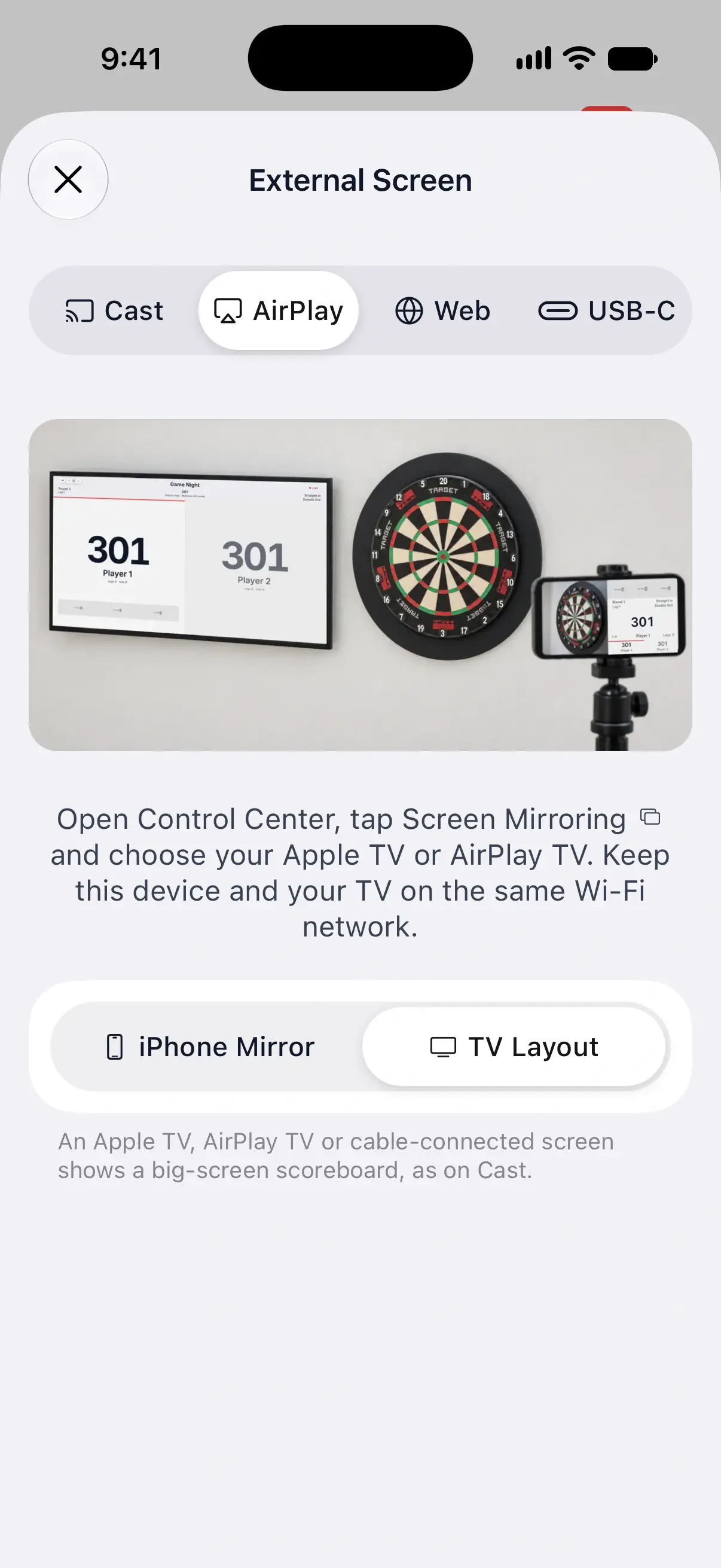
- In a game, tap the menu button at the top right and tap External Screen.
- Choose the AirPlay tab.
- Choose TV Layout.
- Open Control Center, tap Screen Mirroring and choose your Apple TV or AirPlay TV.
Your phone shows Scoreboard is showing on your TV. The TV shows the same scoreboard as Cast, updated from the game on your phone, and your phone keeps its own screen so you can carry on scoring.

If the TV was already mirroring
On iOS 26 and earlier, a TV that’s already mirroring your phone keeps doing so after you choose TV Layout. DartsOn reminds you with Already connected to a TV? Disconnect and reconnect it to show the TV Layout. Stop Screen Mirroring in Control Center, then connect to the TV again.
TV Layout or iPhone Mirror
The AirPlay tab has two choices. On iPad, iPhone Mirror is called iPad Mirror.
| TV Layout | iPhone Mirror | |
|---|---|---|
| On the TV | A full-screen scoreboard, as on Cast | An exact copy of your phone’s screen |
| On your phone | The game, as usual | The same as the TV |
| Internet on the phone | Needed to load the scoreboard | Not needed |
| Good for | Matches with people watching in the room | Showing anything else in the app, such as your stats |
iPhone Mirror is the default until you choose TV Layout.
DartsOn remembers your choice
TV Layout stays chosen for your next games, and the AirPlay and USB-C tabs share it. While it’s chosen, a TV connected with AirPlay or a cable shows the scoreboard instead of your phone’s screen. When you leave a game, the TV shows “Connected to DartsOn” until you open the next one.
To mirror your phone again, open External Screen and choose iPhone Mirror.
Questions and answers
What's the difference between TV Layout and iPhone Mirror?
TV Layout shows a full-screen scoreboard on the TV while your phone keeps its own screen. iPhone Mirror shows an exact copy of your phone, menus included.
Why does my TV still show my phone's screen after I chose TV Layout?
On iOS 26 and earlier, a TV that was already mirroring keeps showing your phone. Stop Screen Mirroring in Control Center and connect again, and the TV switches to the scoreboard.
Is AirPlay free in DartsOn?
Yes, with no match limit. TV Layout draws the scoreboard from the game on your phone, without a live link, so it doesn't use up free live-shared matches.
Related
- How to show your darts scoreboard on a TV Put your DartsOn match on a TV, monitor or browser with Google Cast, AirPlay, a live link or a USB-C cable, and pick the way that suits your setup.
- How to connect DartsOn to a TV or monitor with a USB-C cable Show your DartsOn match on a TV or monitor with a USB-C display cable or HDMI adapter. See which phones work and what the screen shows.
- External Screen Streaming for Darts | DartsOn Show your darts match on a big screen with Google Cast, Apple AirPlay, a Web Link, or USB-C.