
Add players and bots to a darts game
Add yourself, new or saved players, friends, phone contacts or bots to a DartsOn game. Pick a bot level, then rename or remove players before you start.
The Players row at the top of the game setup holds everyone in the game, people and bots alike. Add them before you tap Create Game. You can’t add or remove players once the game has started.
Add players
Under Players, tap + and choose how to add someone:
- New Player: type a name. If you’ve played with that name before, DartsOn uses the saved player, so their stats stay together.
- Select Existing: pick from your saved players. Search for a name if the list is long, tap each player you want, then tap the checkmark at the top right.
- Add [your name] (Me): adds you. It appears when your own player isn’t in the game yet.
- Add from Contacts: picks a name from your phone’s contacts. On iPhone and iPad only.
- Add Bot: adds a computer opponent. See below.
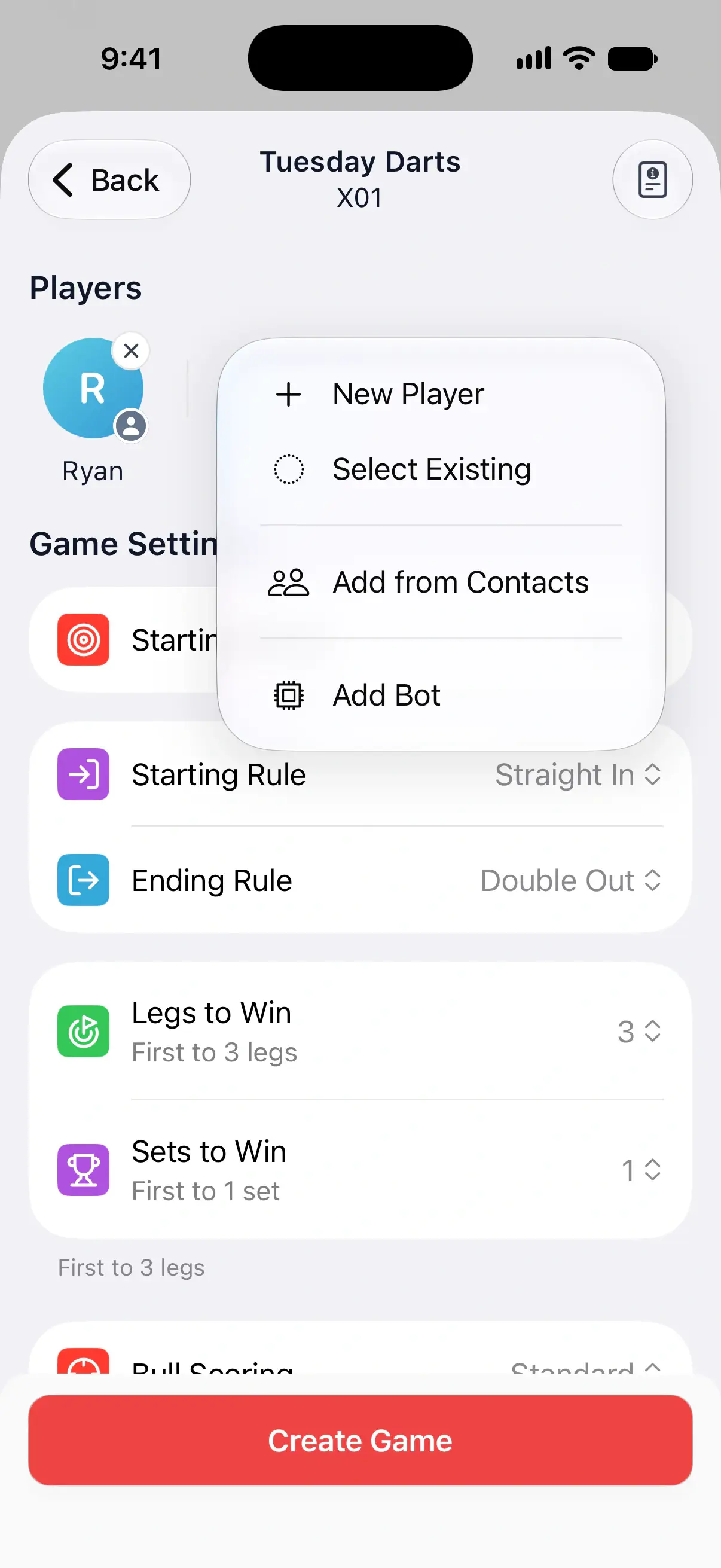

Each name can be in a game once. If you add the same player twice, DartsOn tells you, for example “Ryan is already added”.
Add yourself
When you pick a game you haven’t played yet, DartsOn adds your own player for you. Your player gets a badge on its avatar, and your personal stats and badges are tracked for it.
If you’re not signed in and no player is marked as you, Set your profile appears under the players. Tap it and choose which player is you. When you’re signed in, your account’s player is always you.
Add friends
When you’re signed in, Select Existing also lists your DartsOn friends under Friends. Adding a friend adds them as a player in your game, and they can import the match into their own DartsOn afterwards. See add friends and link a player.
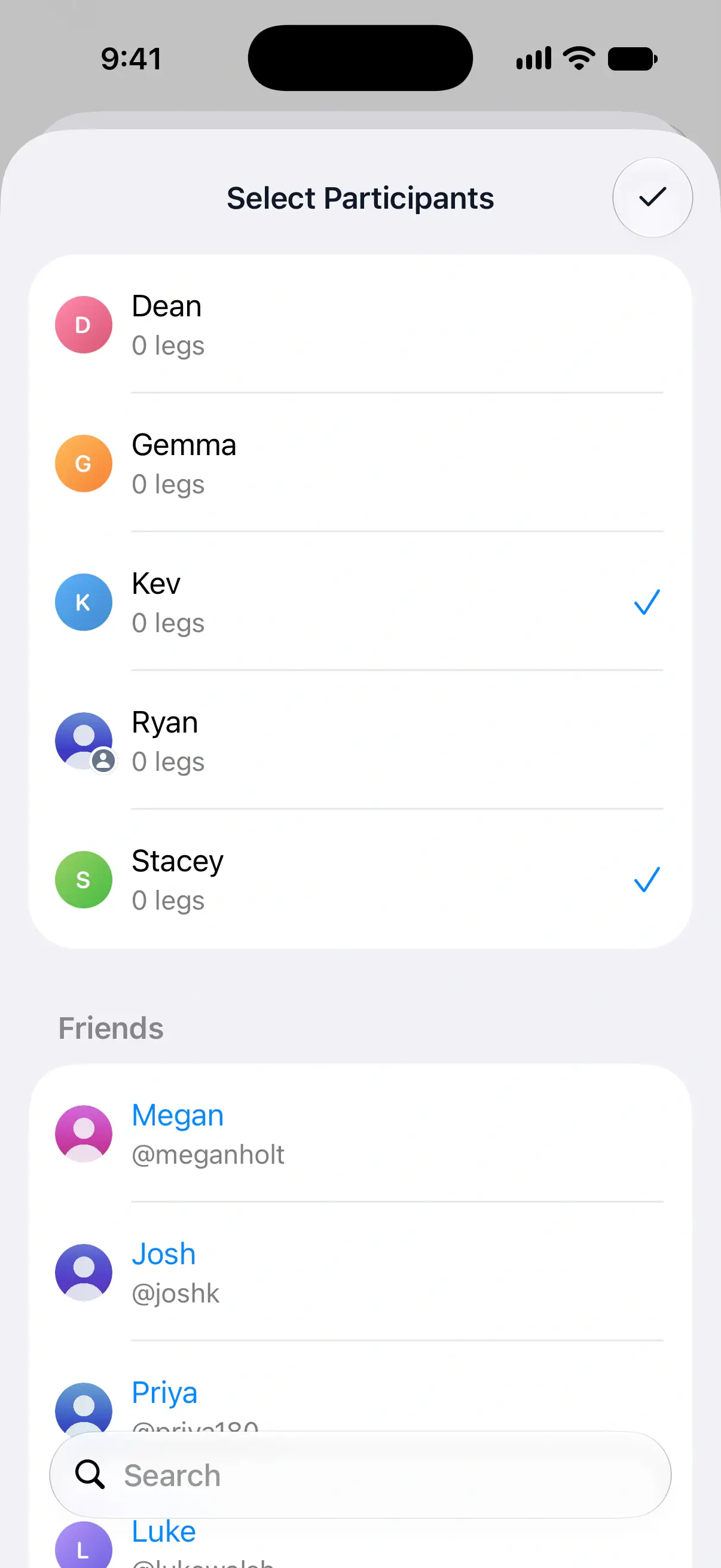
Up to 8 players
Without Premium, a game can have up to 8 players and bots. Adding a ninth opens DartsOn Premium, which removes the limit. See Premium.
Add a bot
- Under Players, tap + and then Add Bot.
- In Select Bot, tap a level. Each row shows the bot’s Avg Score.
The bot joins the game as Bot-1 to Bot-16, after its level. Bots play every game except Checkout Trainer, which is for one player.
You can add several bots to one game, each at a different level. Levels that are already in the game are greyed out.
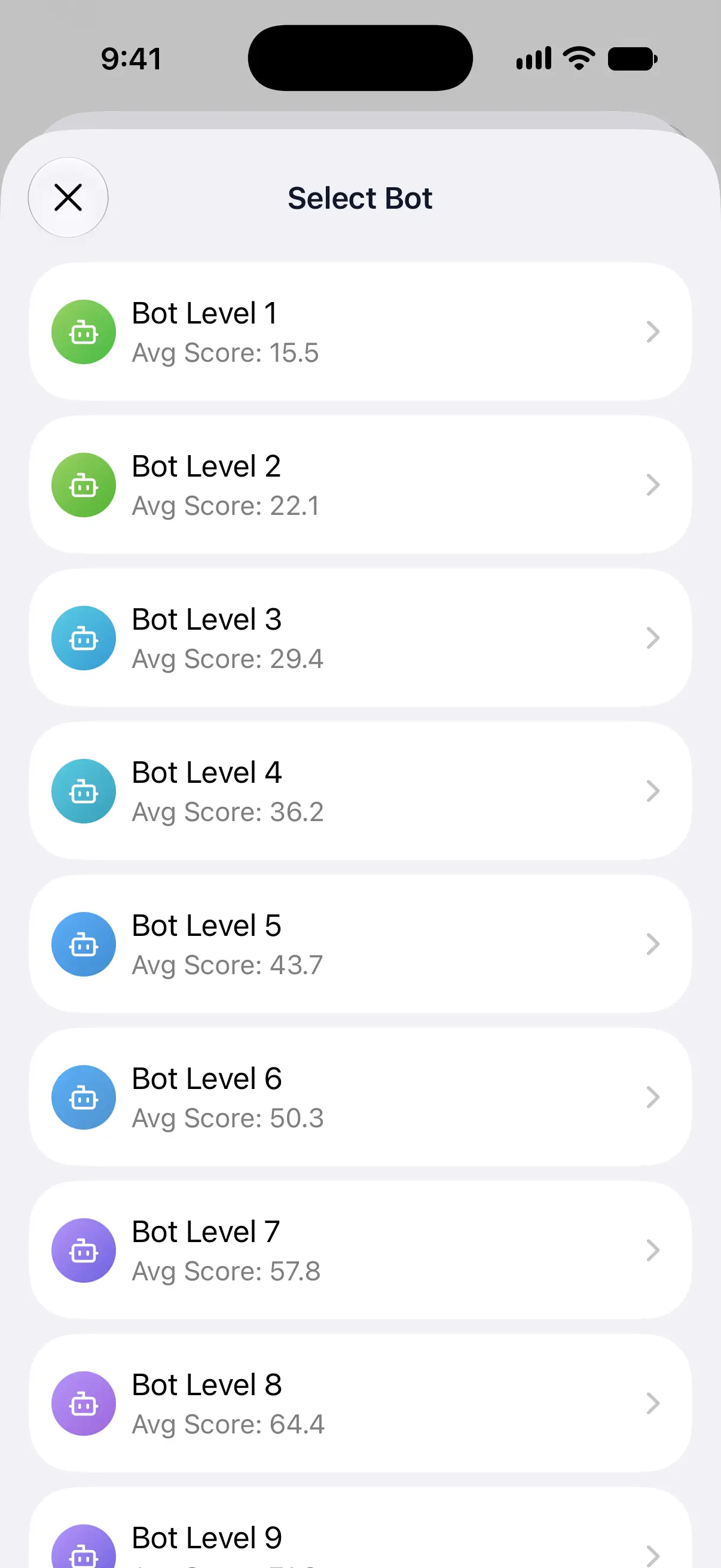
What the bot levels mean
A bot’s level sets how well it throws. The average is its 3-dart average, the points it scores with 3 darts. The checkout rate is how often it hits a finishing double when it has a chance at one.
| Level | 3-dart avg | Checkout % |
|---|---|---|
| Bot Level 1 | 15.5 | 4.6% |
| Bot Level 2 | 22.1 | 6.9% |
| Bot Level 3 | 29.4 | 9.7% |
| Bot Level 4 | 36.2 | 13.2% |
| Bot Level 5 | 43.7 | 17.5% |
| Bot Level 6 | 50.3 | 21% |
| Bot Level 7 | 57.8 | 24.1% |
| Bot Level 8 | 64.4 | 27.6% |
| Bot Level 9 | 71.9 | 30% |
| Bot Level 10 | 78.5 | 32.5% |
| Bot Level 11 | 84.6 | 35.5% |
| Bot Level 12 | 88.2 | 37.3% |
| Bot Level 13 | 92.8 | 38.1% |
| Bot Level 14 | 95 | 39.9% |
| Bot Level 15 | 98.4 | 42.1% |
| Bot Level 16 | 105.1 | 44.8% |
For an even game, pick the level closest to your own 3-dart average, which you can find on the Statistics tab. Go a level or two lower when you want to practice finishing without much pressure, and higher when you want a challenge.
The Statistics tab also keeps your record against each bot level. See your record against bots.
Change how fast bots throw
Bots throw about one dart per second. To change that, open Settings → Gameplay Settings → Bot Throw Speed and drag the Speed slider from 0.1× to 2×. The Preview shows the timing before you play. See gameplay settings.
During a bot’s turn, the keypad is locked and the turn moves on by itself.
Rename, change or remove a player
Tap a player’s avatar on the setup screen to see what you can change:
- Rename: for a person, changes the name in this game.
- Change bot level: for a bot, opens Select Bot to pick another level.
- Set handicap: in X01 and Cricket with 2 or more players. See handicaps.
- Remove: takes the player out of this game. The small x on the avatar does the same.
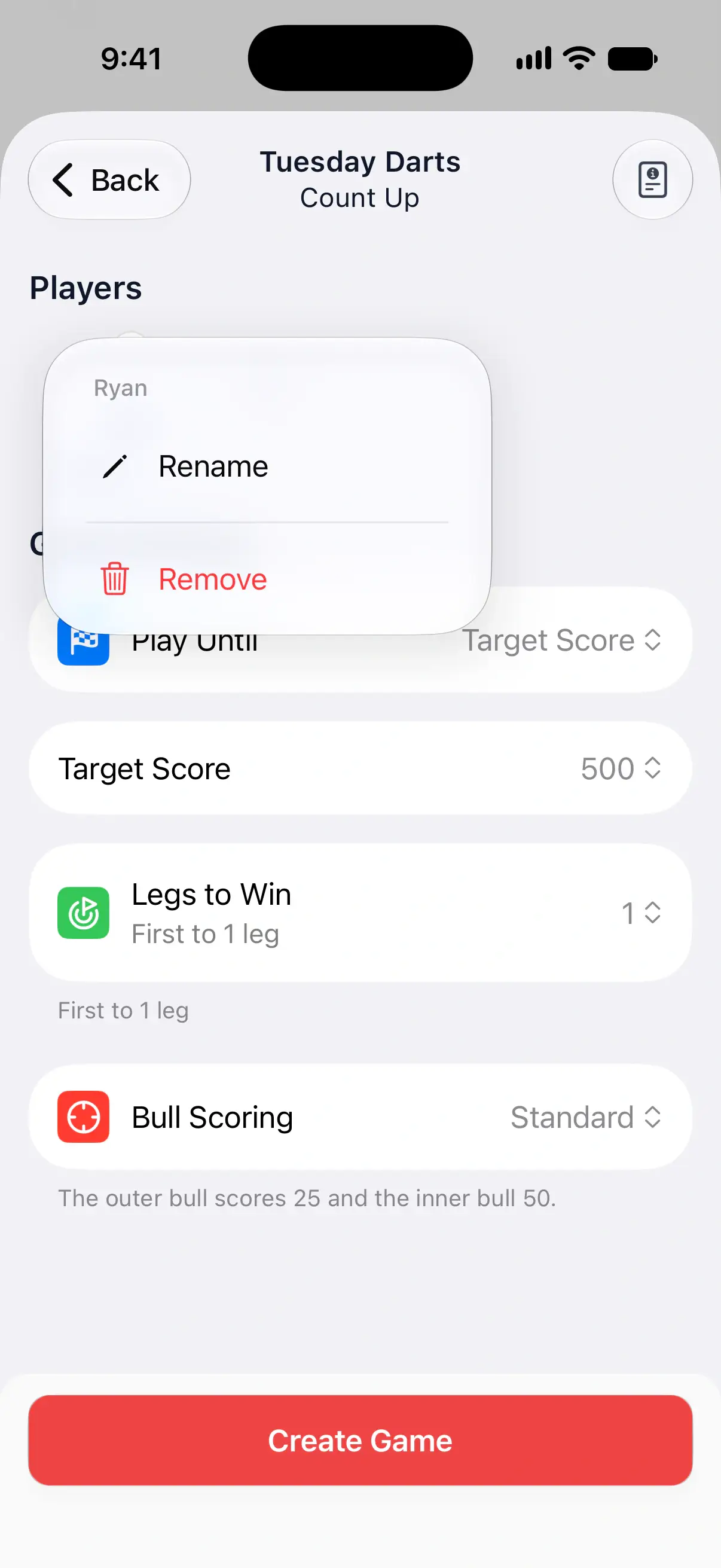
Rename never renames a saved player, since that would move their whole history to the new name. DartsOn switches to the saved player with the new name, or adds a new player. To rename a saved player everywhere, use Settings → Players. To change your own name while you’re signed in, open your profile and use Edit Profile. See manage players.
Remove only takes a player out of this game. A saved player keeps their stats and stays in your saved players. A name you typed with New Player becomes a saved player only when you create the game.
Questions and answers
How many players can play one game in DartsOn?
Up to 8 players and bots per game for free. DartsOn Premium removes the limit.
Can I play against more than one bot?
Yes. Add as many bots as you like within the player limit, each at a different level.
How good is the hardest DartsOn bot?
Bot Level 16 averages about 105 points per 3 darts and checks out about 45% of the time when it has a chance at a double.
Can I add players from my contacts on Android?
No. Adding from contacts is on iPhone and iPad only. On Android, add the player with New Player and type their name.
Related
- How to create a darts game in DartsOn Start a new darts game in DartsOn. Name it, pick one of 14 games, set the starting score, in and out rules and match length, then tap Create Game.
- Decide who throws first in a darts game Set the throw order in DartsOn. Drag players into order, throw for the bull by tapping or with the camera, or spin the wheel, and change it in the first round.
- See your record against DartsOn bots Check your wins and win rate against each DartsOn bot level, open a bot's profile with its average, checkout % and simulated heat map, and compare players.
- Manage your saved players in DartsOn Add, rename and delete the players DartsOn suggests for your darts games, and mark which player is you so your stats and badges are tracked.