
Change DartsOn's dark mode, colors and app icon
Switch DartsOn between light and dark mode, turn on High Contrast, and pick the App Theme color and app icon you like. Some colors and icons need Premium.
Switch DartsOn between light and dark mode, make its colors stronger, and change its color and Home Screen icon. All of it is on one screen, and every change applies straight away.
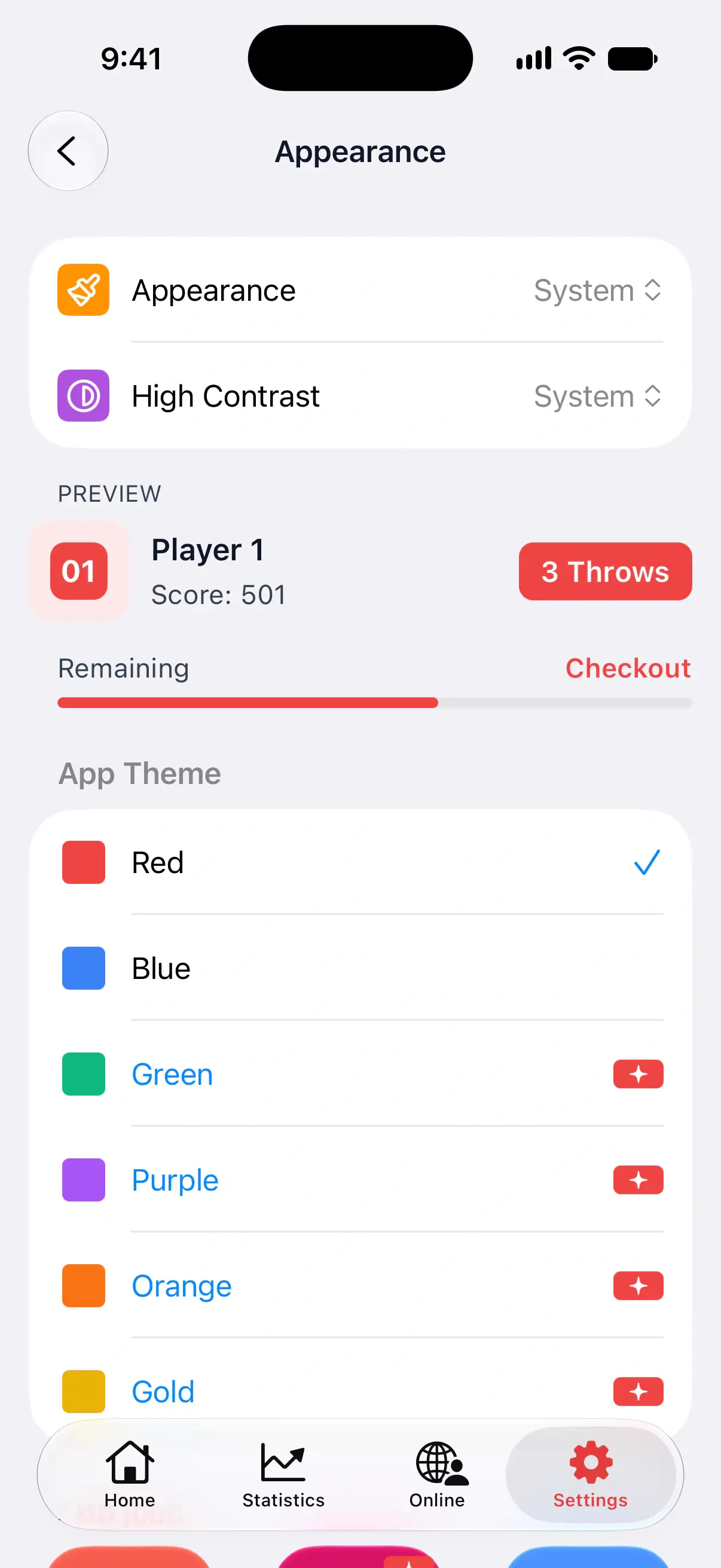

Open Appearance
- Open Settings.
- Tap Appearance.
The Preview card under the first two rows shows a sample player, a 3 Throws button and a progress bar, drawn in your current choices. Watch it as you try different colors.
Choose light or dark mode
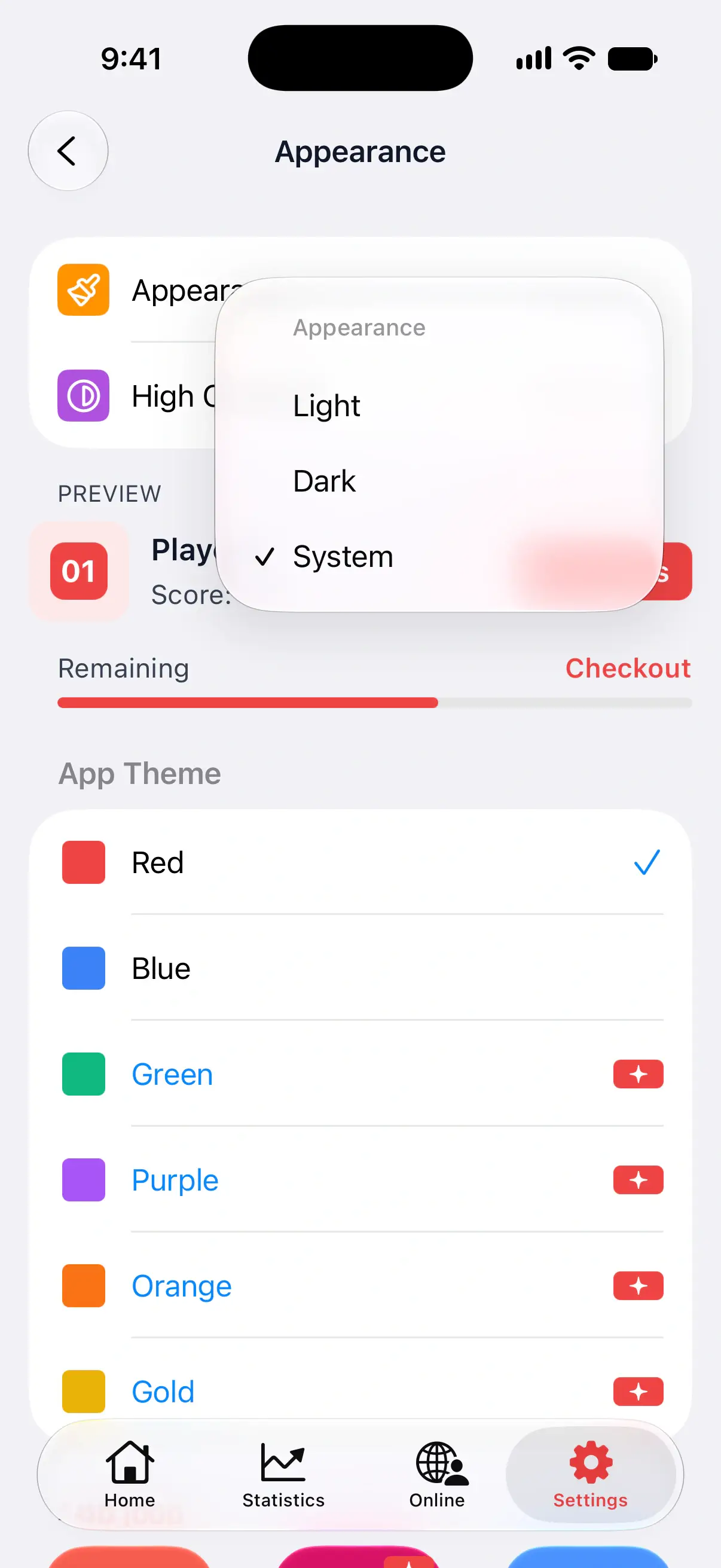
Tap Appearance and choose:
- Light keeps DartsOn light all day.
- Dark keeps it dark, which is easier on the eyes in a dim room.
- System follows your phone’s light and dark mode, switching when your phone does. This is the default.
Turn on High Contrast
High Contrast switches DartsOn to stronger colors, in both light and dark mode, so text and buttons stand out more.
On iPhone and iPad, choose System, On or Off. System, the default, follows the contrast setting in your device’s accessibility settings.
On Android, choose On or Off. It starts Off.
Pick an App Theme color
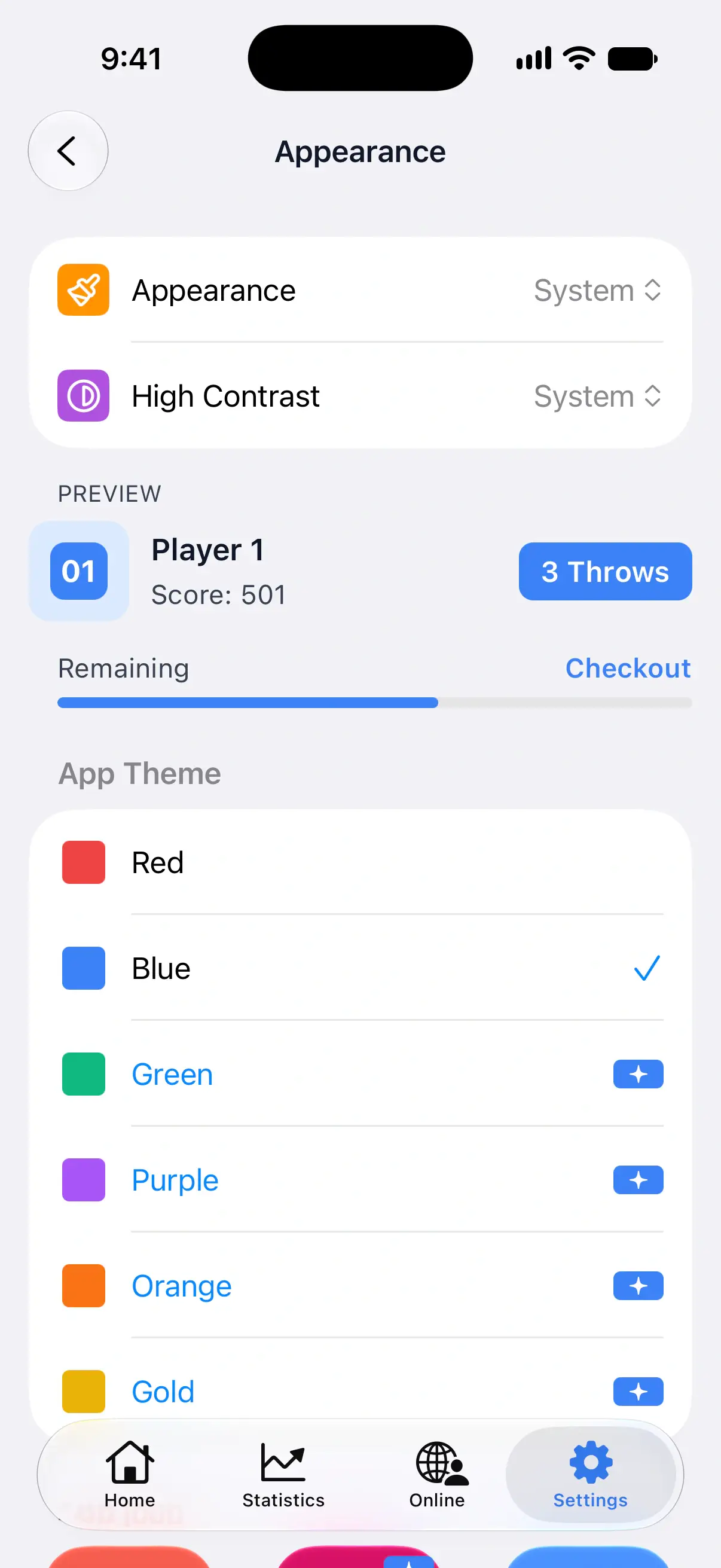
Under App Theme, tap a color. It colors buttons, highlights and progress bars across DartsOn.
| Color | Who can use it |
|---|---|
| Red | Everyone. The default. |
| Blue | Everyone. |
| Green, Purple, Orange, Gold | DartsOn Premium |
Premium colors have a small Premium badge. Without Premium, tapping one opens the Premium plans. See DartsOn Premium.
Change the app icon
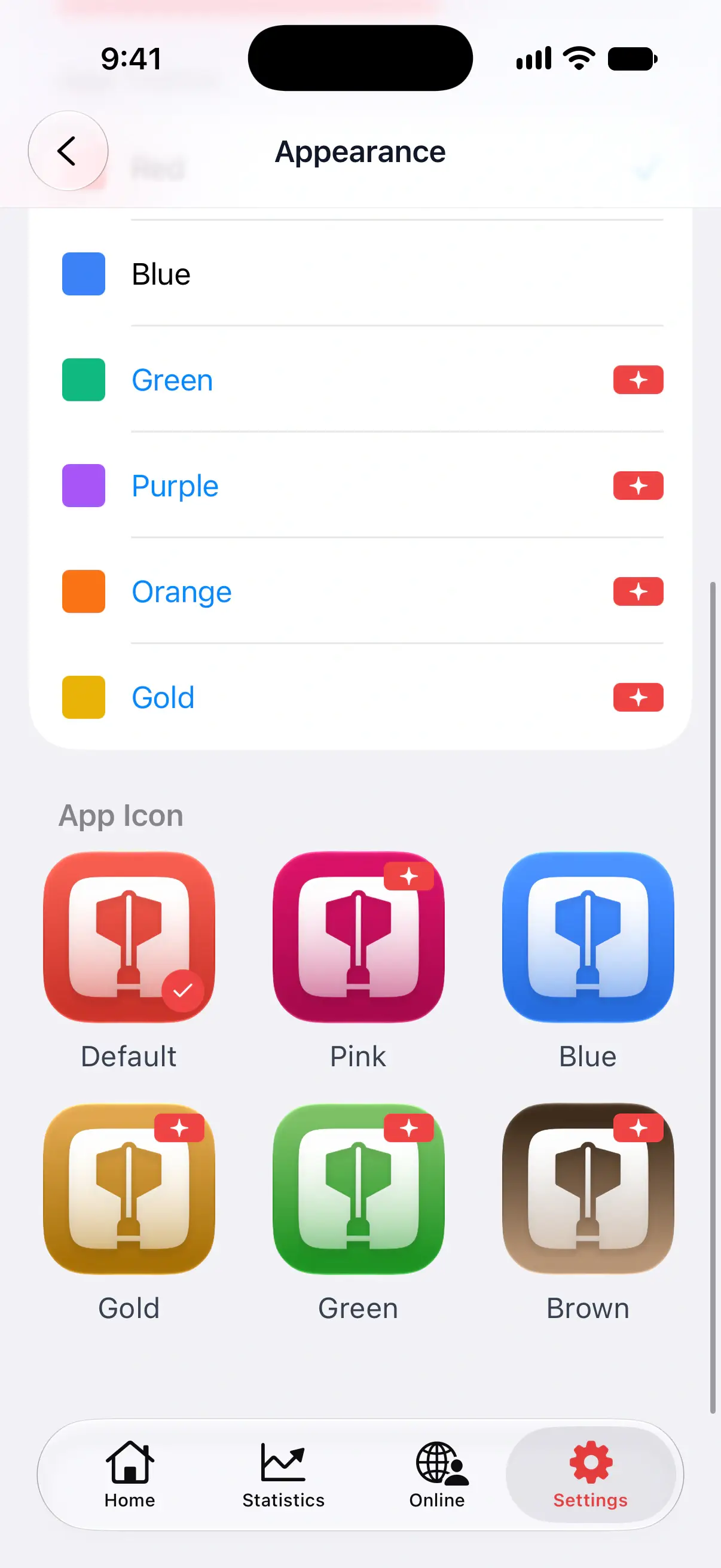
Under App Icon, tap the icon you want on your Home Screen. A checkmark shows the one in use.
- Default and Blue are free.
- Pink, Gold, Green and Brown need DartsOn Premium. Without it, tapping one opens the Premium plans.
The icon and the App Theme color are separate choices, so you can pair a blue icon with a red app, or match them.
Questions and answers
How do I turn on dark mode in DartsOn?
Open Settings → Appearance, tap Appearance and choose Dark. Choose System instead to follow your phone's light and dark mode.
Which DartsOn colors are free?
Red and Blue are free. Green, Purple, Orange and Gold need DartsOn Premium. For app icons, Default and Blue are free, and Pink, Gold, Green and Brown need Premium.
Can I change the DartsOn app icon on Android?
Yes. Open Settings → Appearance and tap an icon under App Icon. It works on Android, iPhone and iPad.
Related
- Every DartsOn setting explained A guide to each row in the DartsOn Settings tab, in the app's order, with what it changes and where to read more.
- What DartsOn Premium and Ultra include and how to get them See what's free in DartsOn, what Premium adds and what Ultra adds on top. Buy a plan in the App Store or Google Play, upgrade, restore a purchase, or cancel.
- Change the language in DartsOn DartsOn comes in 11 languages and follows your phone's language. Set a different language for DartsOn alone on iPhone or Android.