
Manage your saved players in DartsOn
Add, rename and delete the players DartsOn suggests for your darts games, and mark which player is you so your stats and badges are tracked.
DartsOn remembers everyone you’ve played with, so you can pick them again when you set up a game. Settings → Players is where you add, rename and tidy up that list, and where you tell DartsOn which player is you.
Open your players
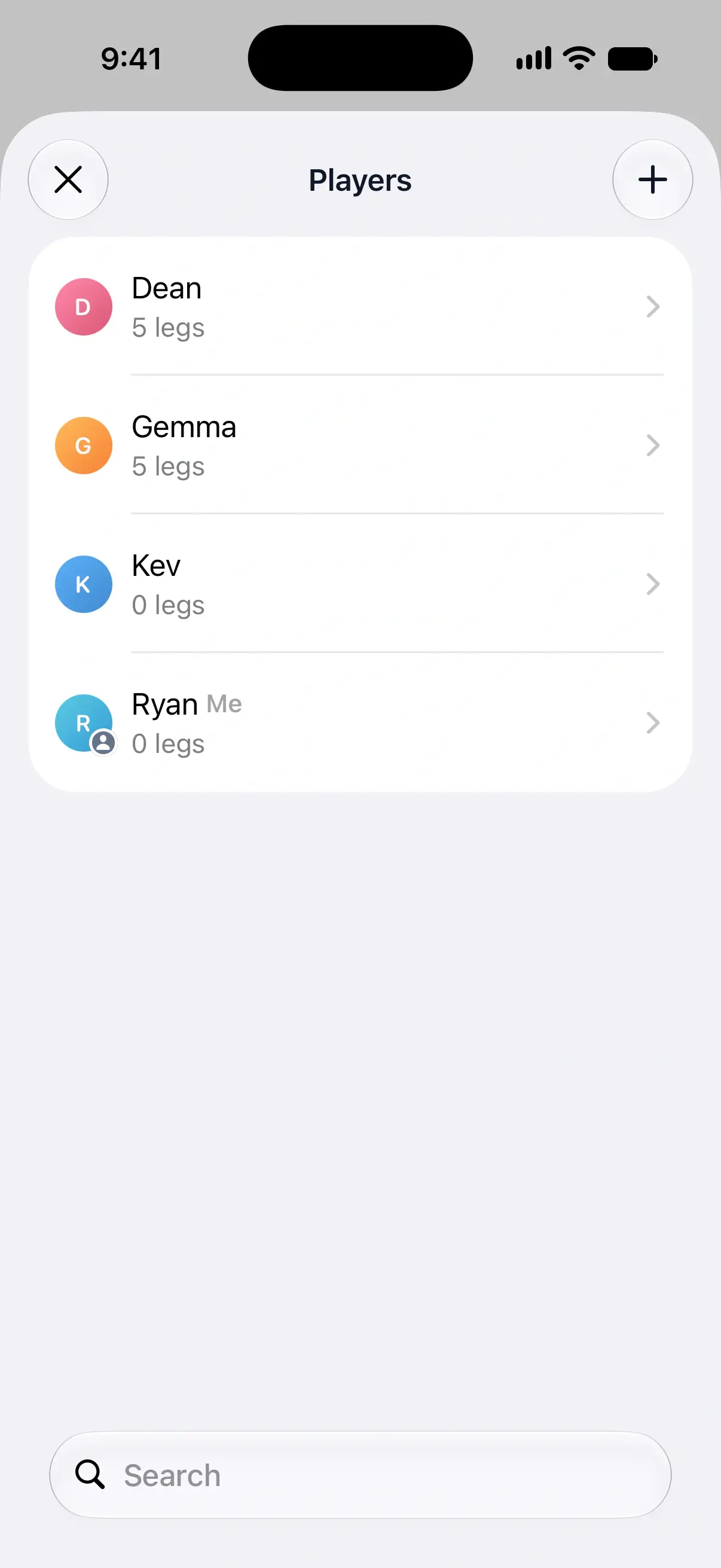
Open Settings and tap Players. You see every saved player, with the number of legs each has played. Your own player has Me next to the name, and a player linked to a friend’s account says Linked.
Use the search field to find a player by name. Tap a player to open their details.

Add a player
- Tap + at the top right.
- On iPhone and iPad, choose Add by Name or Add from Contacts. On Android, the name prompt opens straight away.
- Type the name and tap OK, or Done on Android. To add from contacts, pick the contact instead.
DartsOn matches names without regard to capitals, so “chris” and “Chris” are the same player. If you add a name that’s already saved, or one you deleted earlier, DartsOn brings back that player with their games instead of making a second one.
You can also add new players while you set up a game, and DartsOn adds them to this list.
Rename or delete a player
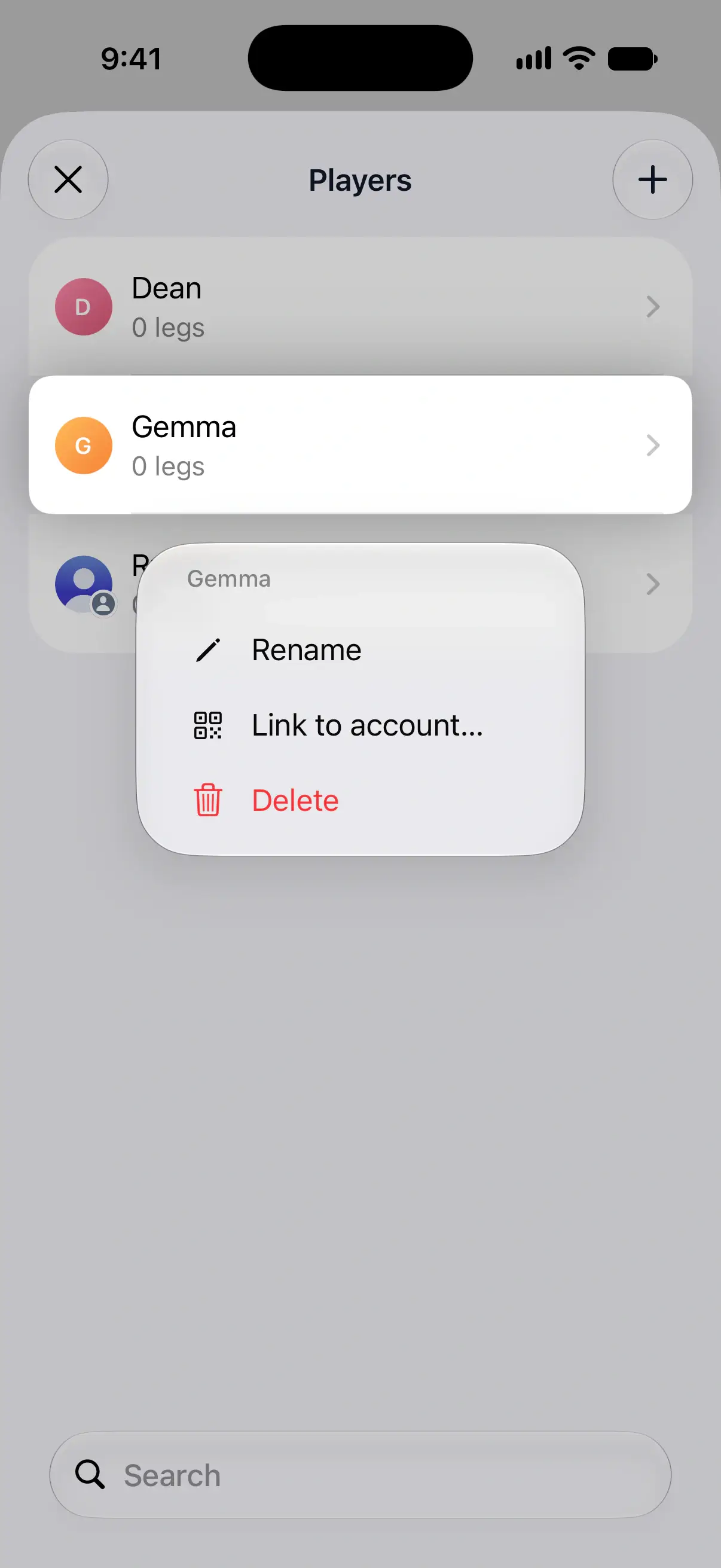
Touch and hold a player to open the menu, or swipe the player to the left for the rename and delete buttons. While you’re signed in, your own player can’t be renamed or deleted here. See your player when you’re signed in.
- Rename changes the name everywhere, including the player’s past games. DartsOn won’t accept a name another player already has.
- Delete asks Are you sure? first. Tap Delete to remove the player from this list and from the suggestions when you set up a game. Their games stay in your match history. Deleting your Me player also removes the Me mark. Tap Undo in the message that appears if you change your mind, and the player comes back as they were.
Mark which player is you
DartsOn tracks your personal stats and badges on one player, the one marked Me:
- The Statistics tab opens on your stats.
- You earn badges only on your own player.
- Game setup offers you as a quick pick, so you don’t have to search for yourself.
When you’re signed out, choose your player like this:
- In Settings → Players, touch and hold your player.
- Tap Set as my profile.
To undo it, choose Remove my profile. Your stats stay with the player, but DartsOn stops treating them as yours.
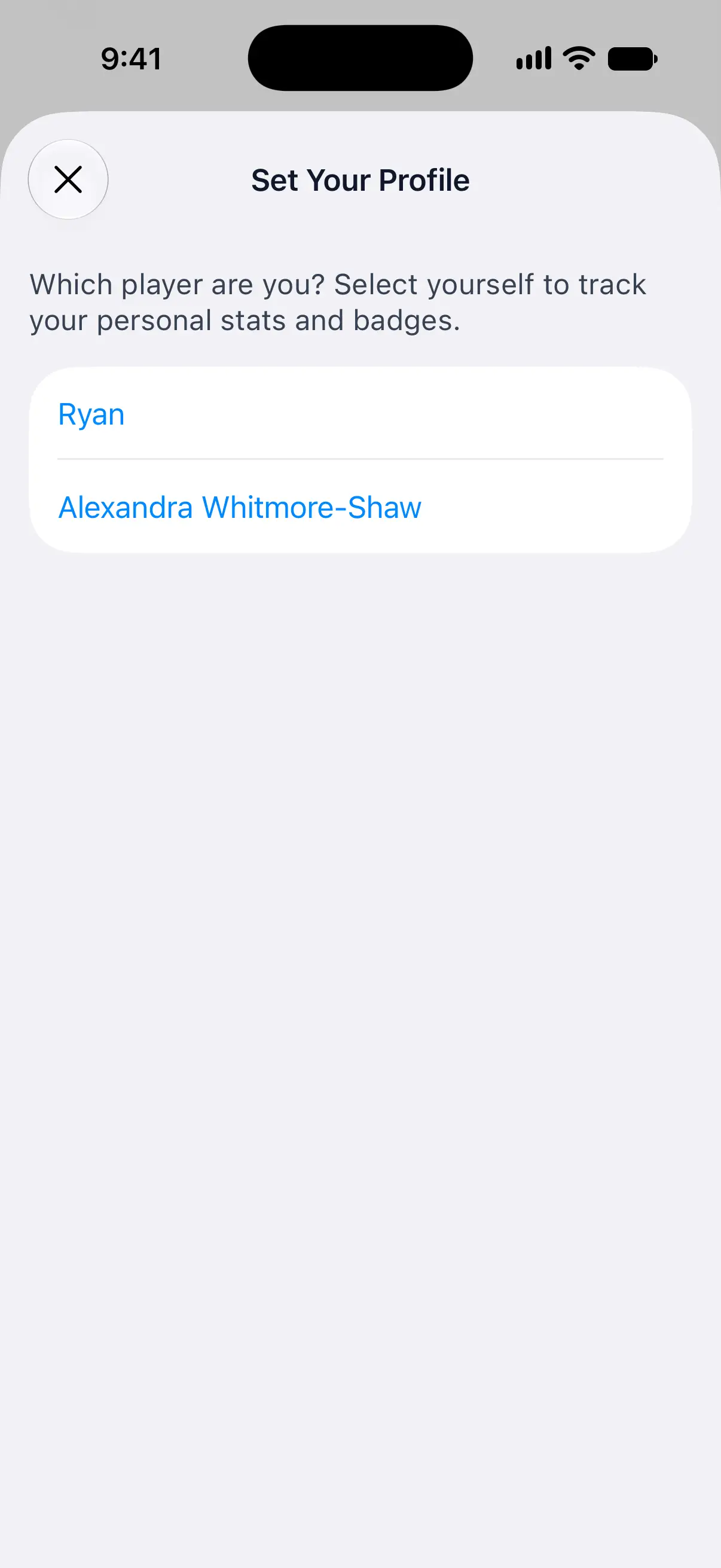
Once you’ve played a game, the Statistics tab shows Set your profile until you’ve chosen a player. Tap it to pick yourself from a list of your players.
Your player when you’re signed in
When you’re signed in, your account’s player is you. In Players it opens your profile, and its menu only has View Account. To change its name, open your profile and tap Edit Profile. See your profile.
If a device had its own Me player before you signed in, DartsOn asks during first sign-in whether both players are you and can combine them into one.
Signed in, the menu for other players also offers Link to account…, so games you play together show up in a friend’s own DartsOn. A player who’s already linked offers Unlink account instead. See link a player.
Questions and answers
Does deleting a player delete their games?
No. Deleting removes the player from your saved players and from the suggestions in game setup. Games they played stay in your match history.
How do I tell DartsOn which player is me?
In Settings → Players, touch and hold your player and tap Set as my profile. When you're signed in, your account's player is always you, and its name comes from your profile.
Why can't I rename my own player?
While you're signed in, your player belongs to your account. Change its name in your profile with Edit Profile instead.
Can I add players from my contacts?
On iPhone and iPad, yes. Tap + in Settings → Players and choose Add from Contacts. On Android, add players by name.
Related
- Add players and bots to a darts game Add yourself, new or saved players, friends, phone contacts or bots to a DartsOn game. Pick a bot level, then rename or remove players before you start.
- How to share darts games with a friend by linking a player Link a player on your phone to a friend's DartsOn account, so the games you play together reach their history and stats.
- Track your darts statistics in DartsOn Pick a player, game mode and time period on the Statistics tab, filter by rules, and see your averages, checkouts, high scores and records.
- Earn, track and share DartsOn badges How you earn DartsOn badges, what each category rewards, where to see locked badges and your progress, and how to share a badge as an image.