
How to sign in to DartsOn with games already on your phone
When you sign in with games on your phone, DartsOn asks how to combine them with your account. Learn what each choice keeps and what it replaces.
Played on your phone before making an account? When you sign in, DartsOn looks at the games on your phone and the games already in your account, and asks what to keep when both have some.
The question appears on any sign-in with two sets of games, for example on a second phone you’ve been using without an account.
When DartsOn asks
- Your phone has no matches: no question. Your account’s games download, and any players on the phone join them.
- Your account is empty: no question. Your phone’s games go up to your account. DartsOn still asks if the phone holds games from another account, as the note at the end explains.
- You sign back in to the account this phone last used: no question. DartsOn carries on syncing where it stopped.
- Your phone has matches, and your account already has data: the DartsOn Cloud Account sheet asks “You already have data on this iPhone and in your DartsOn Cloud Account. Which data would you like to keep?” On Android it names your phone or tablet.
Nothing changes until you choose and tap Continue.
Choose what to keep
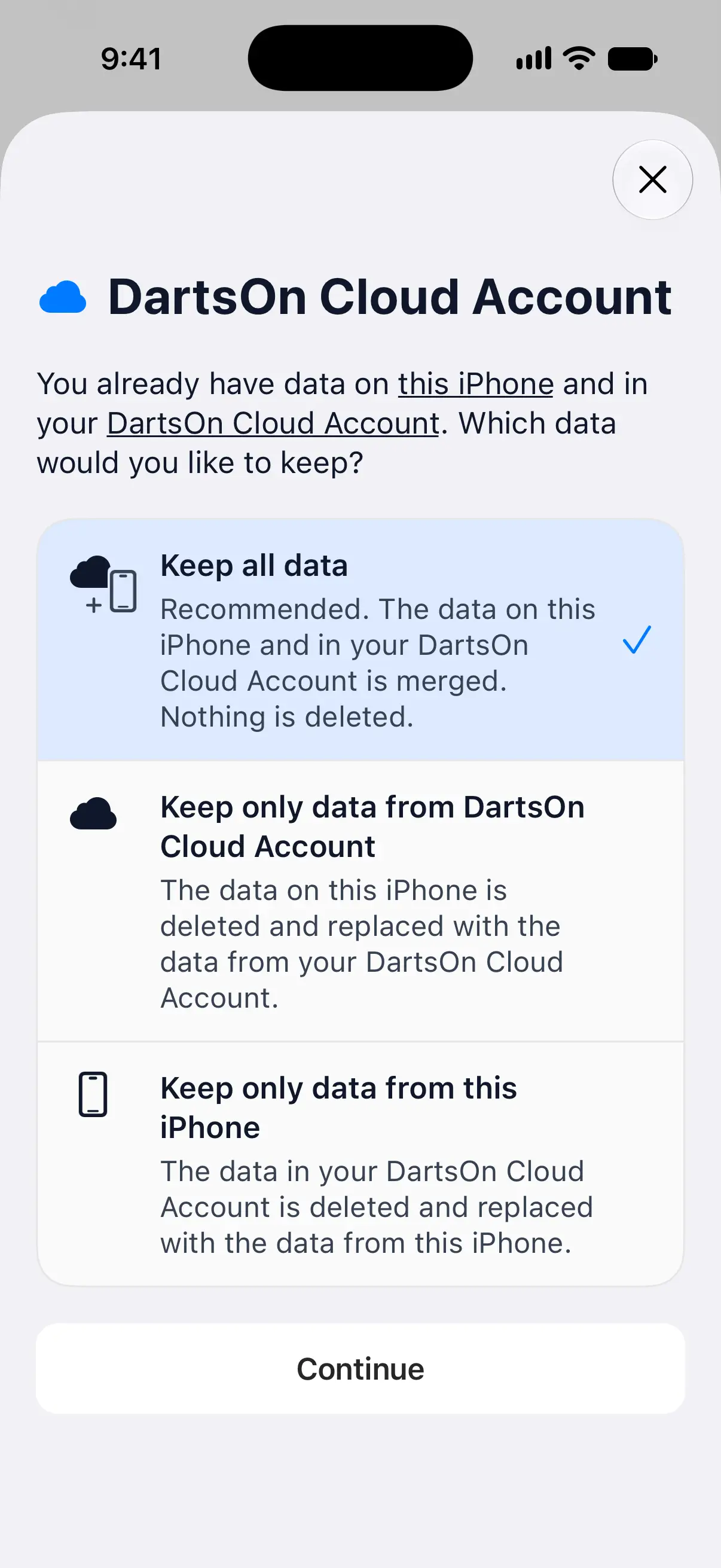

| Choice | What happens | Pick it when |
|---|---|---|
| Keep all data | Recommended. Your phone’s data and your account’s data are merged, and nothing is deleted. If the same record differs between them, DartsOn asks you first, as described below. | Almost always. Both sets of games end up in your account and on your phone. |
| Keep only data from DartsOn Cloud Account | Your phone’s data is deleted and replaced with your account’s. | The games on this phone are test games or duplicates you don’t need. |
| Keep only data from this iPhone | Your account’s data is deleted and replaced with this phone’s. | Your account has games you want gone, and this phone has the history you want everywhere. |
Keeping only one side can reach your other devices too. With Keep only data from this iPhone, games removed from your account also leave your other signed-in devices when they sync.
- Tap a choice to select it. Keep all data is selected at the start.
- Tap Continue.
Look before you choose
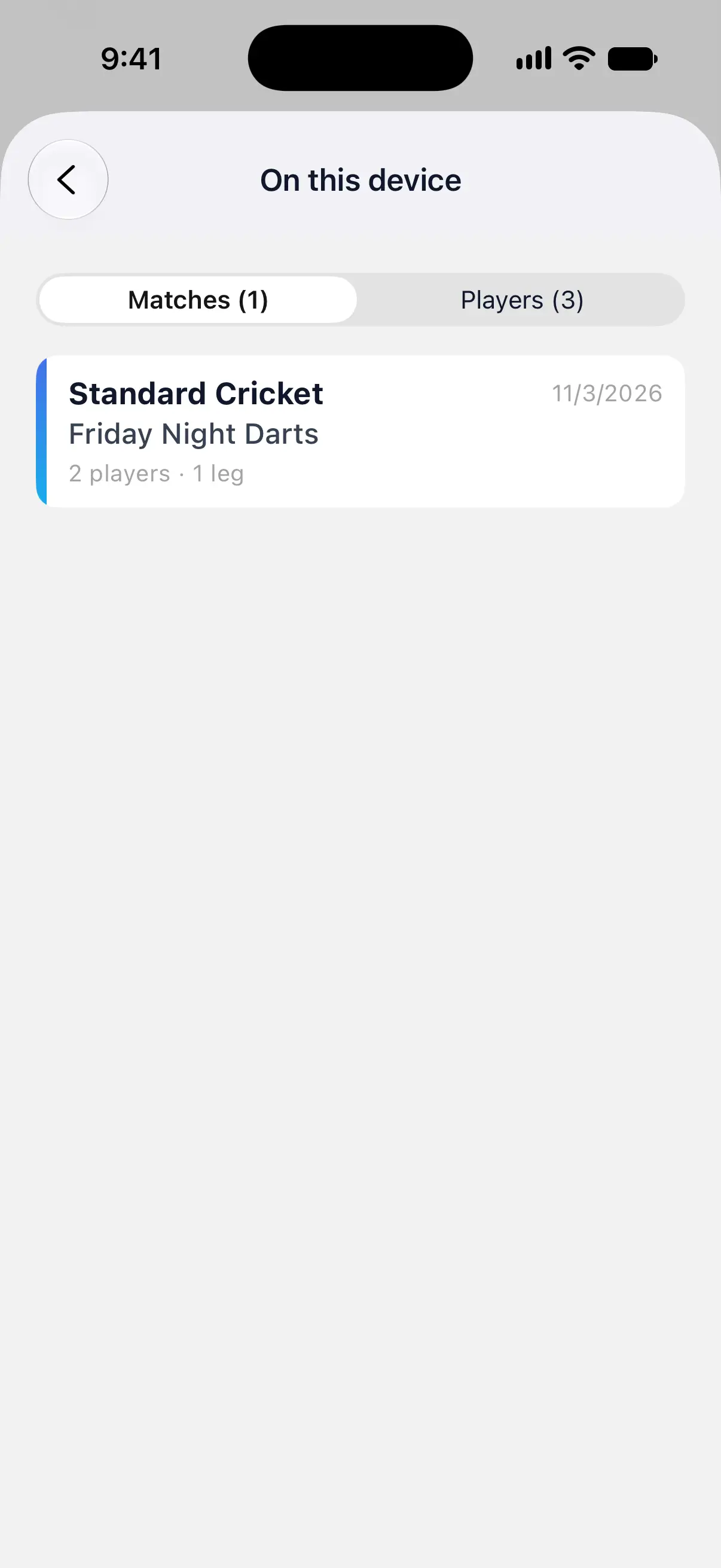
In the question, “this iPhone” and “DartsOn Cloud Account” are underlined. Tap “this iPhone” to open On this device, or “DartsOn Cloud Account” to open In your account.
Each lists that side’s Matches and Players, with the count on each tab. A match shows its date and how many players and legs it had. Tap the back button to return to the choices.
Combine your two Me players
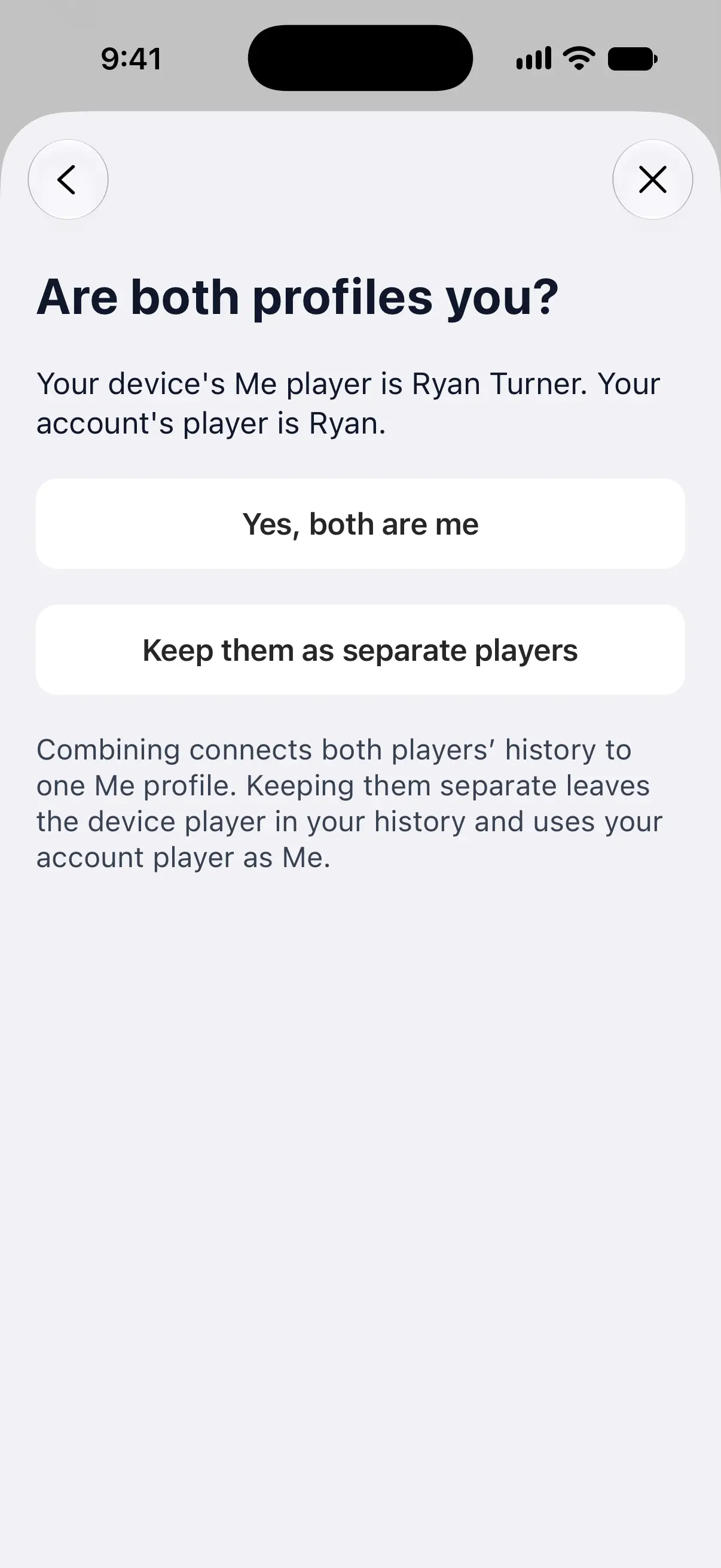
Your phone has a Me player, and your account has one too. If their names match, DartsOn combines them on its own. If they differ, it asks Are both profiles you?, naming both players.
- Yes, both are me: both players’ history goes to one Me profile, so your stats include both.
- Keep them as separate players: the phone’s player stays in your history as an ordinary player, and your account’s player becomes Me.
Pick Keep them as separate players when the phone’s Me player was really someone else, such as a friend who used your phone first.
When records differ
Sometimes the same record exists on both sides with different details, such as a game you edited on one device. With Keep all data, DartsOn then shows Some record details differ.
- Tap Review device versions to see which records differ.
- Tap Use account versions and keep other records to finish. The account’s versions win, with their complete match details, and games that are only on your phone are added.
Your phone’s differing versions are saved in a recovery copy first.
Get replaced data back
Whenever a choice replaces data, DartsOn saves what it replaced as a recovery copy on your phone. Copies stay in Settings → Backups, under Sign-in recovery copies, until you delete them. Deleting DartsOn from your phone deletes them too.
To restore one:
- Log out from Profile. A recovery copy can only be restored while you’re signed out.
- Go to Settings → Backups and tap the copy under Sign-in recovery copies.
- Tap Restore device history and confirm.
The history on your phone right then is saved as another recovery copy first, and nothing in your account changes. Tap Delete recovery copy to remove a copy you don’t need.
If your account history doesn’t load
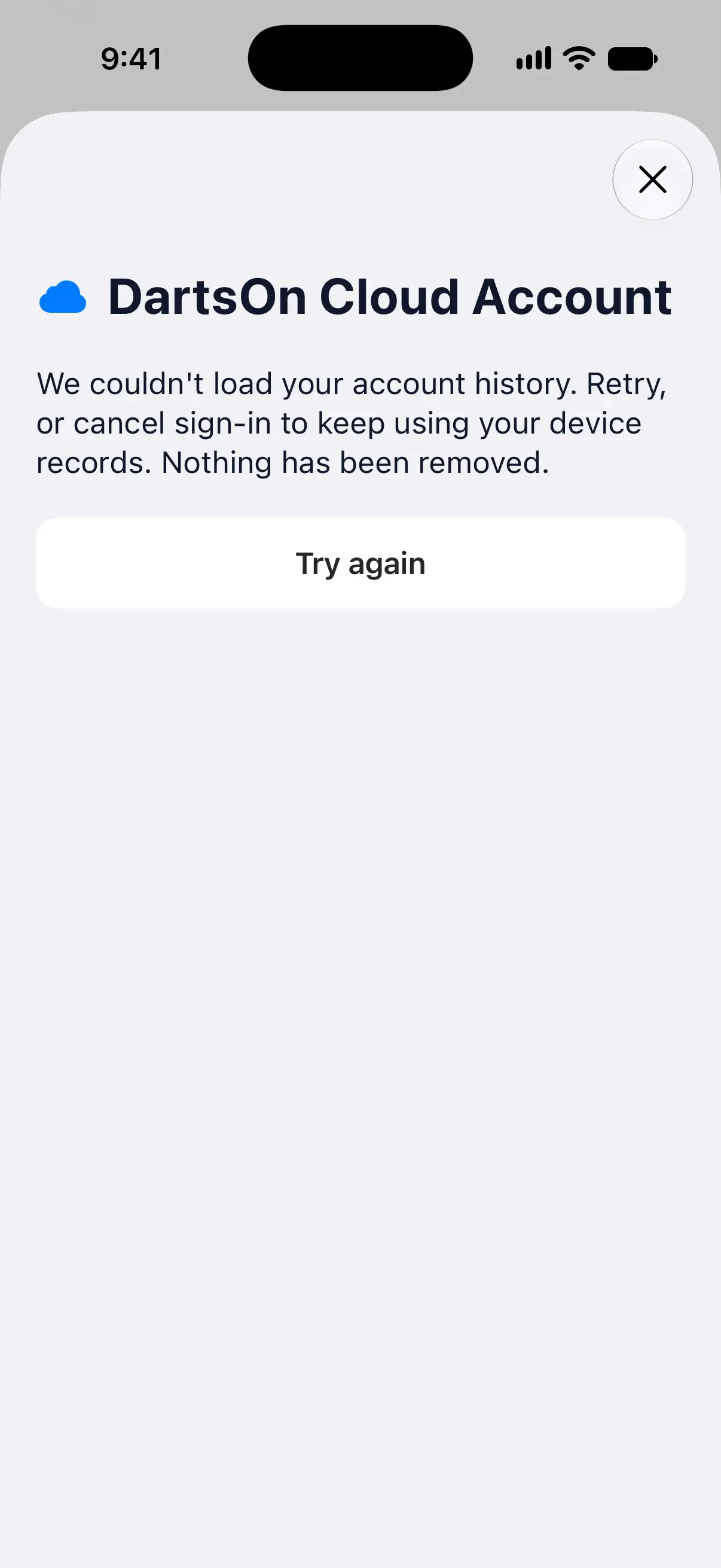
DartsOn needs to read your account before it can ask. If it can’t, the sheet says “We couldn’t load your account history.” and nothing has been removed.
- Tap Try again, for example once you’re back online.
- Or close the sheet to cancel signing in. Your phone keeps its games, and you can sign in later.
Closing the sheet at any step cancels the sign-in the same way.
Questions and answers
Will signing in delete the games on my phone?
Not with Keep all data, the default, which keeps the games from both sides. If the same record differs between them, the account's version wins and your phone's version goes into a recovery copy. The other two choices replace one side, and DartsOn saves the replaced data as a recovery copy on your phone first.
Why is my old player still there after signing in?
You chose Keep them as separate players when DartsOn asked whether both profiles were you. Your account's player is now Me, and the phone's player stays as an ordinary player with its own history.
Can I undo my choice?
You can get the replaced data back on your phone. Sign out, go to Settings → Backups, open the copy under Sign-in recovery copies and tap Restore device history. That doesn't change your account. To put the games back in your account, sign in again, and if DartsOn asks, choose Keep all data.
Why didn't DartsOn ask me anything when I signed in?
It asks only when your phone has matches and your account already has data, or when your phone holds games from another account. If your phone has no matches, or you sign back in to the account this phone last used, DartsOn combines them without a question.
Related
- How to create a DartsOn account and sign in Create a free DartsOn account with Apple, Google or email to sync your games, add friends and play online. The app works fully without one.
- Sync your darts matches across devices Signed in, DartsOn syncs your matches, players, bots and badges between iPhone, iPad and Android. Check the sync status and fix sync problems.
- Back up and restore your DartsOn data Keep a copy of your darts matches. Use automatic iCloud backups on iPhone, restore a backup or a file, or export and import a backup file on Android.
- Manage your saved players in DartsOn Add, rename and delete the players DartsOn suggests for your darts games, and mark which player is you so your stats and badges are tracked.