
How to share a live darts scoreboard with a link
Stream your DartsOn match to any browser with a link, code or QR code. Keep one permanent link for every game, or generate a new one.
The Web tab streams your match to a web page. Anyone with the link, the code or the QR code can follow it in a browser on a TV, tablet or computer, wherever they are.
Turn on the live link
- In a game, tap the menu button at the top right and tap External Screen.
- Choose the Web tab.
- Turn on Enable External Screen Streaming.
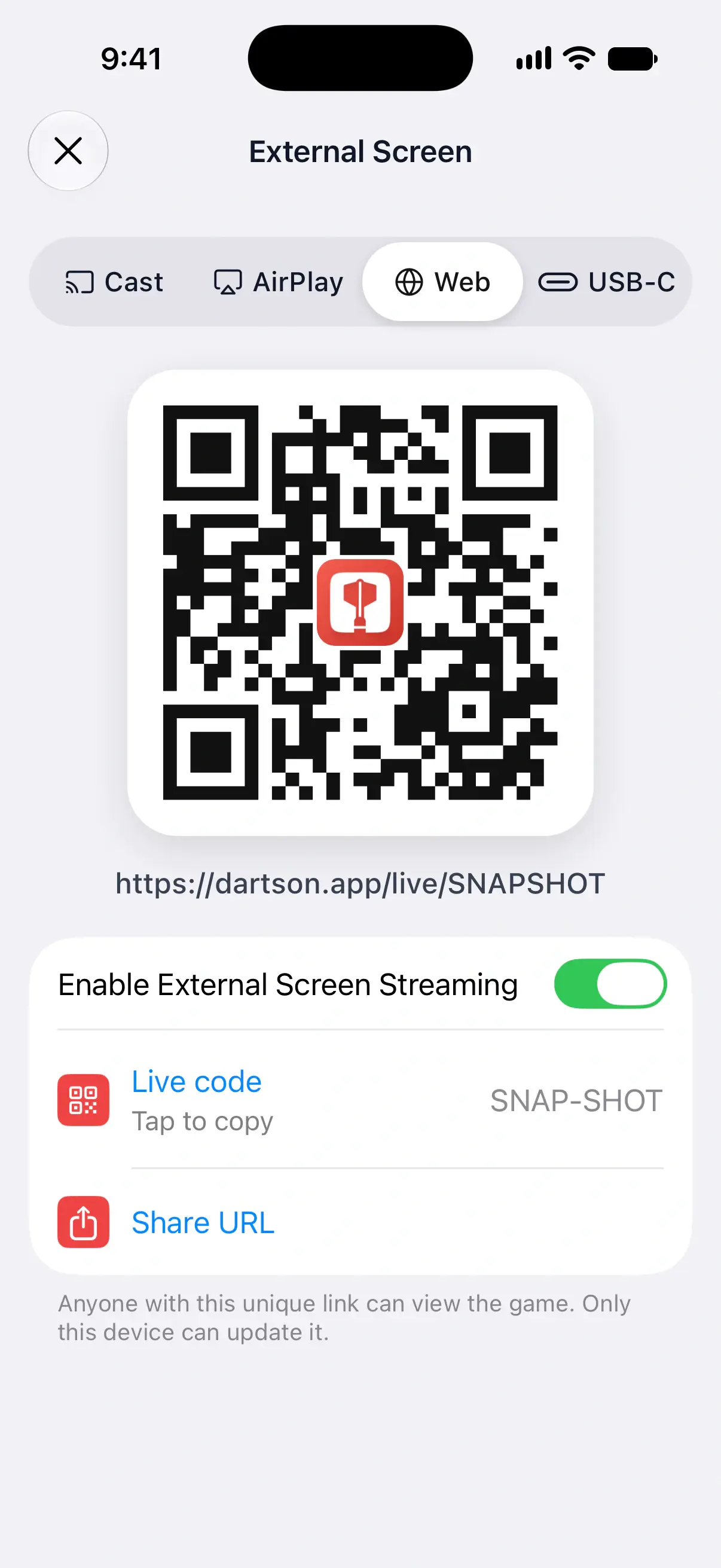
The tab now shows a QR code, the link and the Live code. Anyone with this unique link can view the game. Editing uses a separate link that you choose whether to share.

Share it with viewers
- Scan the QR code with the device that will show the game, such as a tablet by the board.
- Tap the QR code, the link or Share URL to send the link in a message.
- Tap Live code to copy the eight-character code. A viewer types it at dartson.app/live and taps Open game.
Viewers don’t need the app, an account or your Wi-Fi network. Any device with internet access and a browser works.
What viewers see
- The scoreboard updates in real time as you enter each dart.
- The page is in your app’s language, since the link carries it.
- Viewers can switch the page’s Appearance between System, Light and Dark.
- If their connection drops, the page keeps the latest score and reconnects by itself.
Let a friend correct scores from a browser
For a local game, the Web tab also has Remote Editing:
- Turn on Allow Editing.
- Tap Share Edit Link, or Copy Edit Link, and send that link to the person helping you.
- They open it in a browser to correct darts and use the turn controls the game currently allows.
Your game stays on the device running DartsOn, and corrections update its scoreboard too. The ordinary viewing link stays view-only. Anyone with the edit link can make changes, so share it only with people you want helping.
Turn off Allow Editing to stop browser edits. Generate New Edit Link replaces the edit link and stops the old one working. Online matches don’t offer remote editing.
If Connection offers LAN + Network (Faster), browsers on the same Wi-Fi can connect directly to your phone, with the network connection as a fallback. Allow Local Network access if your phone asks for it. Network works without that direct connection.
Keep one link for every game
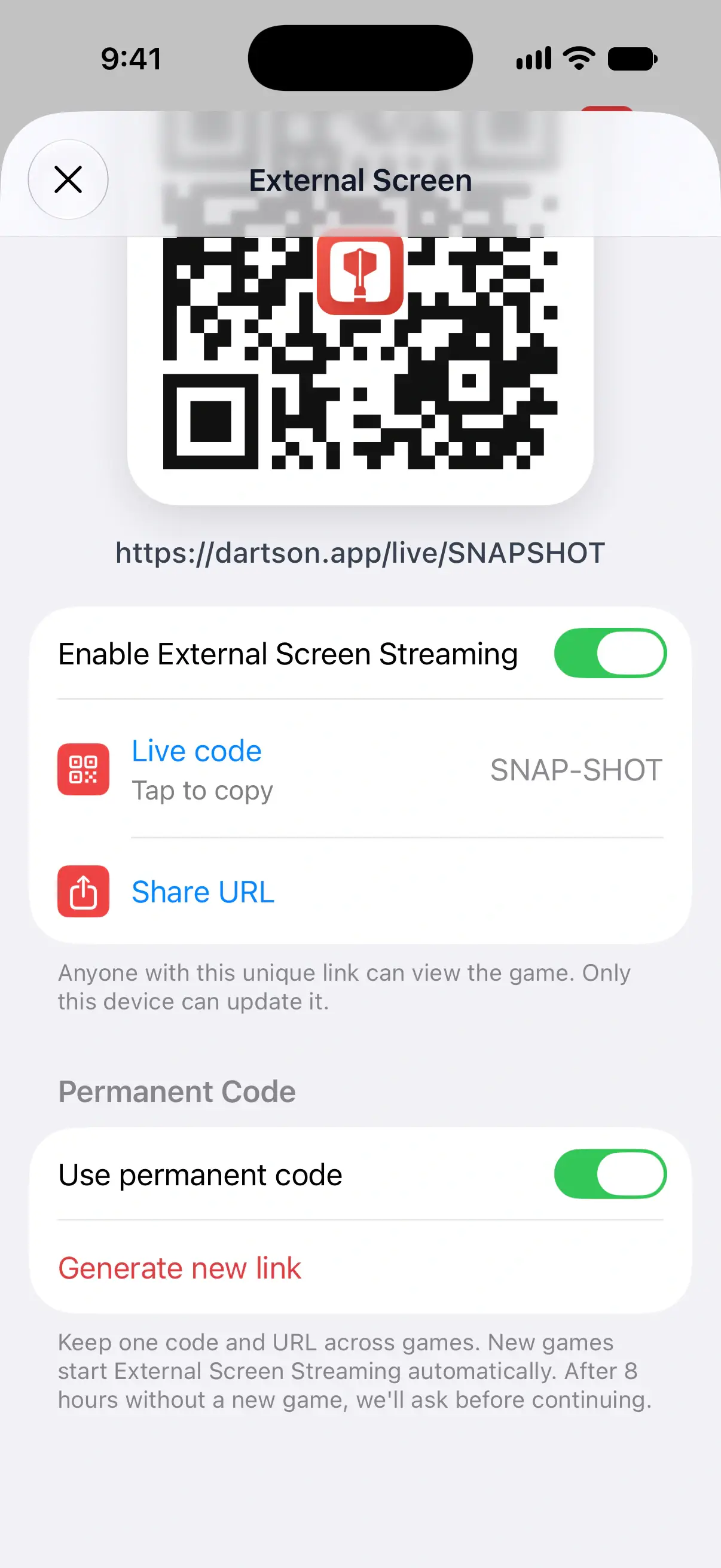
Once streaming is on, the Permanent Code section appears under it. Use permanent code is on by default, and it keeps one code and one link across your games:
- New games start External Screen Streaming on the same link by themselves.
- When a new game starts on the link, the previous game stops streaming.
- A browser left open on the link shows “No live game right now” between games, and switches to the next game when it starts.
- After 8 hours without a new game, DartsOn asks before it continues. Tap Continue External Screen Streaming to keep the link, or Continue without External Screen Streaming.
That makes it the link to leave open on a tablet by the board or a TV’s browser for a whole evening.
Turn off Use permanent code to give each game its own link. The current game keeps its link until you stop sharing it, and the change applies the next time you turn on streaming.
Generate a new link
If a permanent link has spread further than you’d like, replace it:
- In the Web tab, tap Generate new link under Permanent Code.
- Tap Generate new link again to confirm.
The old link stops working for everyone who has it, and your next shared game uses the new link. If the current game was on the old link, DartsOn moves it to the new one.
Stop sharing
Turn off Enable External Screen Streaming in the Web tab. The link stops showing this game.
Free matches and Premium
The live link is free for a limited number of matches. After that, the switch shows a Premium mark, and turning it on opens DartsOn Premium. Learn about DartsOn Premium.
Each match counts once. Turning the link off and on again in the same match doesn’t use up another, and on the permanent link each game it shows counts as one. Casting to a TV, AirPlay and a USB-C cable never count, since they don’t use the link.
Online matches
The Web tab works in online matches too, with the same link, code and QR code. Each online match gets its own link, as the Permanent Code section is only in local games.
Questions and answers
How many matches can I share for free with the live link?
A limited number. After that, the live link needs DartsOn Premium. Turning the link off and on again in the same match doesn't use up another one.
How do viewers enter a live code?
They go to dartson.app/live, type the eight-character code and tap Open game. A full live link opens the game directly.
Does my old link keep working after I generate a new one?
No. Generating a new link stops the old one for everyone who has it, and your next shared game uses the new link.
What language is the viewer page in?
The language your DartsOn app uses. The link carries it, so a phone set to German shares a German scoreboard page.
Related
- How to show your darts scoreboard on a TV Put your DartsOn match on a TV, monitor or browser with Google Cast, AirPlay, a live link or a USB-C cable, and pick the way that suits your setup.
- How to cast your darts scoreboard to a TV with Chromecast Cast your DartsOn match to a Chromecast, Google TV Streamer or TV with Google Cast. It's free with no match limit and uses your phone's Wi-Fi.
- What DartsOn Premium and Ultra include and how to get them See what's free in DartsOn, what Premium adds and what Ultra adds on top. Buy a plan in the App Store or Google Play, upgrade, restore a purchase, or cancel.
- External Screen Streaming for Darts | DartsOn Show your darts match on a big screen with Google Cast, Apple AirPlay, a Web Link, or USB-C.