
How to share darts games with a friend by linking a player
Link a player on your phone to a friend's DartsOn account, so the games you play together reach their history and stats.
When a friend plays on your phone, their games are saved under their player on your phone, and only you see them. Link that player to your friend’s DartsOn account, and every game you play together also reaches their DartsOn, where they import it into their own history and stats.
Before you start
- You both need a DartsOn account and must be signed in, each on your own phone. See create an account.
- Linking makes you friends. If you’re friends already, you can link straight from their profile.
- You can link any player who isn’t linked to an account yet. Your own Me player, bots and teams can’t be linked. To link a player to someone else, unlink them first.
Link a player with a QR code
Use this when your friend is with you, or send them the code.
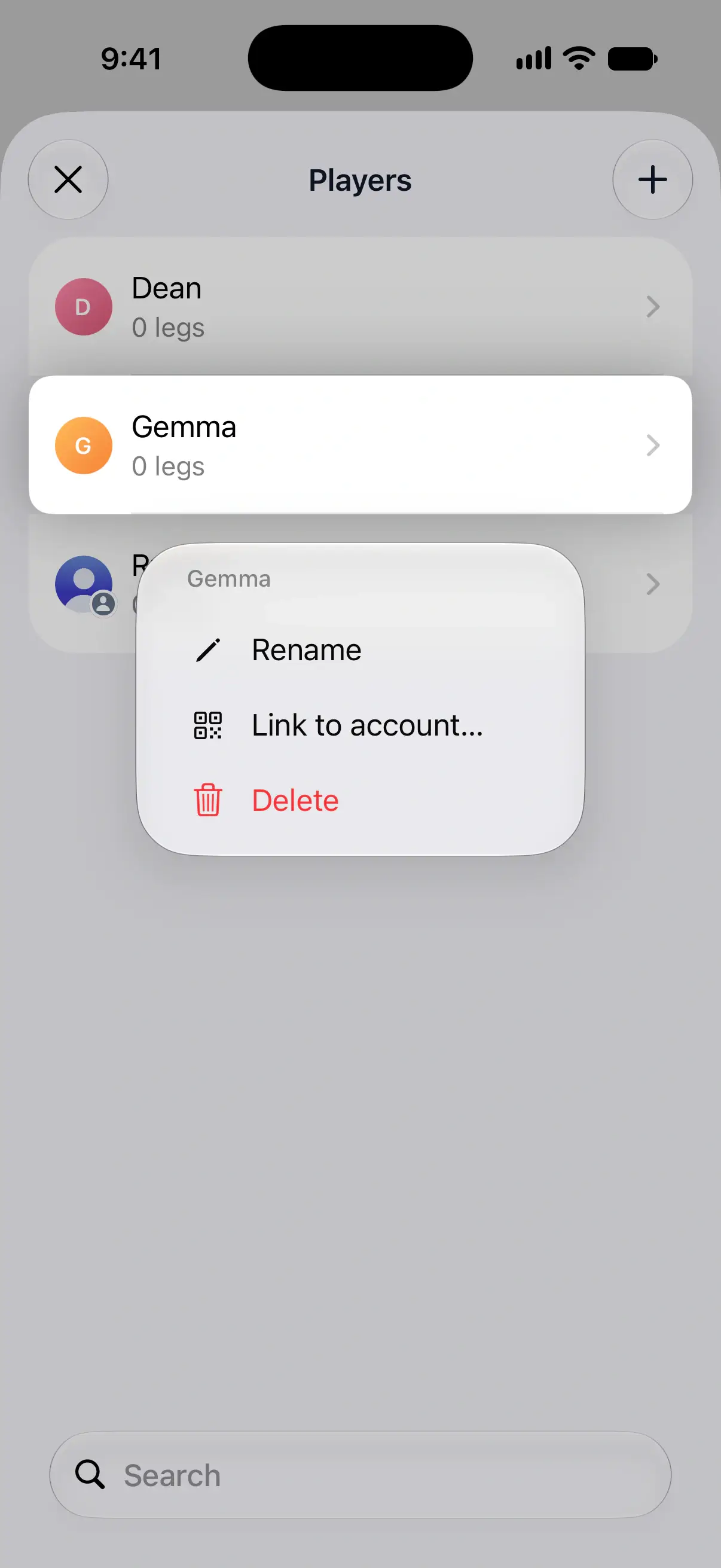
- Go to Settings → Players.
- Touch and hold the player who is your friend, and tap Link to account….
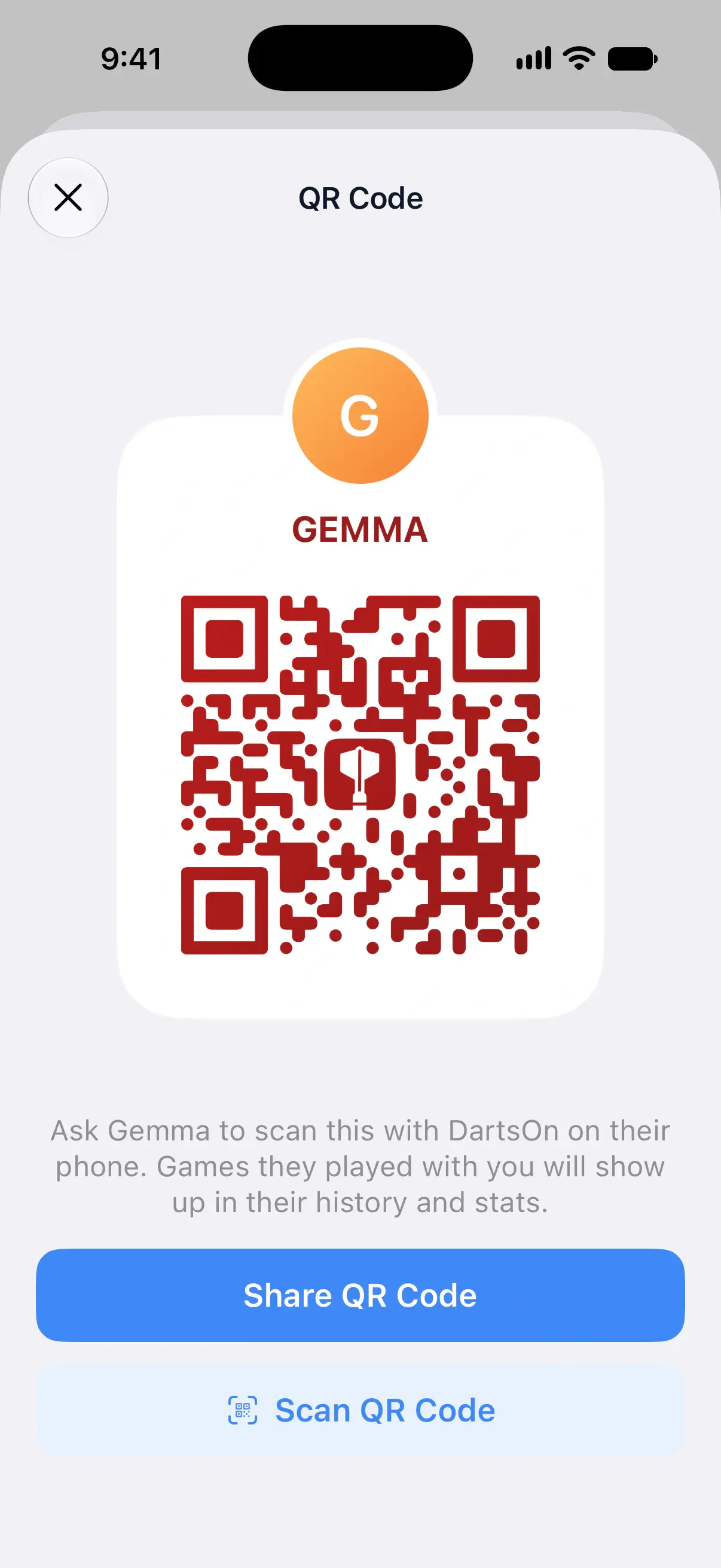
- The QR Code screen shows a code for that player, with “Ask Gemma to scan this with DartsOn on their phone.”
- Your friend scans it in DartsOn with Profile → Add Friends → Scan QR Code, or with their phone’s camera.

Your friend isn’t nearby? Tap Share QR Code to send the code as a link. When they open it on their phone, DartsOn opens the same confirmation as a scan. A code works once and expires after four hours, so send a new one if it has run out.
Or scan your friend’s code
If it’s easier, scan their code instead. On the player’s QR Code screen, tap Scan QR Code and scan the code your friend shows from their Profile. DartsOn names your player and their account, and you tap Link. If their code is more than 4 hours old or someone has used it, DartsOn sends them a friend request instead. Once they accept, link the player from their profile, as below.
What your friend sees
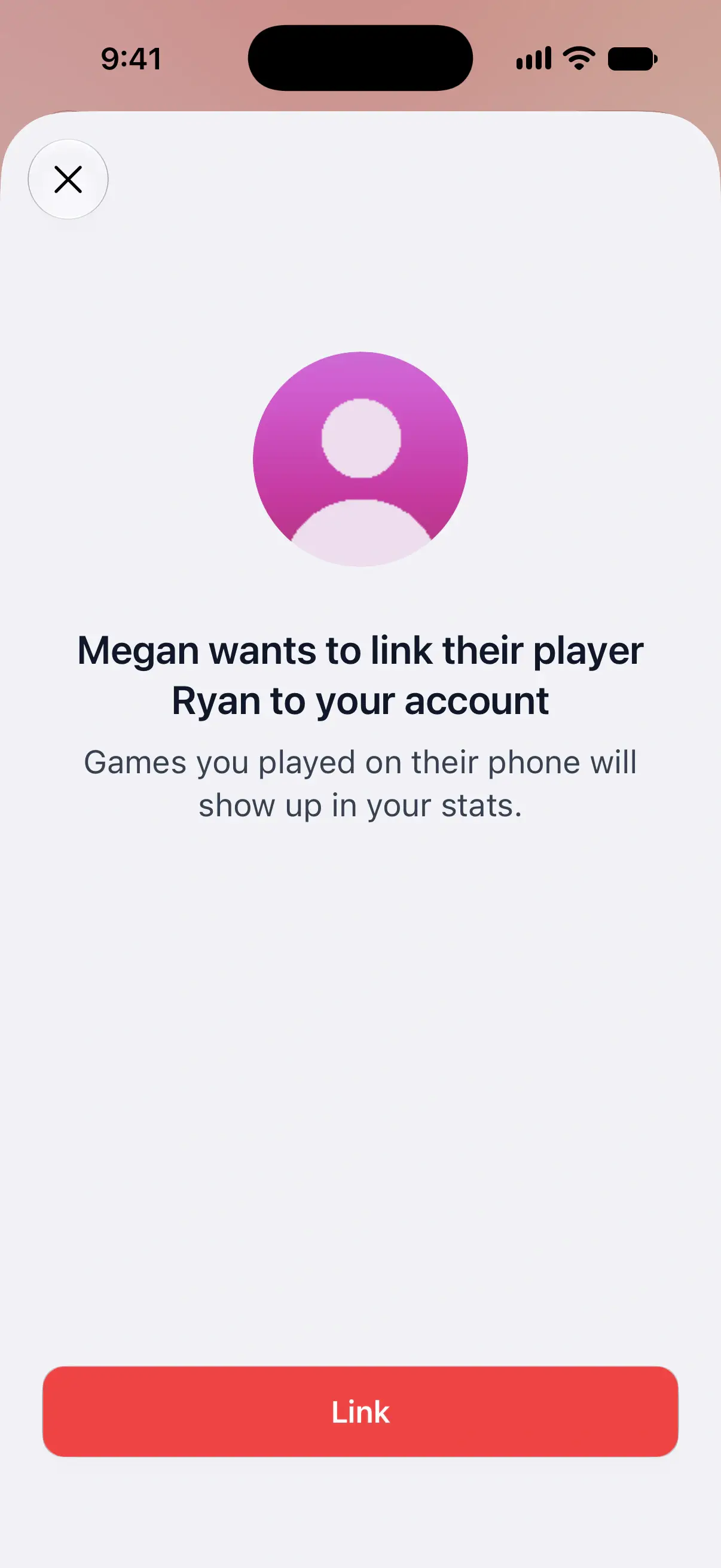
After scanning your code or opening your link, your friend sees your name and the player’s, as in “Megan wants to link their player Ryan to your account”. They tap Link.
DartsOn confirms with “You are now Ryan in Megan’s DartsOn”. From then on, each finished game with that player is sent to their DartsOn, including the ones you’d already played together.
If your friend isn’t signed in
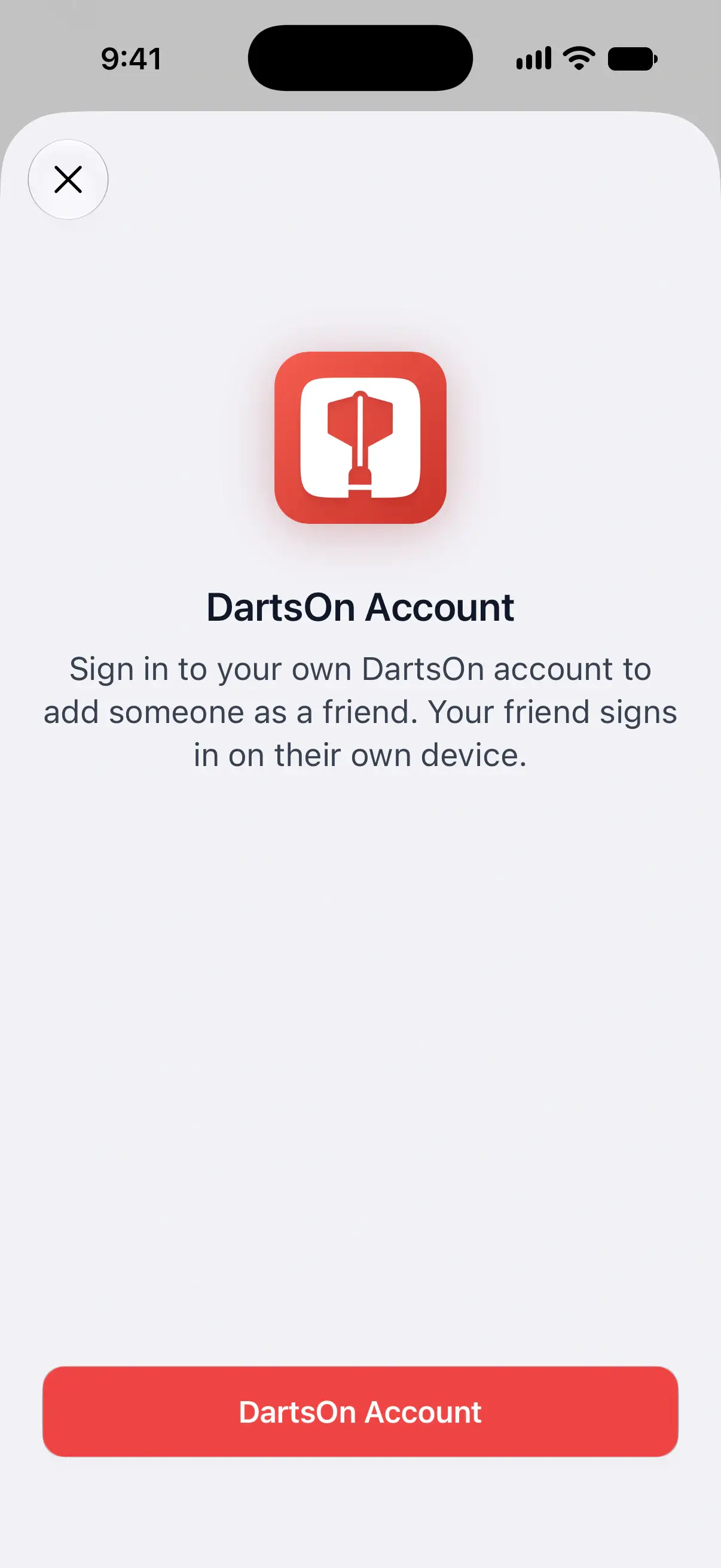
DartsOn asks them to sign in first, with “Sign in to your own DartsOn account to add someone as a friend.”
They tap DartsOn Account, sign in or create an account, and then confirm the link. Each of you stays signed in to your own account, so your friend never signs in on your phone.
Link a friend you already have
- Open your friend’s Online Profile, from the Online tab or Profile → All Friends.
- Tap … at the top right, then Link to Local User.
- On Choose Player, pick their player under Your Players, or keep New Player and type a name.
- Tap Link.
Your Players lists only players that aren’t linked yet. Picking New Player creates a player with their name.
Add a friend straight into a game
When you set up a new game, the player list has a Friends section with friends who aren’t a player on your phone yet. Tap one to add them. DartsOn creates their player and links it, so the game reaches their DartsOn once it’s finished.
Import shared games
Games arrive on your friend’s Home as a banner, Import 3 matches?, which says “Matches shared by players you linked will be added to your history and stats.”
- Import Matches adds them to their history and stats.
- Review opens Review Matches first. Under New Players, they can tap a player to rename them, or pick a player they already have under Already on This Device. Then they tap the checkmark at the top right to import. Anyone left unchanged becomes a new player.
- The close button hides the banner until more games arrive.
Nothing is added to their history until they import. If a game needs a newer version of DartsOn, the banner says so and offers Update DartsOn.
Games are sent when they finish, and again if you edit one later. Importing the new version replaces your friend’s copy. Your phone needs to be signed in for games to go out.
Check or remove a link
In Settings → Players, tap a linked player to see Linked to @ryanturner and View Online Profile. Linked players carry a Linked tag in the list.
To stop sharing, touch and hold the player and tap Unlink account, or tap Unlink on the player’s details. On your friend’s Online Profile, tap … and, under Linked to Ryan, tap Unlink.
DartsOn asks Unlink Ryan? first. Games your friend already imported stay on both phones. New games are no longer shared, and shared games your friend hasn’t imported yet are withdrawn. Removing a friend unlinks their player too, and the player stays on your phone as an ordinary player.
Questions and answers
Does my friend need their own DartsOn account?
Yes. Both of you need to be signed in, each to your own account on your own phone. Linking also makes you friends, if you weren't already.
Will my friend get the games we played before linking?
Yes. Once the player is linked, the finished games that player played on your phone are sent to your friend's DartsOn too, ready to import.
Can I link a bot or a team?
No. Only a player can be linked, and not your own Me player, since that one is you.
If I delete a shared game, does it disappear for my friend?
No. A game your friend imported stays in their DartsOn. Deleting it on your phone only removes your copy.
Related
- How to add friends in DartsOn Find friends by username or QR code, answer friend requests, see who's online or in a match, and remove a friend in DartsOn.
- Manage your saved players in DartsOn Add, rename and delete the players DartsOn suggests for your darts games, and mark which player is you so your stats and badges are tracked.
- Track your darts statistics in DartsOn Pick a player, game mode and time period on the Statistics tab, filter by rules, and see your averages, checkouts, high scores and records.