
Track your darts statistics in DartsOn
Pick a player, game mode and time period on the Statistics tab, filter by rules, and see your averages, checkouts, high scores and records.
On this page
- Choose a player
- Choose a game mode
- Filter by time period and rules
- Local, online or both
- Finished legs or finished matches
- Time periods
- Rule filters
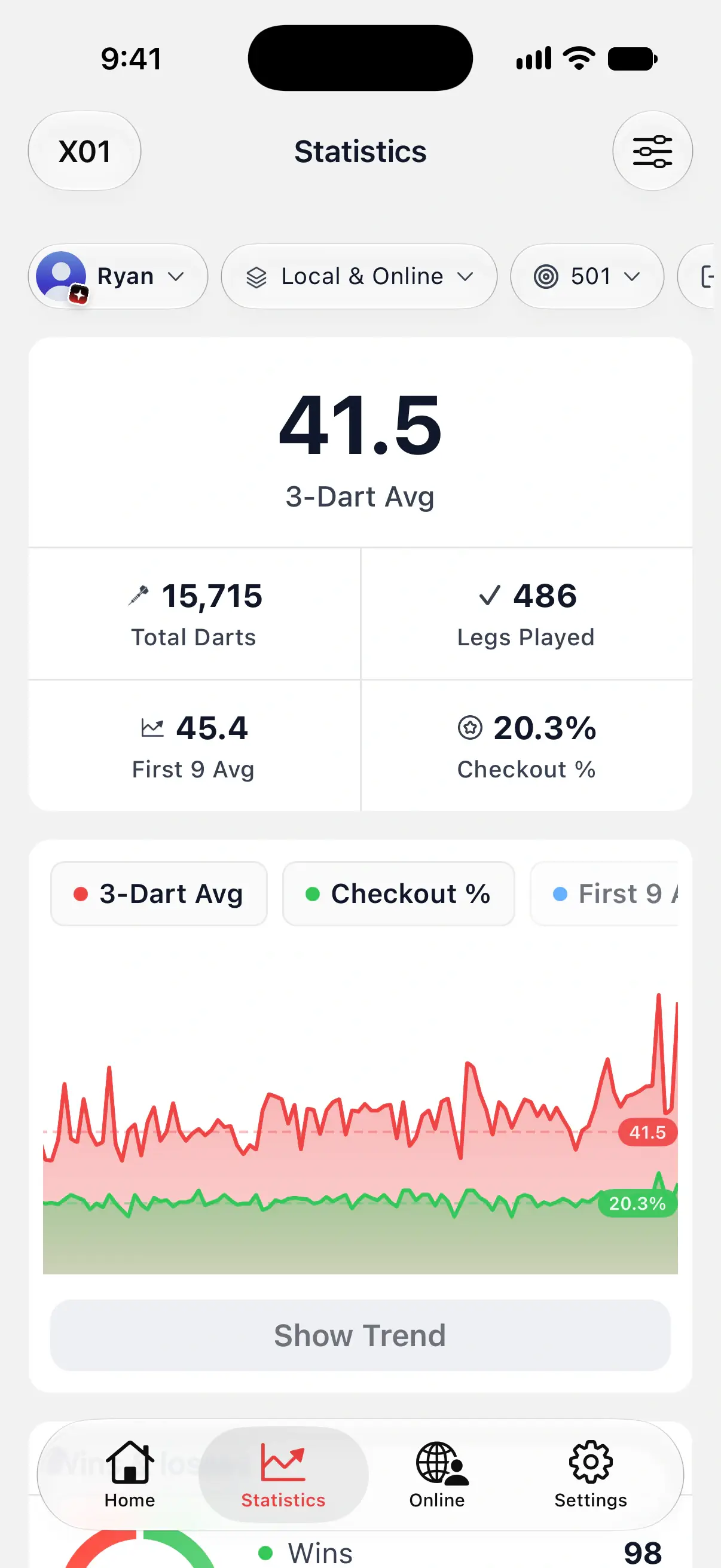
- Read the X01 headline card
- What DartsOn Premium adds
- Use the trend chart
- Check high scores and records
- Stats in other modes
- Your record against bots and your badges
- Try sample stats before your first game
- Questions and answers
- Related
The Statistics tab shows how you play each game mode over time. Choose whose stats to see, narrow them to a time period or a set of rules, and follow your 3-dart avg, checkouts, high scores and records.
It starts with local games, including any that sync to your account from your other devices. Signed in and viewing your own stats, you can choose online games or combine both. The Online tab also has Online Statistics, which always shows online matches alone.

Choose a player
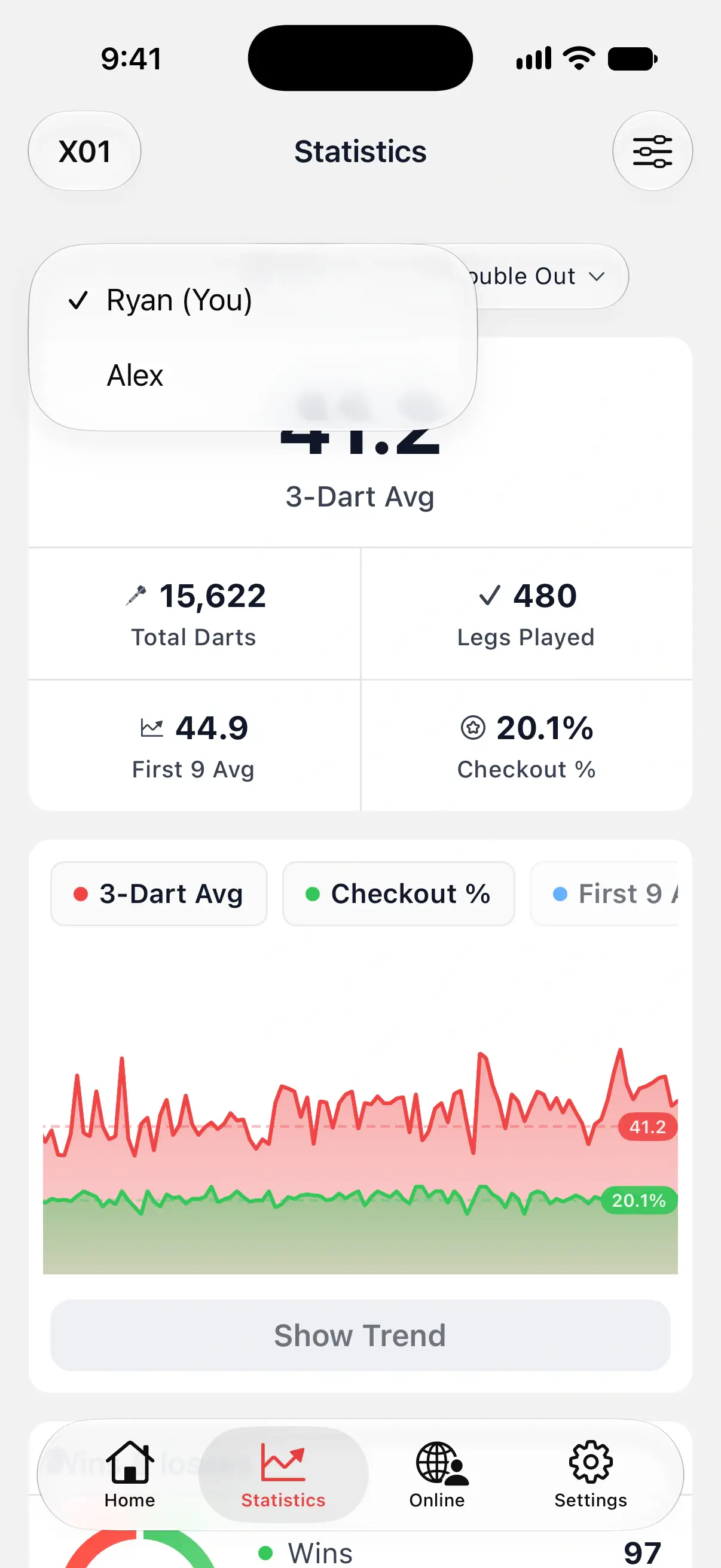
The first chip under the header names the player. It starts on you.
- Tap the player chip.
- Pick a player from the list. You’re marked (You), such as Ryan (You).
The list shows everyone who has played the chosen mode in the chosen time period.
If DartsOn doesn’t know which player is you, the tab shows a Set your profile banner. Tap it and pick yourself, so your stats and badges follow you. Until then, the tab opens on the player with the most games in that mode. You can also mark yourself in Settings → Players. See manage players.
Choose a game mode
Tap the mode name at the top left, such as X01, and pick a game. The tab remembers your choice.
These 12 modes have stats: X01, Cricket, Around the Clock, Round the World, Shanghai, Half It, Singles Training, Doubles Training, Bob’s 27, Count Up, JDC Challenge and Checkout Trainer. Killer and 121 Checkout don’t.
Filter by time period and rules
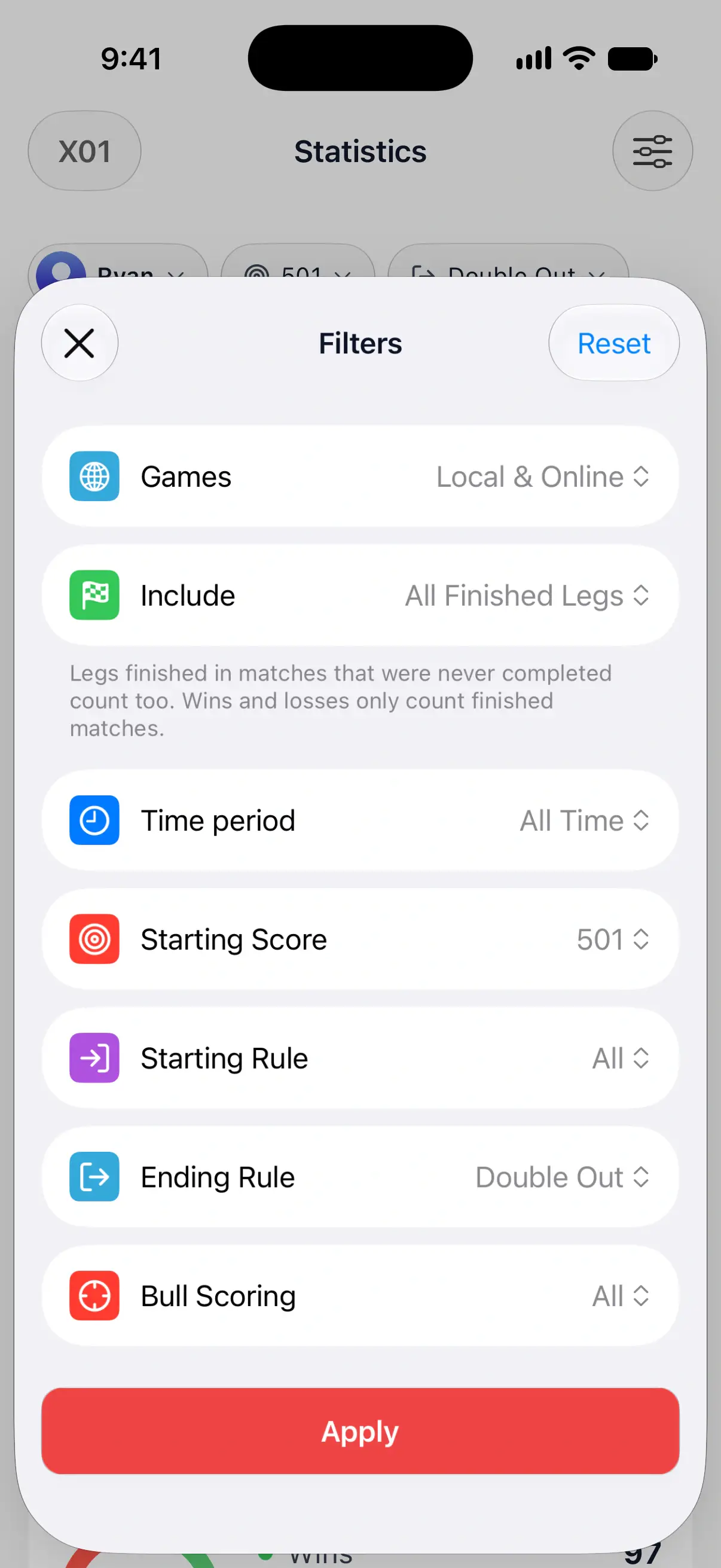
- Tap the filter button at the top right. It shows three sliders.
- Under Games, pick Local, Online or Local & Online. This choice appears when you’re signed in and viewing your own stats.
- Under Include, pick All Finished Legs or Finished Matches Only.
- Tap Time period to choose how far back to look, and set any rule filters, such as Starting Score or Ending Rule. All includes every value.
- Tap Apply.
Reset restores Local, All Finished Legs, All Time and the rule defaults. Tap Apply to use it.
Each active filter shows as a chip next to the player. Tap a chip to change only that filter.
Local, online or both
Local counts games saved on your devices, including games synced to your account. Online counts matches played through DartsOn Online. Local & Online combines them.
The source choice applies to your own stats. Other saved players still show their local games. Checkout Trainer has no online games.
If online results can’t load while Local & Online is selected, DartsOn says that only local games are being counted. Some detailed cards also count local games only and say so above them.
Finished legs or finished matches
All Finished Legs, the default, includes completed legs even when you never finished their match. Finished Matches Only leaves those unfinished matches out. Wins and losses always count finished matches.
Time periods
| Option | What it covers |
|---|---|
| All Time | Every game you’ve played in the mode |
| This Year | From 1 January to today |
| 3 Months, 30 Days, 7 Days, Last 24h | A window that ends now |
| Last 10 legs to Last 500 legs | Your most recent legs in the mode, however long ago you played them |
Pick a leg count when you play in bursts. Last 50 legs shows your current form, whether you played those legs this week or over a whole season.
The time period applies to every mode. Rule filters are kept for each mode.
Rule filters
Each mode offers the rules you choose when you set up that game. X01 has Starting Score, Starting Rule, Ending Rule and Bull Scoring. Cricket has Cricket Variant, with Standard, Cut Throat, No Score, Random, Hidden, Tactics and Crazy. JDC Challenge has none.
X01 starts on 501 with Double Out, so a 301 average doesn’t mix with your 501 average. Set Starting Score to All to see every X01 game together.
Read the X01 headline card
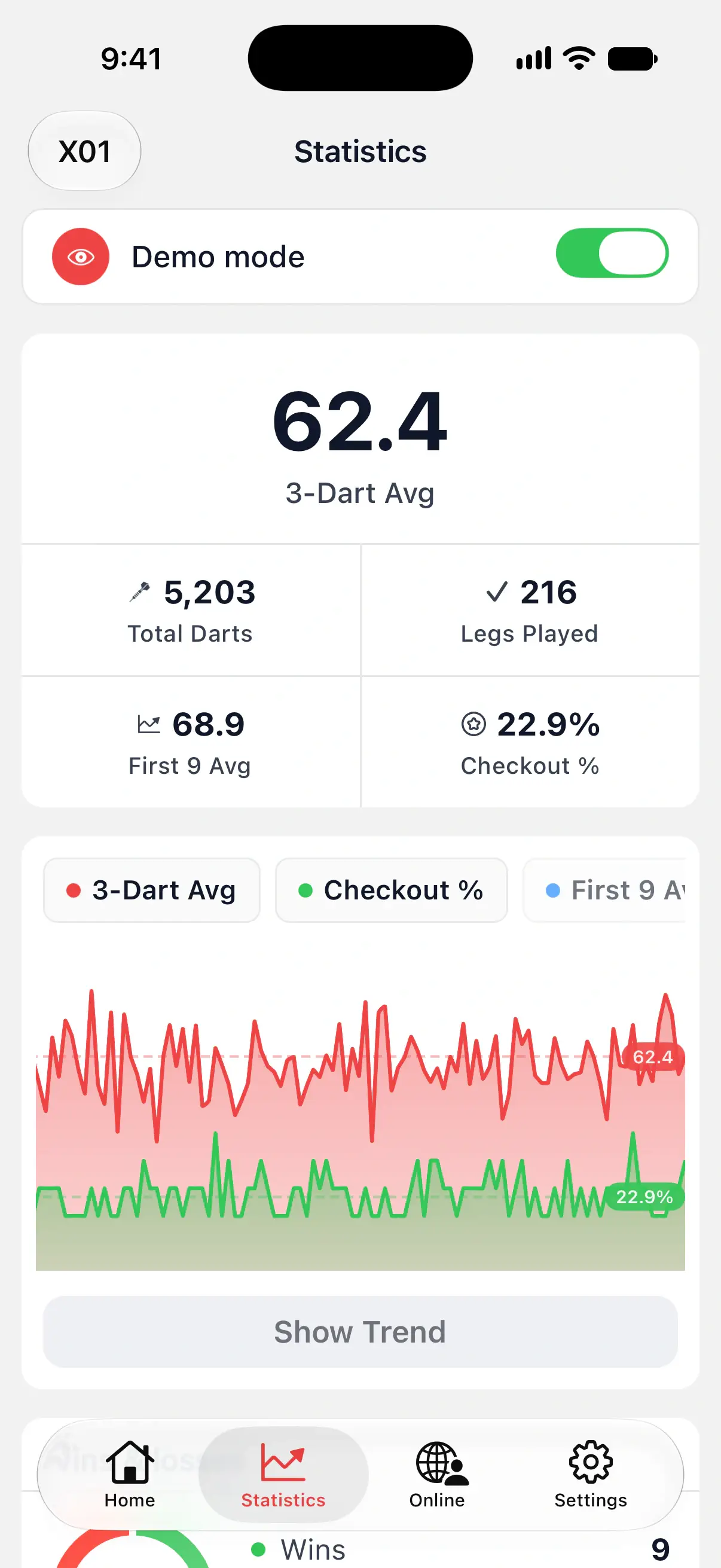
The card at the top of X01 is free. It shows your 3-Dart Avg in large type, then Total Darts, Legs Played, First 9 Avg and Checkout %.
With any period except All Time, the card compares you with the period just before it. A green arrow means you went up, a red arrow means you went down, and Prev shows the earlier value. 7 Days compares with the 7 days before, and This Year with the same stretch of last year. Last 50 legs compares with the 50 legs before those.
DartsOn leaves the comparison out when the period before has fewer than 3 legs. With a leg count, it needs twice that many legs in all, such as 100 legs for Last 50 legs.
With Premium, tap the 3-dart avg, First 9 Avg or Checkout % to add that line to the trend chart below. For what each number means and how DartsOn counts it, see X01 stats explained.
What DartsOn Premium adds
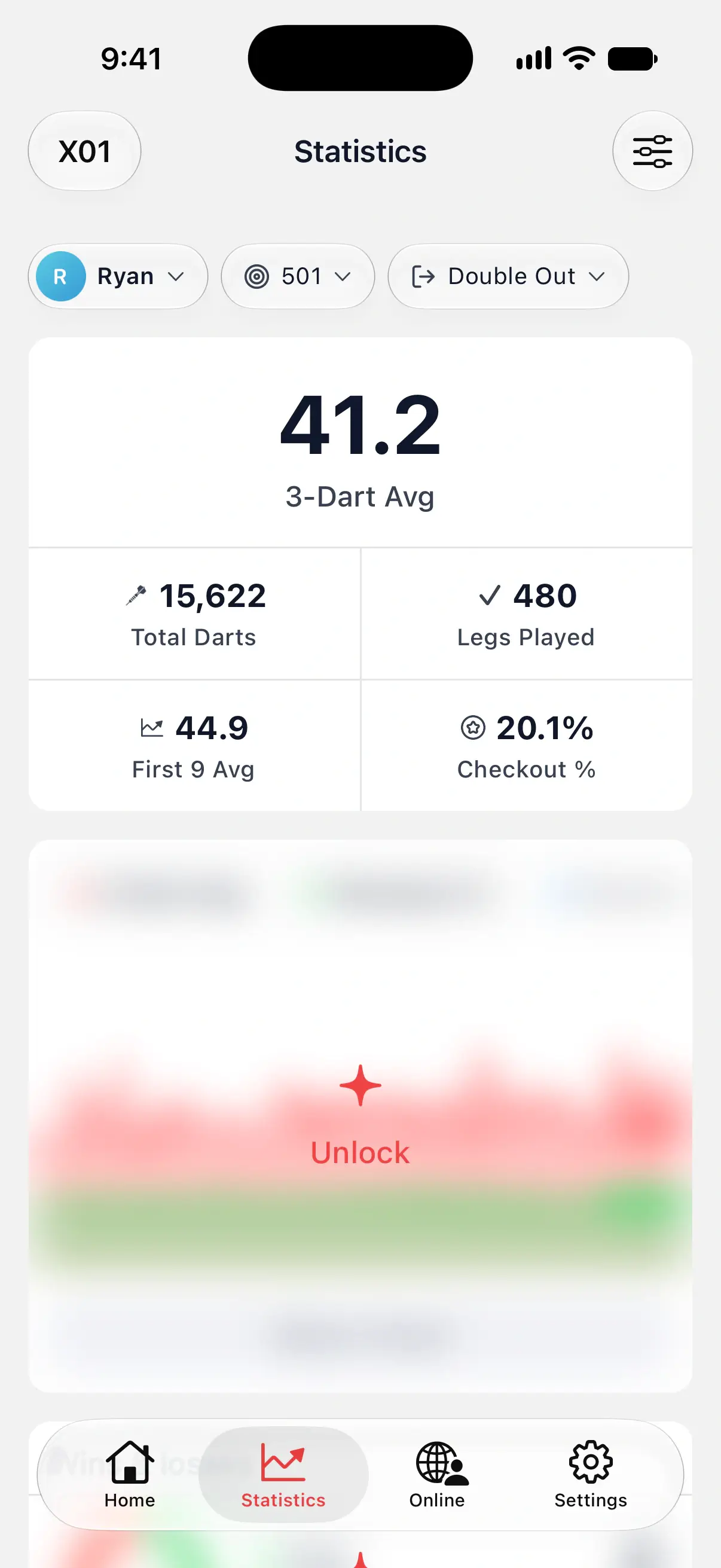
Without Premium, the cards below the X01 headline card are blurred, apart from your record against bots and your badges. Tap Unlock on any blurred card to see the plans. With DartsOn Premium, you get:
- the X01 trend chart, with 3-Dart Avg, Checkout %, First 9 Avg and 1-Dart Avg lines;
- Wins & losses, with your win rate;
- the Heatmap of where your darts land;
- the full Stats table, the 60+, 100+, 140+ and 180s tiles, and Records;
- every card for the other 11 modes.
Use the trend chart
The chart starts with 3-Dart Avg and Checkout %. Tap a chip above it to add or remove a line. Tap Show Trend to draw each line as a rolling average of its last 5 points, which smooths out one good or bad leg.
Each point on the chart is a leg. Once a period holds more than 180 legs, each point is a day.
Check high scores and records
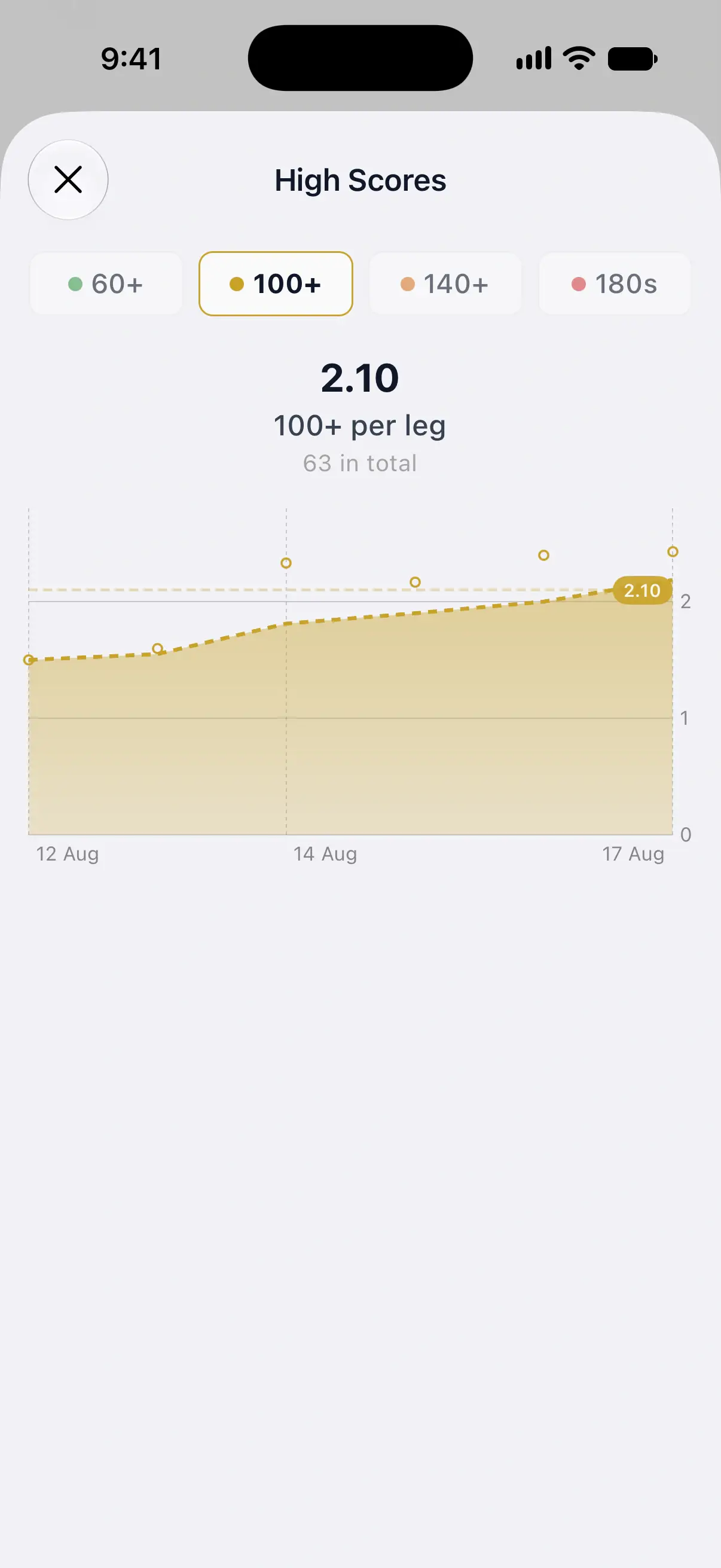
Under the Stats table, 4 tiles count your turns of 60+, 100+, 140+ and 180s. A 180 counts in all 4 tiles.
Tap a tile to open High Scores. It shows how many of those turns you average per leg and how many you’ve thrown in total. The chart follows the per-leg rate, so it rises when your scoring improves and falls when it slips.
Records shows 3 personal bests:
- Best Leg is the fewest darts you’ve needed to win a leg.
- Highest Checkout is your biggest finish, with the darts that hit it.
- High Score is your best single turn.
Stats in other modes
Most modes start with Wins & losses and the Heatmap. Bob’s 27, JDC Challenge, Checkout Trainer, Singles Training and Doubles Training are solo practice, so they skip Wins & losses.
| Mode | What you’ll find |
|---|---|
| Cricket | Marking Averages with MPR, Scoring, MPR trend, Trebles / Doubles / Singles and Records |
| Around the Clock, Round the World | Performance, Hit rate trend, a Target Breakdown board and Records |
| Shanghai, Half It, Count Up | Scoring, Avg score trend, Performance and Results |
| Singles Training, Doubles Training | Target Accuracy, Scoring, Hit Rate Trend and Performance |
| Bob’s 27, JDC Challenge | Target Accuracy, Scoring, a score trend, Performance, and your last, best and worst game |
| Checkout Trainer | Records, Success Rate Trend, Performance, Practice, and your last, best and worst session |
The target boards color each number by your hit rate. See heat maps and target accuracy.
Your record against bots and your badges
On X01, the Bots card under Records shows your wins against bots. Tap it for every bot level. See your record against bots.
When the tab shows your own stats, your newest badges, up to 3, appear at the bottom. Tap View All for the full list. See badges.
Try sample stats before your first game
Until you start your first game, the tab has a Demo mode switch. Turn it on to fill every mode with sample stats, with nothing blurred, so you can see what DartsOn tracks.
Demo mode hides the player and filter chips. The switch disappears for good once you start a game, and your own stats take its place.
Questions and answers
Why are most of my DartsOn stats blurred?
The X01 headline card is free. The charts, tables, heat maps, records and the stats of every other game mode need DartsOn Premium. Tap Unlock on a blurred card to see the plans.
Do my online matches count in my statistics?
Yes. When you're signed in and viewing your own stats, open Filters and set Games to Online or Local & Online. Local shows only games played on your devices and synced to your account.
Why don't my 301 games show up in my X01 stats?
X01 stats start filtered to 501 Double Out. Open Filters and set Starting Score and Ending Rule to All, or to the rules you played.
Do bot darts count in my averages?
No. Only your own darts count toward your averages. A finished game against a bot does count as a win or loss in Wins & losses.
Related
- X01 darts stats explained, from 3-dart avg to checkout % What each X01 number in DartsOn means and how it's counted, from 3-dart avg and first 9 avg to checkout %, high scores, records and Cricket MPR.
- Read your darts heat map and target accuracy See where your darts land on a DartsOn heat map, switch between Heat map and Landings, inspect an area, and check your hit rate on each target.
- Review a finished darts game in DartsOn Find past games on Home, read their summaries leg by leg, continue an unfinished game and share any local game or online match as a PDF, text or CSV.
- See your record against DartsOn bots Check your wins and win rate against each DartsOn bot level, open a bot's profile with its average, checkout % and simulated heat map, and compare players.