
How to change Auto-Scoring Settings in DartsOn
Pick the scoring model, set Energy Mode, check how fast auto-scoring runs on your phone and free up space. Every row of Auto-Scoring Settings explained.
Auto-Scoring Settings controls how camera auto-scoring runs on this phone: the scoring model, how hard it works, extra cameras, Action Replays and the space the models take. Your choices apply to every game mode.
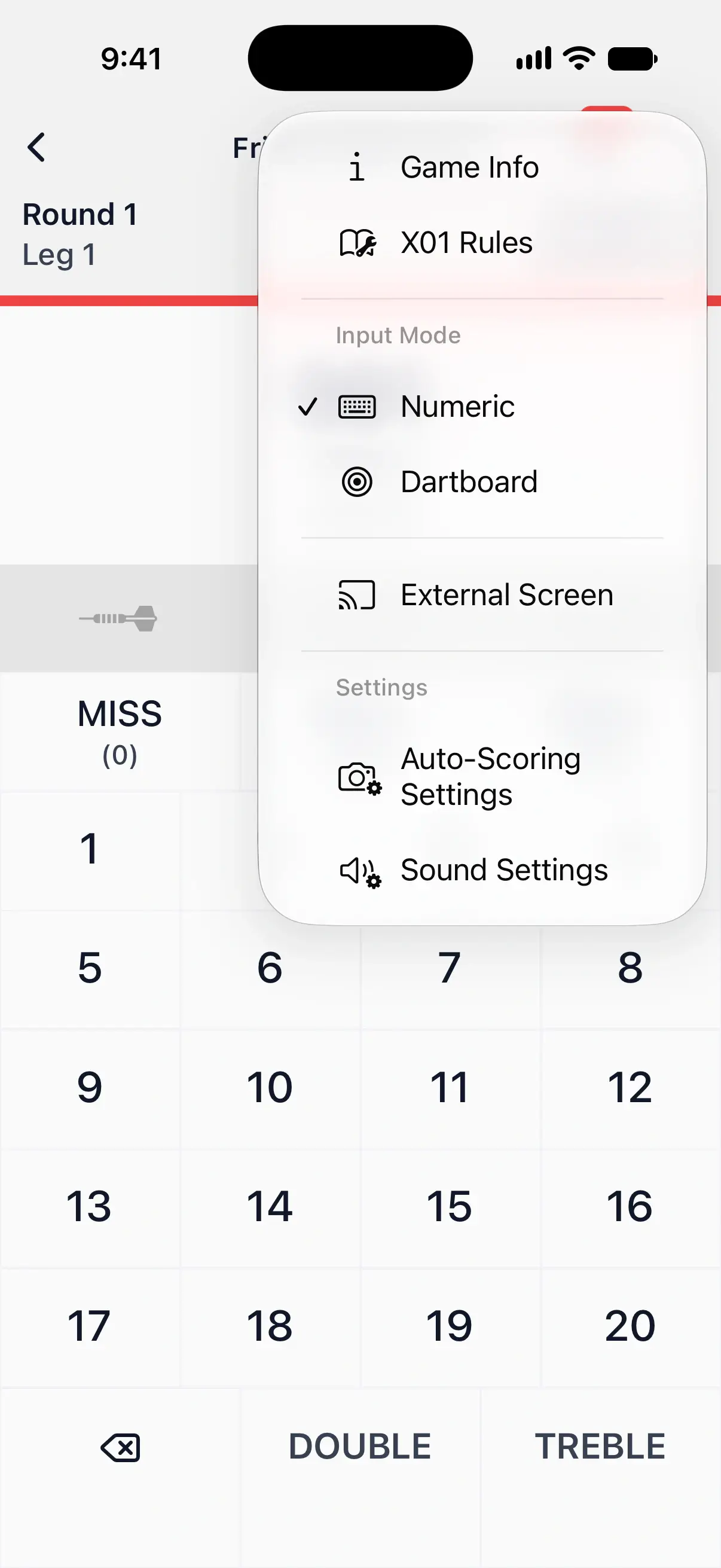
Open Auto-Scoring Settings
- From the Settings tab: tap Auto-Scoring Settings in the Gameplay section.
- During a game: tap ••• at the top right, then Auto-Scoring Settings under Settings.
Both open the same sheet. When you close it during a game, you’re back where you left off.

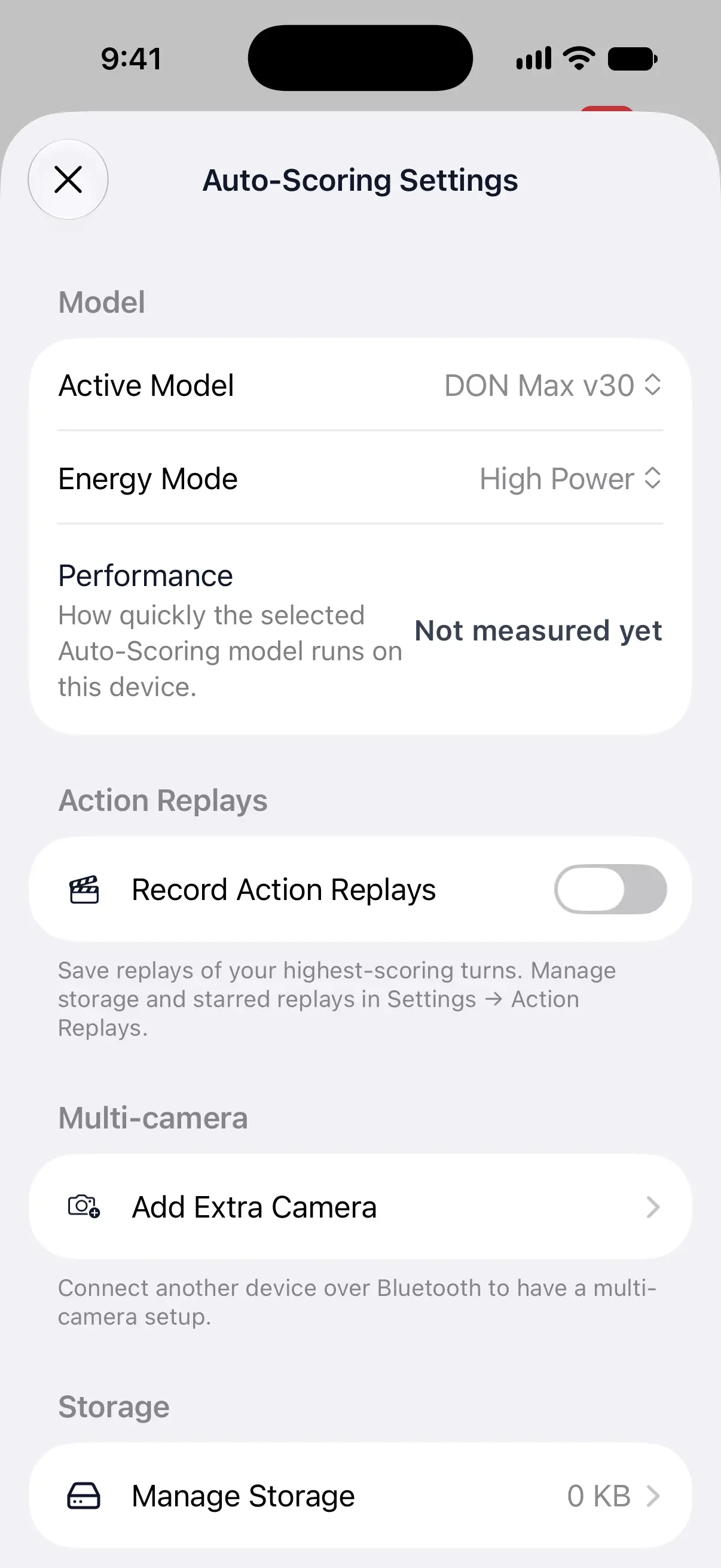
Active Model
The scoring model finds the board and the darts in each camera image. It runs on your phone, with no internet needed once it’s downloaded. DartsOn has three:
| Model | What it is | Where it runs |
|---|---|---|
| DON Max | The best-scoring model, and the heaviest to run. | iPhone and iPad with at least 4 GB of memory. Android devices with about 4 GB or more, once DON Pro has proven fast enough on them. |
| DON Pro | A step lighter than Max. | iPhone and iPad, and Android devices with about 4 GB of memory or more. |
| DON Lite | The lightest model, for older or slower devices. | All devices. |
The number after the name, such as v30, is the model version. When DartsOn has an improved version, the camera view shows New scoring model available. Tap Update to download it.
DartsOn measures how fast each model runs on your phone and picks the best one that runs fast enough. That’s the right choice for most players. On Android, it never picks DON Max by itself.
To choose a model yourself, tap Active Model and pick one. DartsOn keeps your choice from then on and stops choosing for you. If you pick one your phone can’t run, DartsOn shows This device is not powerful enough to run this model.
Pick a lighter model when auto-scoring warns that it’s running slowly. Fix a slow phone.
Energy Mode
| Option | What it does |
|---|---|
| High Power | Checks the camera image more often, so darts score sooner. This is the default. |
| Low Power | Checks less often, which saves battery and heat. Darts take a little longer to appear. |
DartsOn slows scoring down by itself in two cases, and you can’t change Energy Mode until they’re over:
- Low battery. Below 20%, a red battery icon appears on the camera view and the row reads Low Power is on because your battery is low.
- A hot phone. Scoring first slows down and the row shows Cooling down. If the phone gets hotter, the row reads Low Power is on until your device cools down.
On iPhone and iPad, a battery button also appears on the camera view while the battery is below 60% and the phone isn’t charging. Tap it to see Plug in a charger. Auto-scoring uses more battery than normal play, so a long session goes better plugged in.
Performance
Performance shows how long the active model takes to read one camera image on this phone, in milliseconds, with a rating from Excellent down to Poor. Lower is faster. Not capable means the phone is too slow for that model.
It reads Not measured yet until DartsOn has timed the model. Tap the row to measure it now, or to measure again after the phone has cooled down. The number belongs to the model and the phone together, so switching models changes it.
On Android, the Model section also says which part of the phone runs the model: Compute: NPU, GPU or CPU.
Record Action Replays
Turn on Record Action Replays to keep videos of your best X01 turns while the camera scores. It’s off until you turn it on. Action Replays.
Add Extra Camera
Add Extra Camera connects another phone or tablet over Bluetooth, so DartsOn sees the board from a second angle. Add an extra camera.
On a device that can’t connect extra cameras, this section shows Companion camera unavailable with the reason under it.
Manage Storage
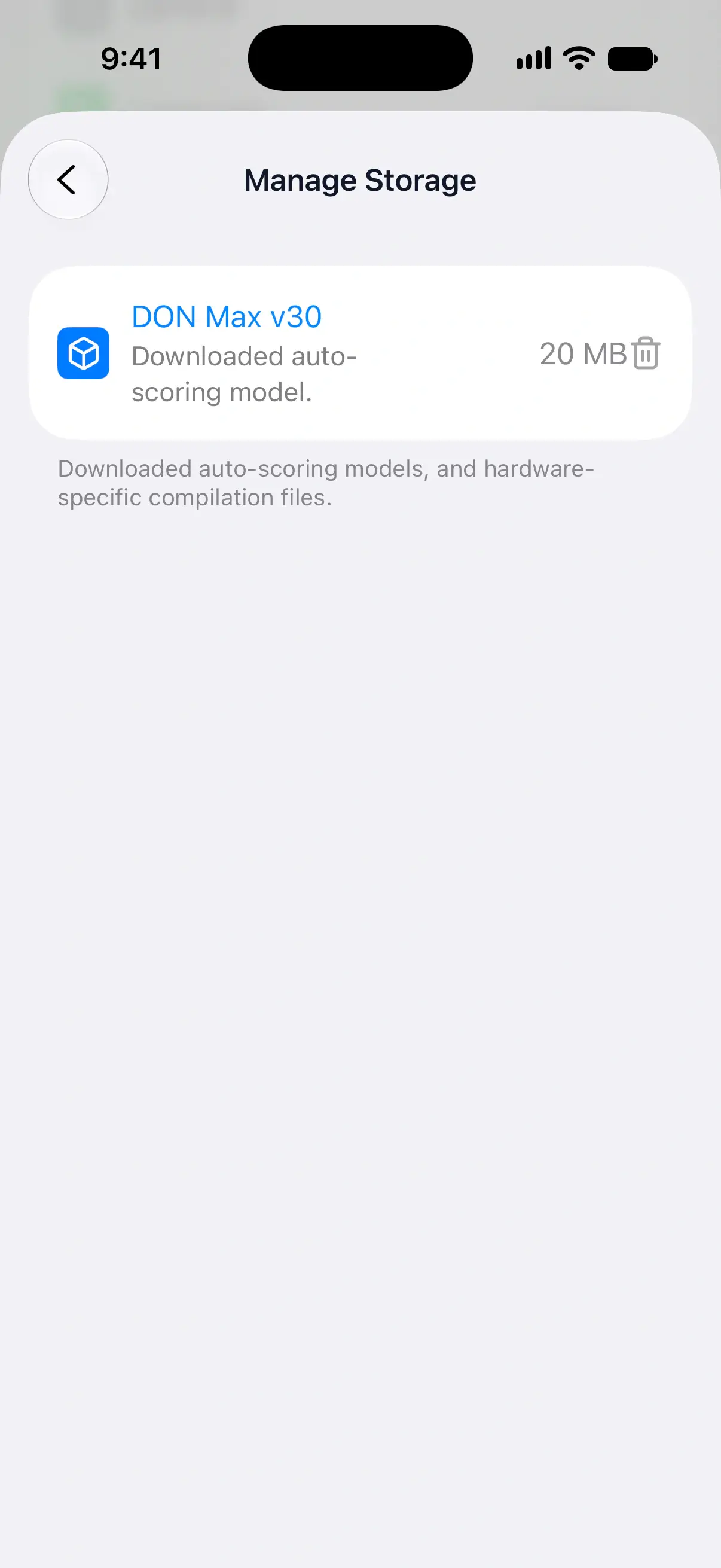
The Manage Storage row shows how much space the auto-scoring files take. Tap it to see each one with its size:
- A downloaded model. Tap it or its trash button, then Delete. You’ll need to download it again before you auto-score with it.
- Compilation Cache. Files made for your phone’s hardware so the models run efficiently. Tap Clear to remove them, and the models are prepared again the next time they run.
- A model included with the app. It shows Included with this version of DartsOn. and can’t be deleted.
Show Torch Button
On a phone with a flash, the Torch section has Show Torch Button. Turn it on to add a torch button to the camera view, then tap that button to light the board. It’s off by default.
Questions and answers
Which auto-scoring model should I use?
Let DartsOn choose. It measures the models on your phone and picks the best one that runs fast enough. Switch to a lighter model yourself only if auto-scoring warns that it's running slowly.
Why can't I change Energy Mode?
DartsOn locks Energy Mode while your battery is below 20% or your phone is too hot. A low battery switches it to Low Power. A hot phone shows Cooling down first, then Low Power if it gets hotter. Your own choice comes back once the battery is charged or the phone has cooled down.
Why can't I use DON Max?
DON Max needs at least 4 GB of memory. On a phone with less, choosing it shows This device is not powerful enough to run this model. On Android, DON Max only appears under Active Model once DON Pro has proven fast enough on your phone, and you choose it yourself.
How do I free up the space auto-scoring uses?
Open Auto-Scoring Settings, tap Manage Storage and delete the models you don't use. You'll need to download a model again before you auto-score with it.
Related
- How to set up camera auto-scoring in DartsOn Place your phone by the board, turn on Auto-Scoring and let the camera score each dart. What you need, where to put the phone and how each turn works.
- How to fix camera auto-scoring problems in DartsOn What to try when DartsOn misses darts, scores the wrong number, won't start the next turn, can't open the camera or says your phone is too slow.
- How to add an extra camera for multi-camera auto-scoring Connect a second phone or tablet over Bluetooth so DartsOn sees the board from another angle and scores darts the main camera can't see.
- How to record and share Action Replays in DartsOn Record X01 turns while camera auto-scoring keeps score, then watch, star and share the best ones, and keep them in the cloud across your devices.