
How to record and share Action Replays in DartsOn
Record X01 turns while camera auto-scoring keeps score, then watch, star and share the best ones, and keep them in the cloud across your devices.
On this page
- Turn on Action Replays
- What gets recorded
- Save any turn with the save button
- Watch your replays
- Use the player
- Share a replay
- Share a replay by link
- Star the replays you want to keep
- Manage storage on your phone
- Keep replays in DartsOn Cloud Storage
- When your cloud is full
- Delete replays
- Questions and answers
- Related
Action Replays records your X01 turns while camera auto-scoring keeps score, and keeps the best ones as short videos with the scoreboard in the corner. You can watch them again, share them and choose which ones to keep. See Action Replays.
Turn on Action Replays
Recording is off until you turn it on. Use either switch, as they’re the same setting:
- Settings → Auto-Scoring Settings → Record Action Replays
- Settings → Action Replays → Enable Action Replays
Then play an X01 game with Auto-Scoring on. Set up camera auto-scoring.
What gets recorded
- X01 only. Other game modes don’t record replays.
- Camera-scored turns only. Turns entered on the keypad or the dartboard aren’t recorded, and neither are bot turns.
- Each player’s best turn per match. DartsOn keeps the highest-scoring turn of every player in the match on its own. If two turns score the same, the earlier one stays.
- Checkouts once confirmed. A camera checkout can become a replay after you tap Confirm, and a checkout that scores more than your best turn replaces it. Busted turns aren’t kept on their own.
- A few seconds around the darts. Each replay starts about 2 seconds before your first dart and ends just after your last.
Replays are silent, so DartsOn never asks for the microphone to record them.
Save any turn with the save button
To keep a turn that isn’t your best, such as a lower checkout or a bust, tap the save button right after the turn. It’s the clapperboard near the top right of the camera view. Action Replay Saved appears with a View button. If there’s no finished turn yet, you see No Turn to Save Yet.
Tap it while a camera checkout is waiting for Confirm, and DartsOn saves the checkout once you confirm it.
The button is on by default. To hide it, turn off Show save replay button in Settings → Action Replays.
Watch your replays
- In the game: tap ••• in an X01 game and choose Action Replays to open a replay from that match.
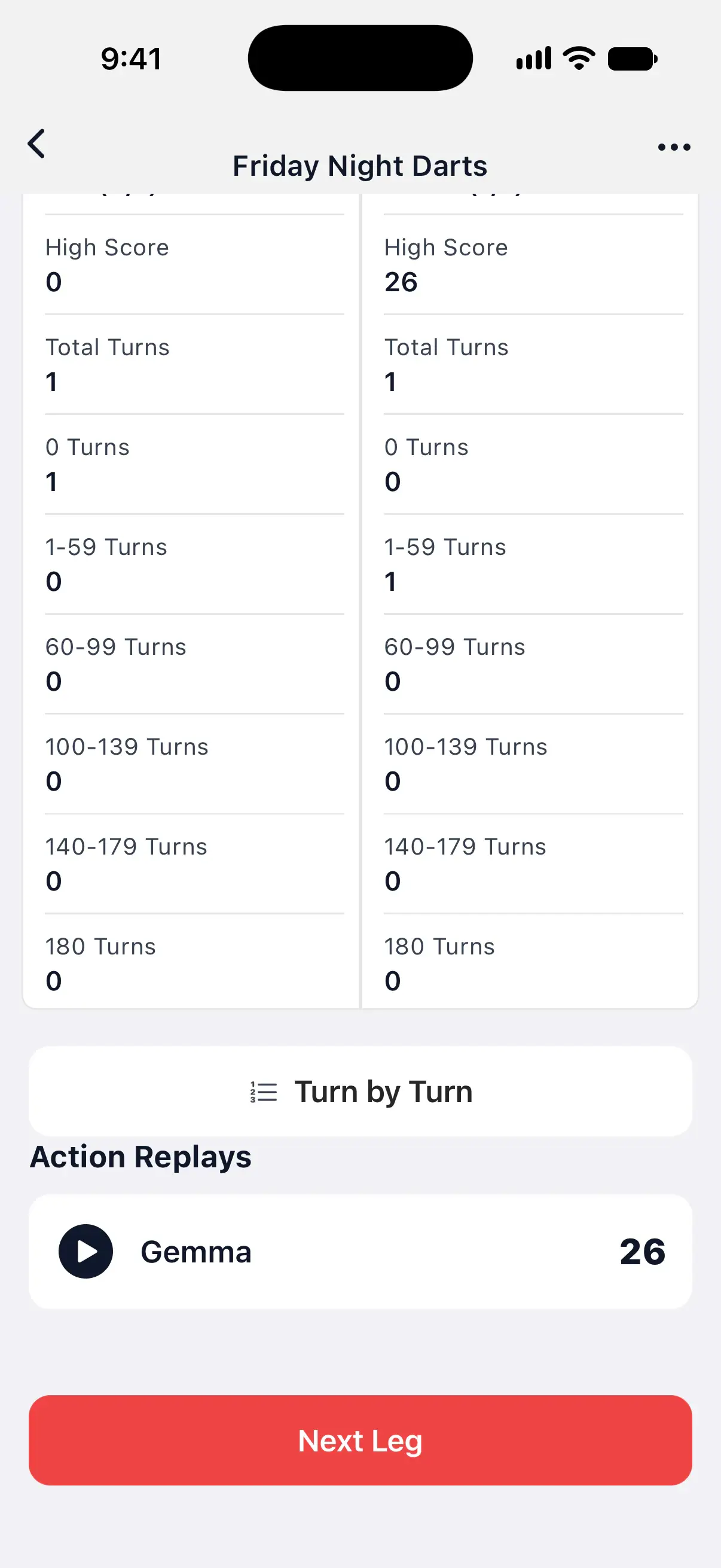
- In the summary: the X01 match summary has an Action Replays section under the stats, with each player’s best turn. Tap one to watch it.
- In the library: Settings → Action Replays lists the replays of all your matches, newest first, with the player, date, darts, score and file size.

In the library, switch between All Replays and Starred. With replays of more than one player, a player menu lets you show one player’s replays or All Players.
Use the player
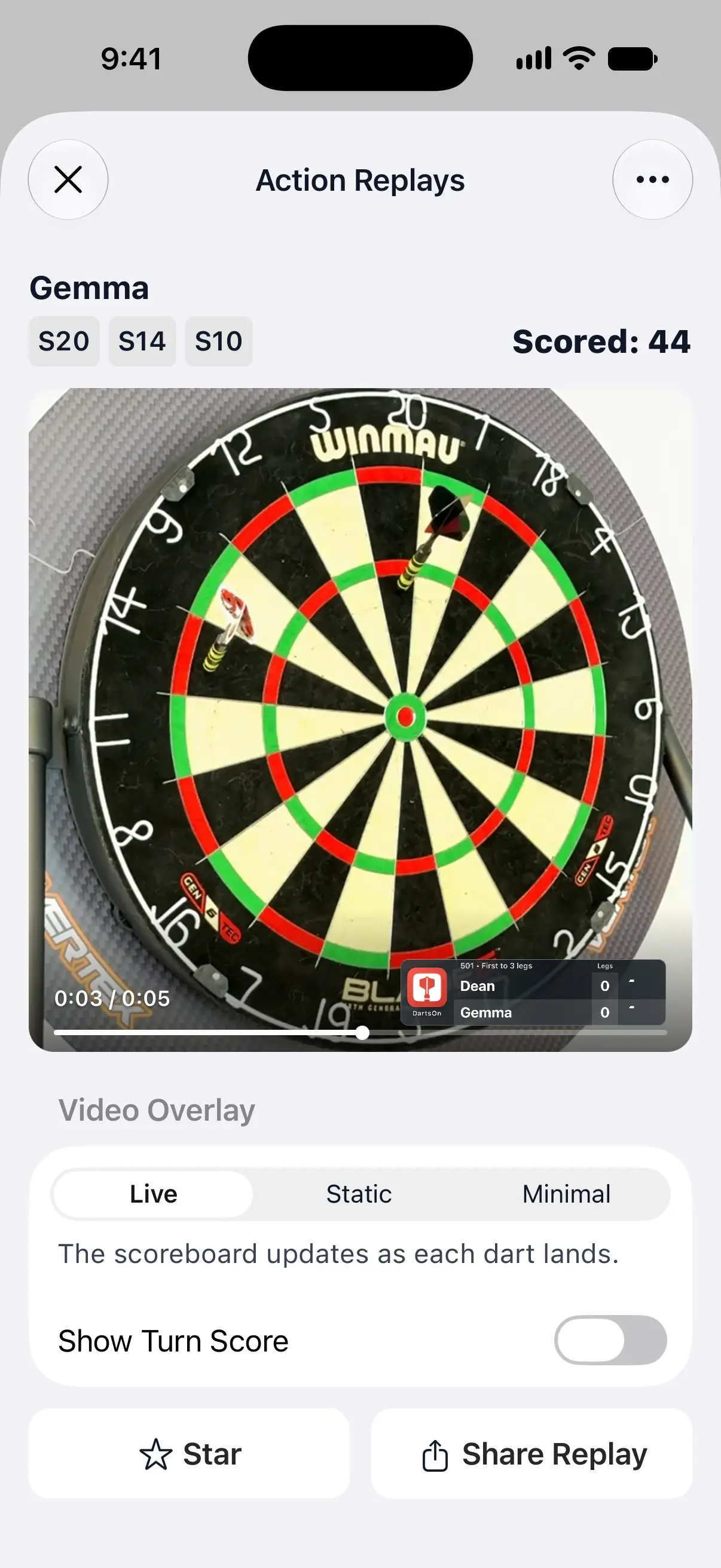
- The darts of the turn and its total sit above the video, such as Scored: 44.
- A replay opens paused. Tap the video to play it, and tap again to pause.
- Drag along the bar at the bottom to go back and watch a dart again. With the Live overlay, the scoreboard in the corner follows, showing the score as it was at that moment.
- The video plays on a loop until you leave.
- To delete the replay, tap ••• at the top right and choose Delete Replay.
Share a replay
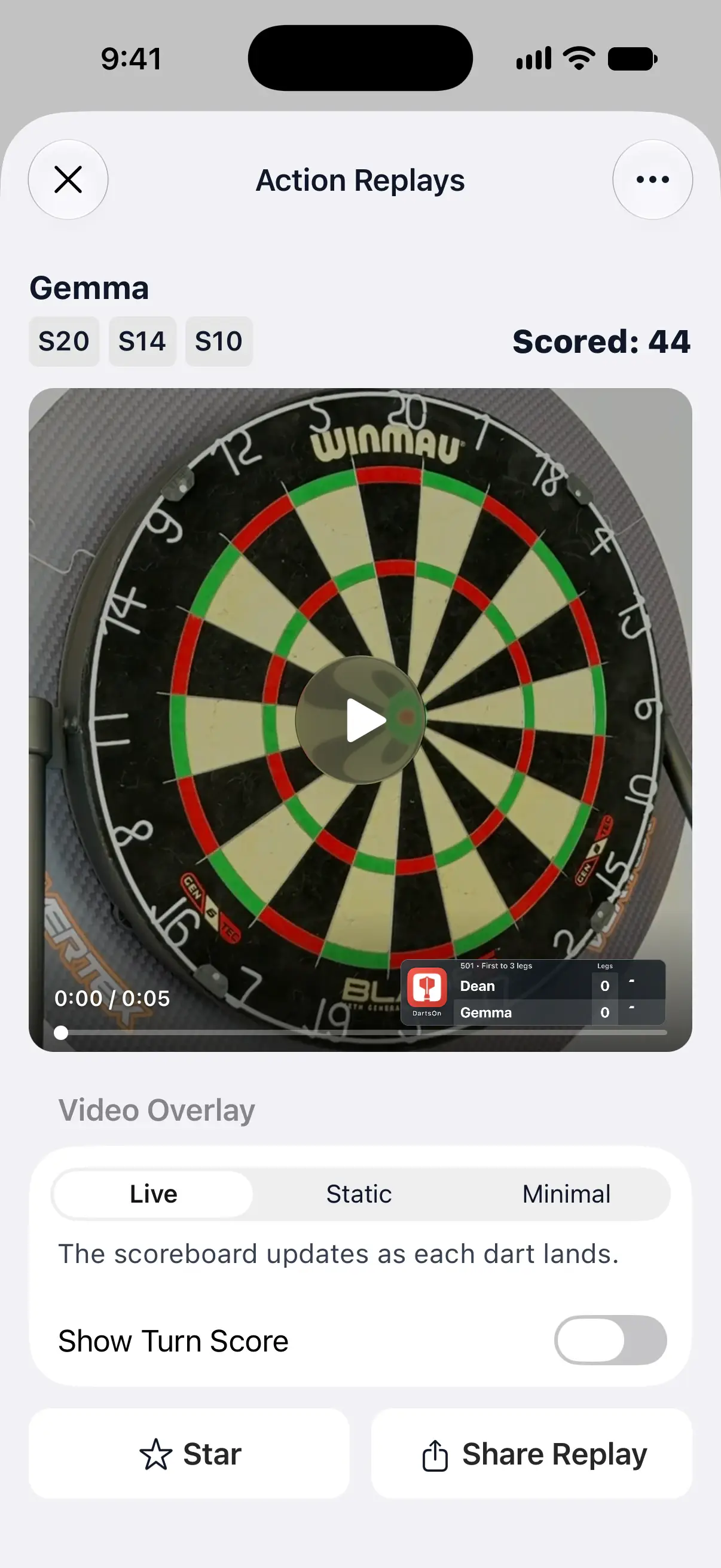
Under Video Overlay, choose what the scoreboard on the video shows:
| Overlay | What it shows |
|---|---|
| Live | The scoreboard updates as each dart lands. |
| Static | The scoreboard keeps the scores from the start of the turn. |
| Minimal | Only a small DartsOn watermark. |
Turn on Show Turn Score to add the turn’s total to the video. The preview shows your choice, and DartsOn remembers it for the next replay.
Tap Share Replay. DartsOn shows Preparing replay… while it makes a square video, then opens the share sheet.
Share a replay by link
Signed in, you can send a link instead of a video file. Anyone who opens it can watch the replay in their browser.
- In the library, touch and hold a replay.
- Tap Share Link. DartsOn uploads the replay first if it isn’t in the cloud yet, then opens the share sheet with the link.
To end it, touch and hold the replay and tap Stop Sharing Link. Deleting the replay or removing it from the cloud ends the link too. If your cloud has no room, DartsOn says Your cloud is full. Remove a replay from the cloud to share this one by link.
Star the replays you want to keep
Tap Star in the player. In the library, touch and hold a replay and tap Star. Starred replays are never deleted to make room.
Star Every 180 stars each 180 that DartsOn saves as a replay. It’s on by default, and you can turn it off in Settings → Action Replays → Manage Storage.
Manage storage on your phone
Settings → Action Replays shows two cards above the library. Manage Storage is the space replays use on this phone. DartsOn Cloud Storage is the space they use in your account. Tap Manage Storage to change how much room replays get:
- Storage cap: 1 GB unless you change it. Pick 1, 2, 5, 10 or 20 GB, or Custom for anything from 100 MB to 100 GB.
- When Full: what DartsOn deletes once the replays reach the cap. Delete Lowest Score, the default, removes the lowest-scoring replays first, the oldest first among equal scores. Delete Oldest removes the oldest replays first.
Starred replays stay even when they push the total above the cap. If they fill the whole cap, new unstarred replays can’t be kept, and DartsOn shows Action Replay Not Saved with Storage cap reached. Increase it or unstar a replay. When the phone itself is full, the message says Out of storage.
With 5 or more replays, the bottom of the library has Delete All Replays, which also deletes starred ones. Signed in with the cloud on, it deletes them from the cloud and from all your devices too.
Keep replays in DartsOn Cloud Storage
When you’re signed in to a DartsOn account, your replays upload to your account in the background. They then appear in the library on every phone and tablet signed in to the same account. Signed out, the Cloud card says Sync Replays Across Devices. Tap it to sign in. See create an account.
How much the cloud holds depends on your plan:
| Plan | Cloud storage |
|---|---|
| Free | Up to 10 starred replays |
| DartsOn Premium | 5 GB |
| DartsOn Ultra | 50 GB |
Tap DartsOn Cloud Storage to see your plan, how much you’ve used and where syncing stands, such as Up to date or Uploading…. Below that:
-
Upload chooses what goes to the cloud.
Upload What it does All Replays Every replay uploads. When your cloud is full, new replays stay on this phone. The default with Premium and Ultra. Starred Only Only starred replays upload. The default on the free plan. What Fits Your best replays upload, starred first, as far as your cloud storage allows. Off Replays stay on this phone. Replays already in the cloud stay there. All Replays and What Fits need Premium or Ultra.
-
Use Mobile Data is off by default, so videos upload and download only on Wi-Fi. While replays wait for Wi-Fi, Sync Now moves them once on any connection.
-
Optimize Storage is on by default. Replays from your other devices stay in the cloud until you play them, and replays that are in the cloud leave this phone first when the storage cap is reached. Turn it off to download every replay.
A replay that’s only in the cloud shows its thumbnail with Tap to download and play. To choose yourself, touch and hold a replay and tap Download or Remove Download.
When your cloud is full
A replay that doesn’t fit stays on this phone, and the library marks it with a warning cloud. Tap the cloud to see why. To make room:
- Remove a replay from the cloud. Touch and hold a replay that’s in the cloud and tap Remove from Cloud. It stays on this phone, and your other devices keep it only if they’ve downloaded it.
- Move up a plan. The message offers Upgrade to Premium on the free plan, or Upgrade to Ultra with Premium. See Premium and Ultra.
Delete replays
To delete one replay, tap ••• in the player and choose Delete Replay. Deleting a game deletes its replays as well.
Signed in with the cloud on, a deleted replay is deleted from the cloud and from all your devices, and its link stops working. Signed out, it’s deleted from this phone only. Videos you’ve already shared as files are kept either way.
Logging out keeps the replays that are on this phone and drops the ones it hadn’t downloaded. They’re still in your account when you sign in again.
Questions and answers
Why wasn't my checkout saved as an action replay?
DartsOn keeps each player's highest-scoring turn per match. A checkout that scores the same as or less than your best turn is only kept if you tap the save button on the camera view right after it. A checkout also has to be confirmed before it can become a replay.
Why is there no Action Replays option in my game?
Action Replays only record X01 games scored with the camera. The option appears in an X01 game's menu once Record Action Replays is on, or once the match has a replay.
Can I move my action replays to a new phone?
Yes, when you're signed in. Replays that are in DartsOn Cloud Storage appear in the library on every device signed in to your account. Signed out, replays stay on the phone that recorded them.
How much cloud storage do action replays get?
The free plan keeps up to 10 starred replays in the cloud. DartsOn Premium has 5 GB and DartsOn Ultra has 50 GB.
What happens to replays when I delete a game?
Deleting a game also deletes its action replays, from your phone and, when they're in the cloud, from your other devices too. Videos you've already shared as files aren't affected.
Related
- How to set up camera auto-scoring in DartsOn Place your phone by the board, turn on Auto-Scoring and let the camera score each dart. What you need, where to put the phone and how each turn works.
- How to change Auto-Scoring Settings in DartsOn Pick the scoring model, set Energy Mode, check how fast auto-scoring runs on your phone and free up space. Every row of Auto-Scoring Settings explained.
- How to correct an auto-scored dart in DartsOn Fix a dart the camera scored wrong, move between turns with Previous, Clear and Next turn, and confirm a camera checkout before the leg ends.
- What DartsOn Premium and Ultra include and how to get them See what's free in DartsOn, what Premium adds and what Ultra adds on top. Buy a plan in the App Store or Google Play, upgrade, restore a purchase, or cancel.
- Darts action replays of your best turns | DartsOn DartsOn records your X01 turns while camera auto-scoring keeps score, and keeps each player's best one as a video with the scoreboard. Watch it again or share it.