
Sync your darts matches across devices
Signed in, DartsOn syncs your matches, players, bots and badges between iPhone, iPad and Android. Check the sync status and fix sync problems.
When you’re signed in to a DartsOn account, your darts history follows you to every phone and tablet you use. There’s no sync setting to turn on. Sign in, and DartsOn keeps each device up to date by itself.
What syncs
Sync covers the data behind your games and stats:
- Matches, with every leg and every dart, so stats and match summaries are the same on each device.
- Players you’ve added, including which one is you.
- Bots you’ve added to games.
- Badges you’ve earned.
- Action Replays uploaded to DartsOn Cloud Storage, with their own upload and storage settings. Free accounts can keep up to 10 starred replays, Premium has 5 GB and Ultra has 50 GB. See Action Replays cloud storage.
It works across iPhone, iPad and Android, so you can score on an Android phone at the club and look at the same stats on your iPad at home.
Your friends, online match history and online stats belong to your account on the DartsOn server, so they appear on any device where you sign in.
What stays on each device
Some things stay on the phone or tablet where you set them up:
- App settings, such as Appearance, Sound Settings and Gameplay Settings.
- Action Replays that haven’t uploaded to the cloud, or that you recorded while signed out. Check their upload status before changing phones.
- Downloaded caller voices and Auto-Scoring models. Each device downloads its own.
Start syncing
- Open Settings and tap DartsOn Account.
- Sign in or create an account. See create an account.
- If this device already has games on it, choose how to combine them with your account. First sign-in explains each choice.
From then on, sync runs by itself while you’re online. DartsOn saves every dart on the device first, so a game never waits for the network. A match you play offline waits on the device and uploads when you’re connected again.
Check the sync status
- Open Settings.
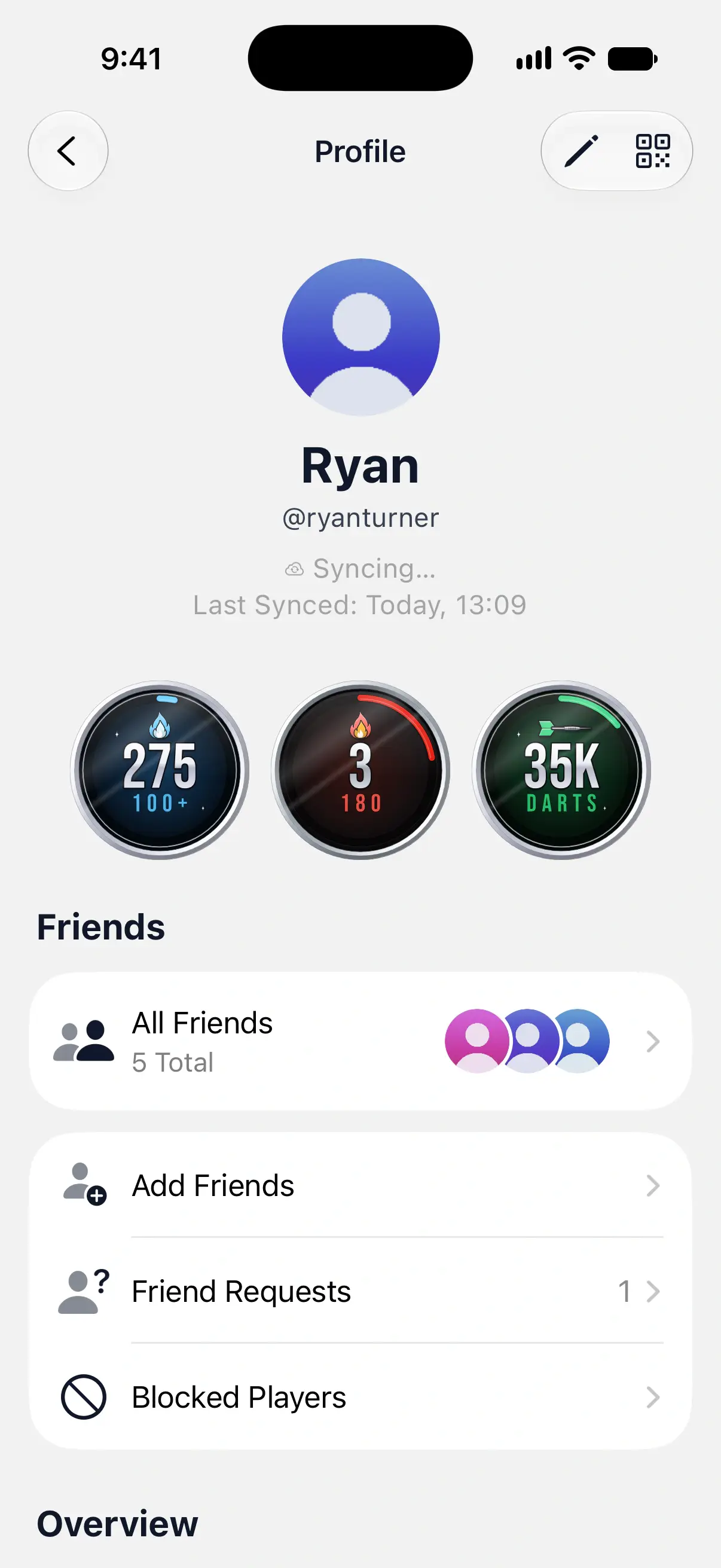
- Tap your name at the top to open your profile.
The status sits under your username, with the time of the last successful sync below it, such as Last Synced: Today, 13:09. Opening your profile also starts a sync, so it’s a quick way to send a match you just finished.
The account row at the top of Settings shows the same status while there’s something to report. When sync needs you to do something, a dot appears on the Settings tab.

What each status means
| Status | What it means | What to do |
|---|---|---|
| Your account is up to date. | Everything on this device is in your account. | Nothing. |
| Syncing… | DartsOn is sending or receiving changes. | Nothing. It finishes by itself. |
| Downloading history… | The first sync after signing in is bringing your history to this device. | Keep DartsOn open until it finishes. |
| History not fully downloaded | The first download stopped before it finished. | Open DartsOn while online and it carries on. |
| 2 matches waiting to sync | You’re offline, and these matches haven’t uploaded yet. Changes waiting to sync means other edits, such as a renamed player. | Connect to the internet. |
| You’re offline | No connection, but nothing is waiting. | Nothing. Sync resumes when you’re online. |
| Update to resume sync | Another device on your account runs a newer version of DartsOn. | Update DartsOn on this device. |
| Sign in to resume sync | DartsOn’s sign-in on this device has ended. | Sign in again, as described below. |
| Couldn’t sync | Sync has kept failing while online. | See below. |
Your games and stats work the same whatever the status says. Sync problems never lock you out of scoring.
Fix sync problems
Update to resume sync
Some DartsOn updates change how synced data is stored. Once one of your devices has such an update, devices with an older version pause sync, so they never misread the newer data. They show the message Update DartsOn to keep syncing. Update DartsOn from the App Store or Google Play, and sync carries on from where it stopped.
Sign in to resume sync
Your sign-in on this device ended, or the server stopped accepting it. To reconnect without losing anything:
- Open your profile and tap Log Out.
- Turn on Keep Local Copy, then tap Log out.
- Sign in again with the same account.
DartsOn picks up the matches still waiting on this device and sends them. Leave Keep Local Copy off only if everything has synced, since unsynced changes are lost when the device is cleared. See log out.
Couldn’t sync, or Syncing… that never finishes
A single failed sync shows no error. DartsOn retries quietly, and the profile keeps showing Syncing… with the time of the last sync that worked. The status changes to Couldn’t sync only after sync has failed again and again for about half an hour while you’re online.
If you see it:
- Check that the device is online, then open your profile to try again.
- Update DartsOn if an update is available.
- If it keeps happening, send a message from Settings → Feedback. See feedback.
Your matches stay safe on the device in the meantime and upload once sync works again.
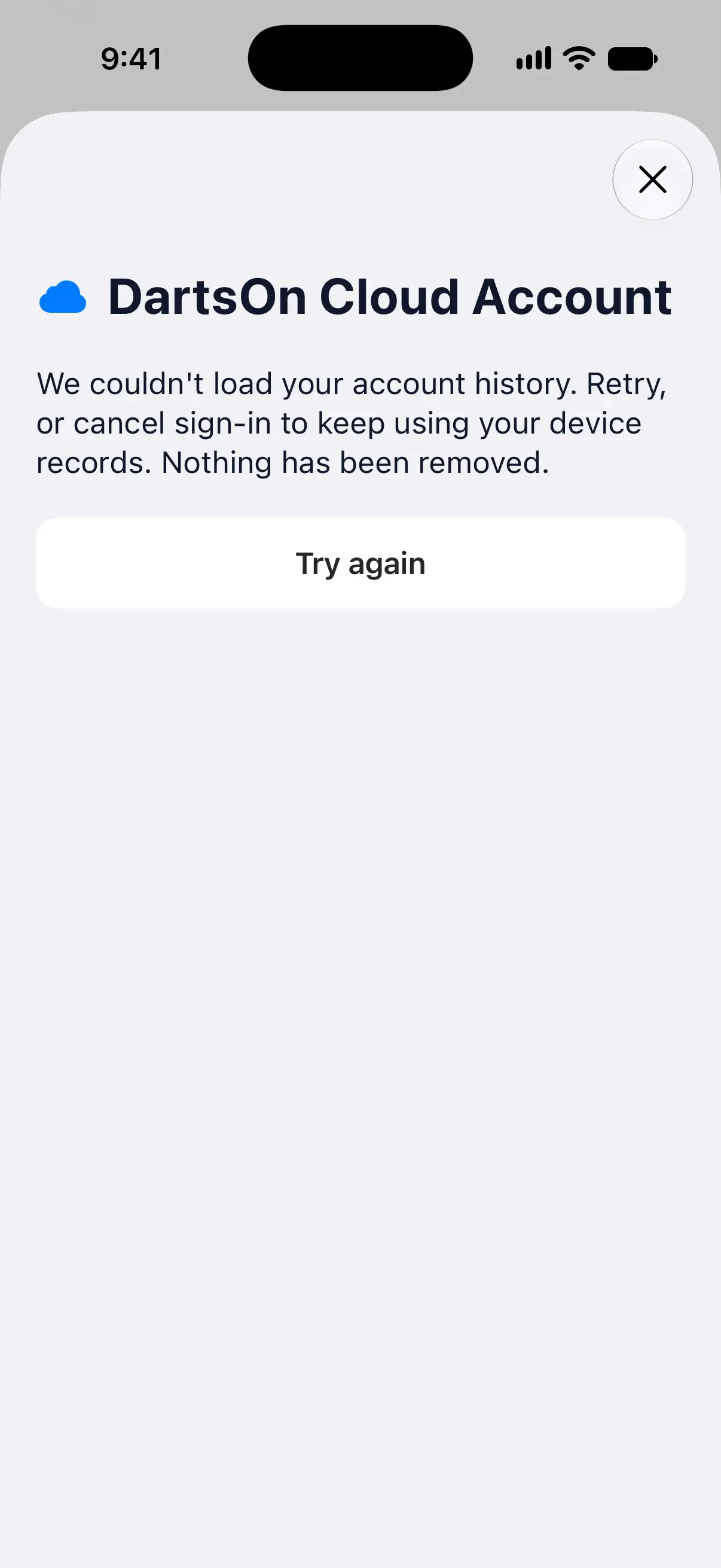
We couldn’t load your account history
During first sign-in, DartsOn reads the history in your account before it combines it with the games on this device. If that fails, you see We couldn’t load your account history.
Tap Try again once you have a good connection. You can also close the screen to cancel signing in and keep using the games on this device. Nothing is removed either way.
Questions and answers
Can I sync DartsOn between an iPhone and an Android phone?
Yes. Sign in to the same DartsOn account on both. Matches, players, bots and badges sync between iPhone, iPad and Android in both directions.
Do Action Replays sync to my other devices?
Yes, through DartsOn Cloud Storage when you're signed in and replay uploads are on. Free accounts can keep up to 10 starred replays, Premium has 5 GB and Ultra has 50 GB. Replay uploads have their own settings, and backups still don't include the videos.
What happens to games I play without internet?
DartsOn saves every dart on the device, so you can keep playing offline. Your profile shows how many matches are waiting, and they upload once you're back online.
Why didn't my settings change on my other phone?
App settings don't sync. Appearance, Sound Settings and Gameplay Settings stay on the device where you set them, so set them on each phone or tablet.
Related
- How to sign in to DartsOn with games already on your phone When you sign in with games on your phone, DartsOn asks how to combine them with your account. Learn what each choice keeps and what it replaces.
- Back up and restore your DartsOn data Keep a copy of your darts matches. Use automatic iCloud backups on iPhone, restore a backup or a file, or export and import a backup file on Android.
- How to create a DartsOn account and sign in Create a free DartsOn account with Apple, Google or email to sync your games, add friends and play online. The app works fully without one.
- Log out of DartsOn or delete your account Log out and keep or clear the games on this device, or delete your DartsOn account and its cloud data, optionally with device data and backups.
- How to record and share Action Replays in DartsOn Record X01 turns while camera auto-scoring keeps score, then watch, star and share the best ones, and keep them in the cloud across your devices.