
How to fix camera auto-scoring problems in DartsOn
What to try when DartsOn misses darts, scores the wrong number, won't start the next turn, can't open the camera or says your phone is too slow.
On this page
- A dart is missed or scored wrong
- The camera can’t find the board
- The next turn doesn’t start
- Auto-Scoring closes or never recognizes a dart
- The picture is too dark or too bright
- Camera permission required
- The camera doesn’t start
- The scoring model won’t download
- Auto-scoring is running slowly
- Low battery or a hot phone
- An extra camera disconnects
- Still not right?
- Questions and answers
- Related
Find your problem below. Most sections quote the message the camera view shows, so you can match what you see on your phone.
A dart is missed or scored wrong
First, fix the score. Tap the dart’s slot and pick the right value. Correct an auto-scored dart. Then check the setup, so it happens less often:
- The whole board is in view and fills most of the picture. If the board looks small, move the phone closer before you zoom. Heavy zoom blurs the image.
- The phone is off to one side at a moderate angle. Straight on and very steep angles both make darts harder to read.
- The phone doesn’t move. Fix it on a tripod or holder that doesn’t shake when darts hit the board.
- The board is lit evenly, without strong glare. A dartboard light with several light sources works best.
If a dart is hidden behind another one, the camera can’t see where it landed. When the camera view says Remove detected darts to reveal occluded darts, pull the darts out one at a time, closest to the camera first, and DartsOn scores the hidden dart as it comes into view. An extra camera at another angle can often see these darts straight away.
The camera can’t find the board
Cannot find the dartboard. Try repositioning the camera. means the camera hasn’t found the board. Turn the phone until the whole board is centered in view. If the message is Center the board and zoom in or move closer for better accuracy, the board is too small in the picture. Move the phone closer.
The badge at the top left of the camera view tells you what the camera is doing. Tap it for Auto-Scoring Status.
The next turn doesn’t start
Once your darts are scored, the camera view shows Clear the dartboard, and the next turn starts when DartsOn sees an empty board.
- Pull out every dart, including any that hang loose.
- If the camera scored none of your darts, pulling them out doesn’t end the turn. Tap Next turn, the arrow at the bottom right of the camera view. Empty slots count as MISS, and the camera waits for an empty board before it scores again.
- In X01, a checkout the camera scored waits for you to tap Confirm.
With an extra camera, DartsOn may show Confirm board cleared when one camera still expects a dart. Pull out every dart and tap Confirm board cleared.
Auto-Scoring closes or never recognizes a dart
Update DartsOn from the App Store or Google Play, then open the game again. Updates include fixes for camera and graphics differences between Android phones. If it still fails, try a lighter model in Auto-Scoring Settings and send feedback with your phone model and the DartsOn version.
The picture is too dark or too bright
Too dark. Try improving lighting means the board needs more light. Turn on a dartboard light. On a phone with a flash, you can also go to Settings → Auto-Scoring Settings, turn on Show Torch Button, then tap the torch button on the camera view.
Too bright. Reduce lighting or glare usually means a light shines straight at the camera or reflects off the board. Move the light or the phone until the glare is gone.
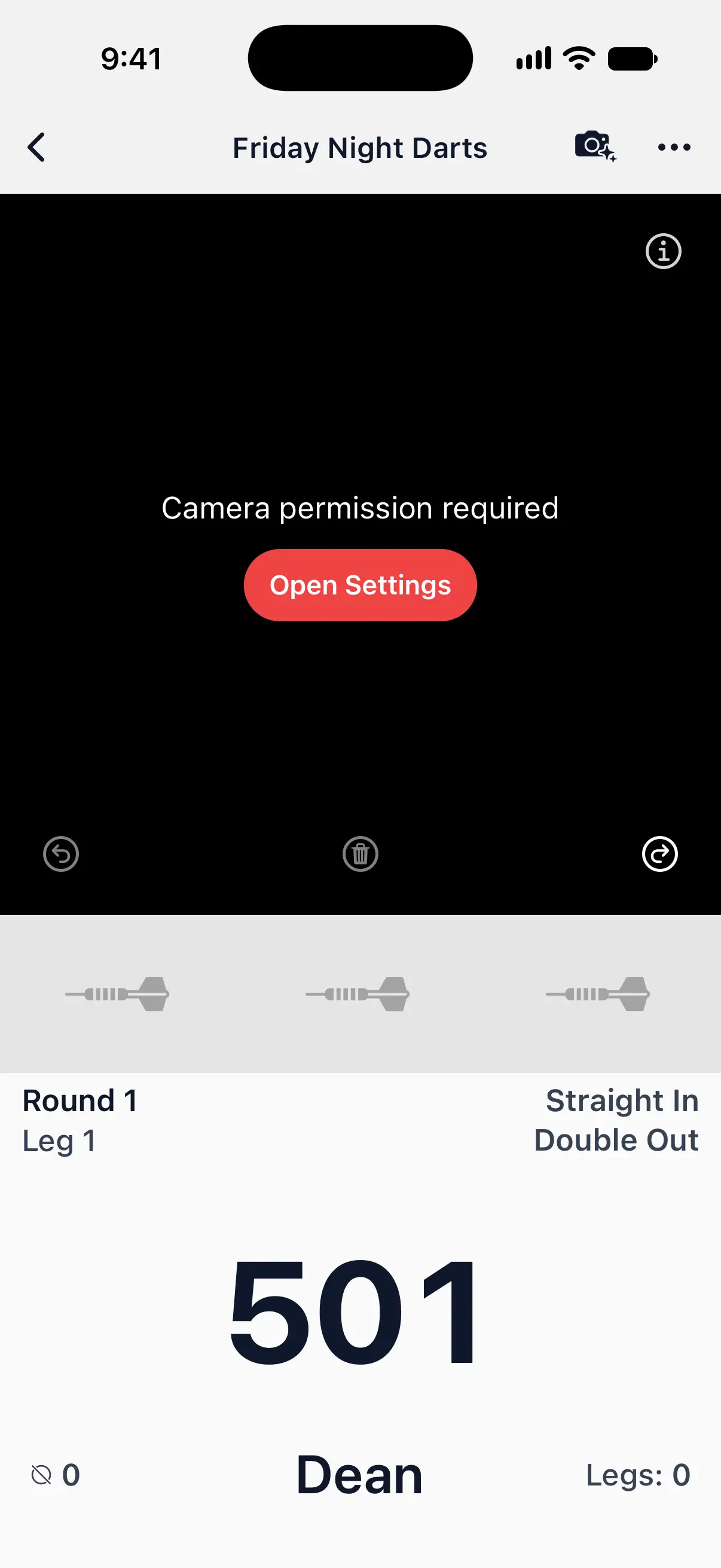
Camera permission required
DartsOn can’t use the camera until you allow it. If you tapped Don’t Allow earlier:
- Tap Open Settings on the camera view.
- Allow the camera for DartsOn.
- Go back to your game.

The camera doesn’t start
The camera view says what went wrong and what to try. These are the messages you may see:
- The camera is in use. Close other apps using the camera, then try again.
- Your device cannot open the camera while Do Not Disturb is on. Turn it off in your device settings, then try again.
- Ran out of memory. Close other apps and try again.
- The camera could not start. Close other apps using the camera and try again. If it still does not work, restart your device.
- Your camera is disabled. Check camera access in your device settings. If your device is managed, contact your administrator.
The scoring model won’t download
The first download needs an internet connection. On Android, Preparing model can follow the download and take a few minutes. That’s normal and only happens once. If the download doesn’t finish, the camera view says why:
- Download interrupted. Check your internet connection and try again. Connect to Wi-Fi or mobile data and tap Retry.
- Your device is out of storage. Free up space and try again. Make room on the phone, then tap Retry.
Auto-scoring is running slowly
When the phone can’t keep up with the model, scoring pauses with Your device isn’t powerful enough for auto-scoring right now. If scoring carries on but slowly, a warning button appears on the camera view instead. Tap it to see Auto-scoring is running slowly, which means darts may take longer to score.
When scoring pauses:
- Tap the Switch to button, which names a lighter model, such as Switch to DON Pro. This is the best fix on an older phone.
- Tap Try again after you’ve closed other apps or let a hot phone cool down.
- If DartsOn offers Keep scoring, you can carry on with the same model and accept that darts take longer.
You can also change the model yourself in Auto-Scoring Settings → Active Model. Auto-Scoring Settings.
Low battery or a hot phone
Below 20% battery, DartsOn switches to Low Power by itself and a red battery icon appears on the camera view. Darts take a little longer to score until the battery is above 20% again. On iPhone and iPad, a battery button suggests a charger once the battery is below 60% and the phone isn’t charging.
On a hot phone, DartsOn slows scoring down until it cools, and switches to Low Power if it gets hotter. Plug in a charger before a long session, and give a hot phone a break between games.
An extra camera disconnects
DartsOn shows a message on the main device when an extra camera disconnects or stops responding.
- Keep DartsOn open on the extra camera’s Extra Camera screen. The extra camera stops sending its view when the app goes to the background.
- Keep the two devices close together, and Bluetooth on for both.
- Update DartsOn if you see App versions don’t match. Both devices need the same version.
- If both devices show Both phones are set as the main device, open the Home menu on the extra camera and choose Set this device as extra auto-scoring camera.
Saved cameras reconnect by themselves once both devices are ready. Extra cameras.
Still not right?
If the camera keeps getting your setup wrong, tell the team. Report a scoring issue, or send a message from Settings → Feedback.
Questions and answers
Why does DartsOn keep saying Clear the dartboard?
DartsOn hasn't seen an empty board yet. Pull out every dart, including loose ones. With an extra camera, tap Confirm board cleared if it appears. Next turn moves the game on, but the camera still waits for an empty board before it scores again.
Why did Auto-Scoring turn off after a few games?
Auto-Scoring is free for a limited number of games. Once you've used them, it needs DartsOn Premium, which removes the limit.
Why are darts slow to appear on an older phone?
The scoring model may be too heavy for the phone. Open Auto-Scoring Settings and choose a lighter model under Active Model, such as DON Lite.
Related
- How to set up camera auto-scoring in DartsOn Place your phone by the board, turn on Auto-Scoring and let the camera score each dart. What you need, where to put the phone and how each turn works.
- How to correct an auto-scored dart in DartsOn Fix a dart the camera scored wrong, move between turns with Previous, Clear and Next turn, and confirm a camera checkout before the leg ends.
- How to change Auto-Scoring Settings in DartsOn Pick the scoring model, set Energy Mode, check how fast auto-scoring runs on your phone and free up space. Every row of Auto-Scoring Settings explained.
- How to add an extra camera for multi-camera auto-scoring Connect a second phone or tablet over Bluetooth so DartsOn sees the board from another angle and scores darts the main camera can't see.