
Continue, duplicate or delete your darts games
Find your games on the DartsOn Home tab, continue an unfinished game, duplicate or delete one, rename it in Game Info or start a rematch from the summary.
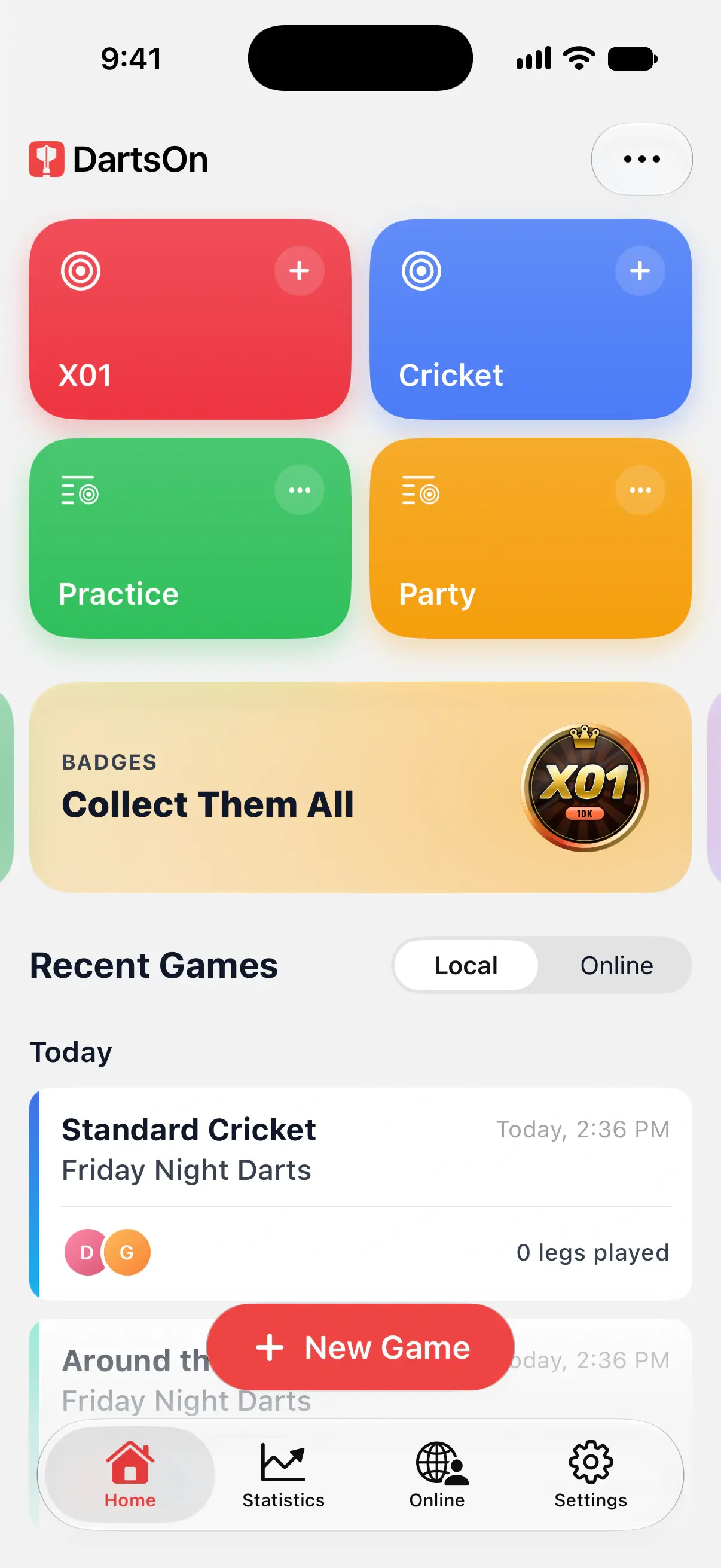
The Home tab keeps your game history under Recent Games. Choose Local for games scored on your devices, or Online for matches played through DartsOn Online. This page covers continuing, duplicating and deleting local games.
Your games on the Home tab
Under Recent Games → Local, games are listed newest first, under headings such as Today, This Week and This Month. Each card shows:
- the game, such as 501 or Standard Cricket, with its name below
- the players
- how many legs have been played
A solo X01 game also shows your 3-dart average, and a solo Cricket game your MPR, the marks you scored per round.

If you’re signed in, games you play on your other devices appear here too. Pull down on the list to sync right away. See sync.
Continue a game
DartsOn saves the game after every dart. Leave a game whenever you like with the back arrow at the top left, even in the middle of a turn.
To continue a recent local game, tap it under Home → Recent Games → Local. A finished game opens on its summary instead.
After 12 hours without activity, a local game is marked Unfinished and opens on a summary of what you played. To resume it, tap ••• at the top right and choose Continue Game. Its darts are still saved. See match history for what the summary shows.
Duplicate a game
Duplicating sets up a new game exactly like an earlier one.
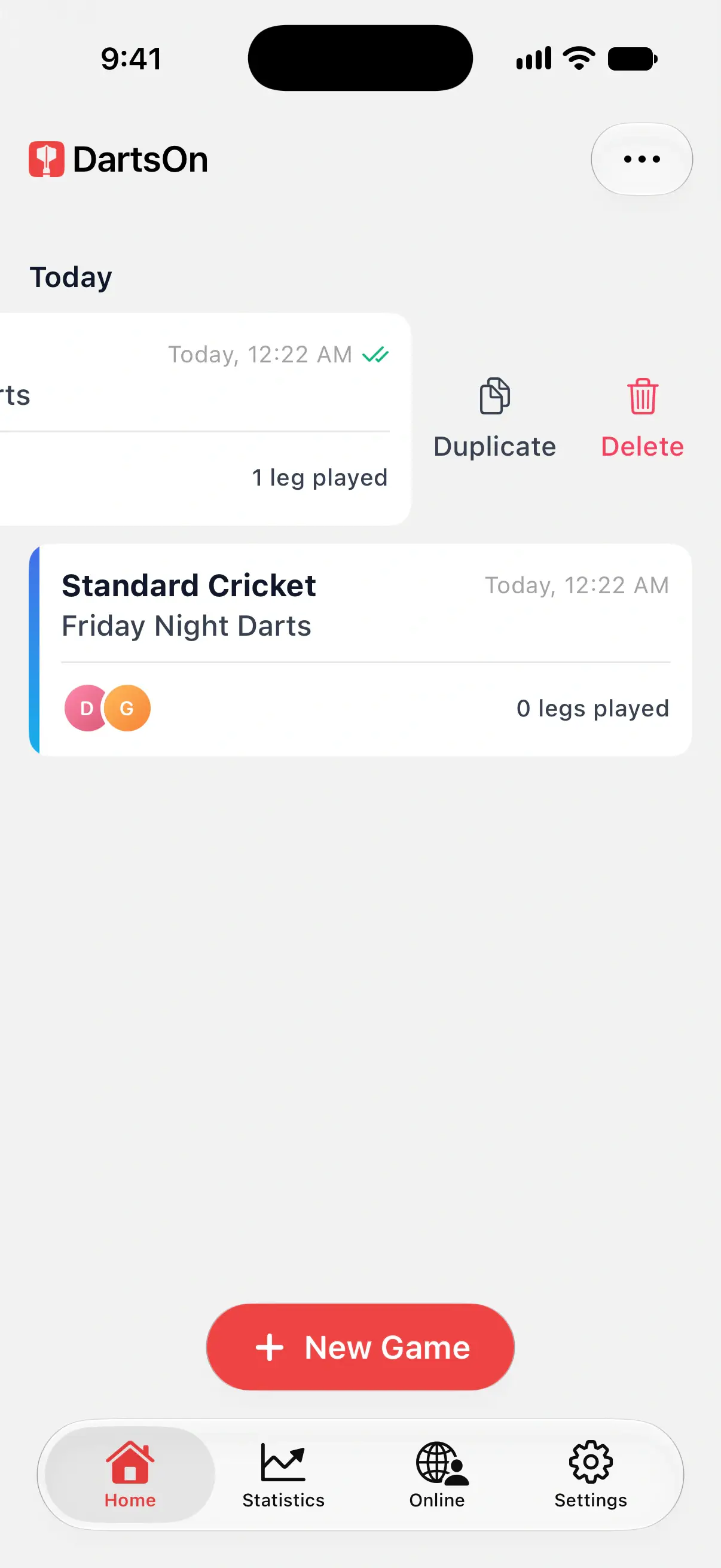
- On the Home tab, swipe the game to the left and tap Duplicate. You can also touch and hold the game and choose Duplicate.
- The setup opens with the same game, players, settings and handicaps. The name gets “Copy” added, such as “Friday Night Darts Copy”.
- Change anything you like, then tap Create Game.
Delete a game
- On the Home tab, swipe the game to the left and tap Delete, or touch and hold it and choose Delete.
- Tap Delete Game to confirm.
This deletes the game and all its data, and it can’t be undone. If you’re signed in, the game disappears from your other devices too.
You can also delete a game you’re in: open Game Info from the ••• menu, tap ••• at the top and choose Delete Game.
Game Info
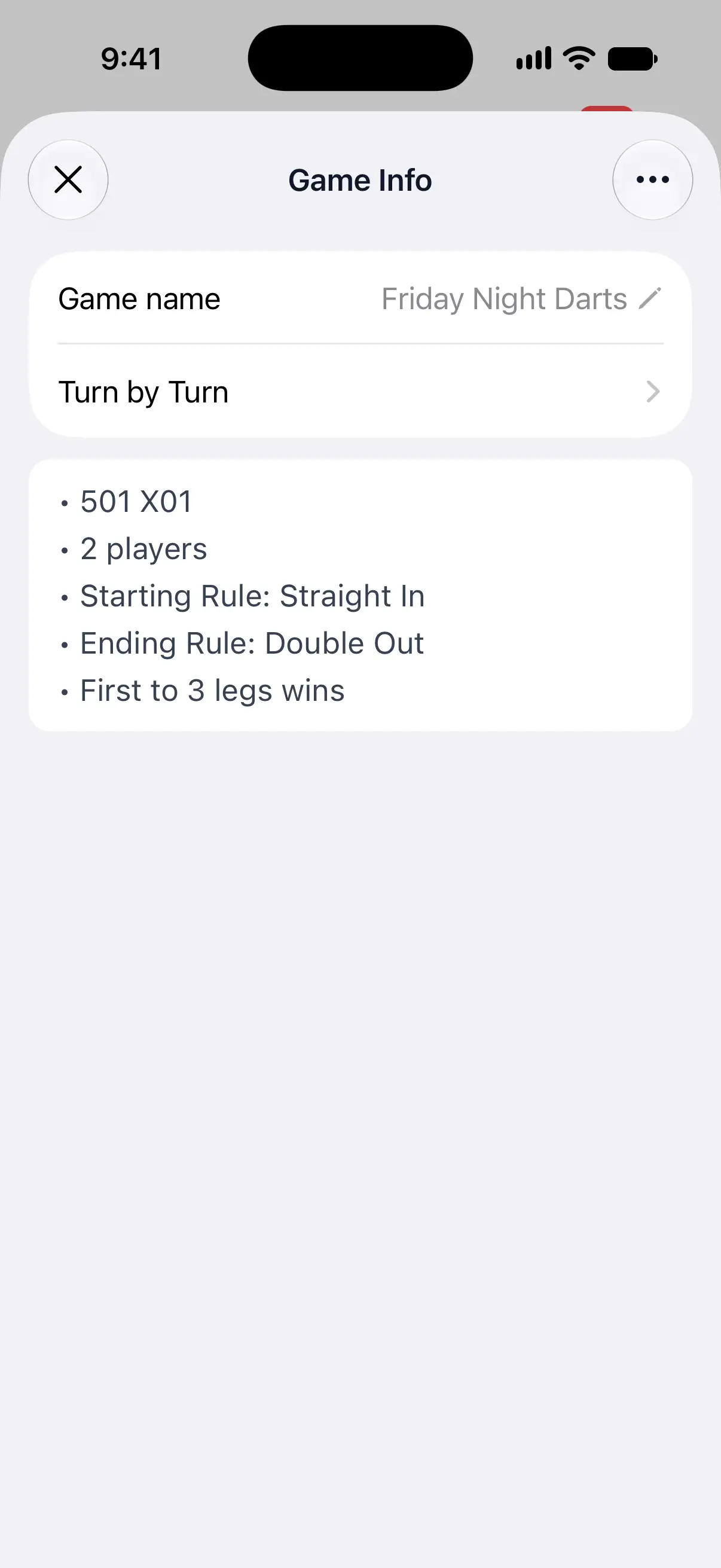
During a game, open the ••• menu at the top right and tap Game Info. It shows:
- Game name: tap it to rename the game.
- Turn by Turn: in X01, every turn of every leg so far.
- The game’s rules, such as the starting score, the in and out rules and the match length.
- Handicaps, when any player has one. See handicaps.
The rules of a started game can’t be changed, only its name. For the full rules of the game mode, see the Rule Book.
Play again from the summary
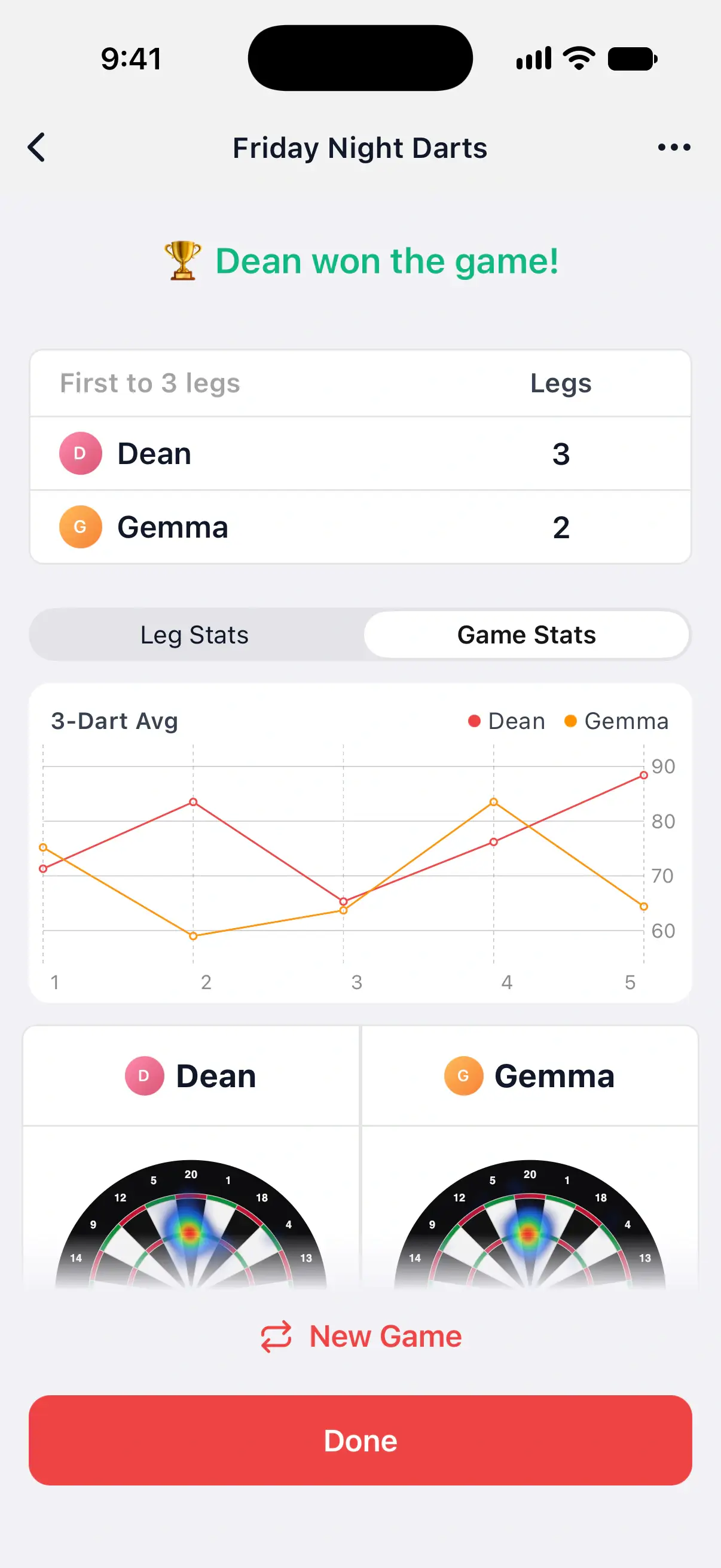
When a game ends, its summary shows the winner and everyone’s stats. To play the same game again:
- Tap New Game on the summary.
- If DartsOn asks you to confirm, tap Create New Game.
The new game starts straight away with the same name, players, settings and handicaps. With 2 or more players, it opens on Set Throw Order, so you can decide who starts this time. See throw order.
To change something first, such as adding a player, duplicate the game from the Home tab instead.
Keep a setup on Home
Hold a local game and choose Star Game Preset to save its players and rules. Add the preset to Home to open that setup from a tile next time. See customize Home.
Share a game
Open a finished or unfinished local game’s summary, then choose ••• → Share Game. Share Match offers PDF, Text and CSV for every local game mode. See share a match.
Questions and answers
Will I lose my game if DartsOn closes?
No. DartsOn saves the game after every dart. Open it from the Home tab and you continue from the last dart you entered.
Can I get a deleted game back?
No. Deleting a game removes it and all its data, which is why DartsOn asks you to confirm first.
Can I change the rules of a game I've already started?
No, only its name. To play the same game with other rules, duplicate it from the Home tab, change the settings and tap Create Game.
How do I start a rematch with the same players?
When the game ends, tap New Game on the summary. If DartsOn asks, tap Create New Game. The new game has the same players, settings and handicaps.
Related
- How to create a darts game in DartsOn Start a new darts game in DartsOn. Name it, pick one of 14 games, set the starting score, in and out rules and match length, then tap Create Game.
- Review a finished darts game in DartsOn Find past games on Home, read their summaries leg by leg, continue an unfinished game and share any local game or online match as a PDF, text or CSV.
- Sync your darts matches across devices Signed in, DartsOn syncs your matches, players, bots and badges between iPhone, iPad and Android. Check the sync status and fix sync problems.