
How to set up the DartsOn caller and game sounds
Choose what the darts caller announces, set its volume and speed, add player names and checkout callouts, and change bust and game sounds.
On this page
- Open Sound Settings
- Choose what the caller announces
- Set the caller’s volume and speed
- Hear player names
- Choose how a caller says a name
- Call the player at the start of each turn
- Hear checkouts in X01
- Choose the bust call and sound
- Set the sound effects volume
- Turn haptic feedback on or off
- Questions and answers
- Related
Sound Settings controls what the caller says, how it sounds and which game sounds play. Changes apply straight away, also in a game you have open.
Open Sound Settings
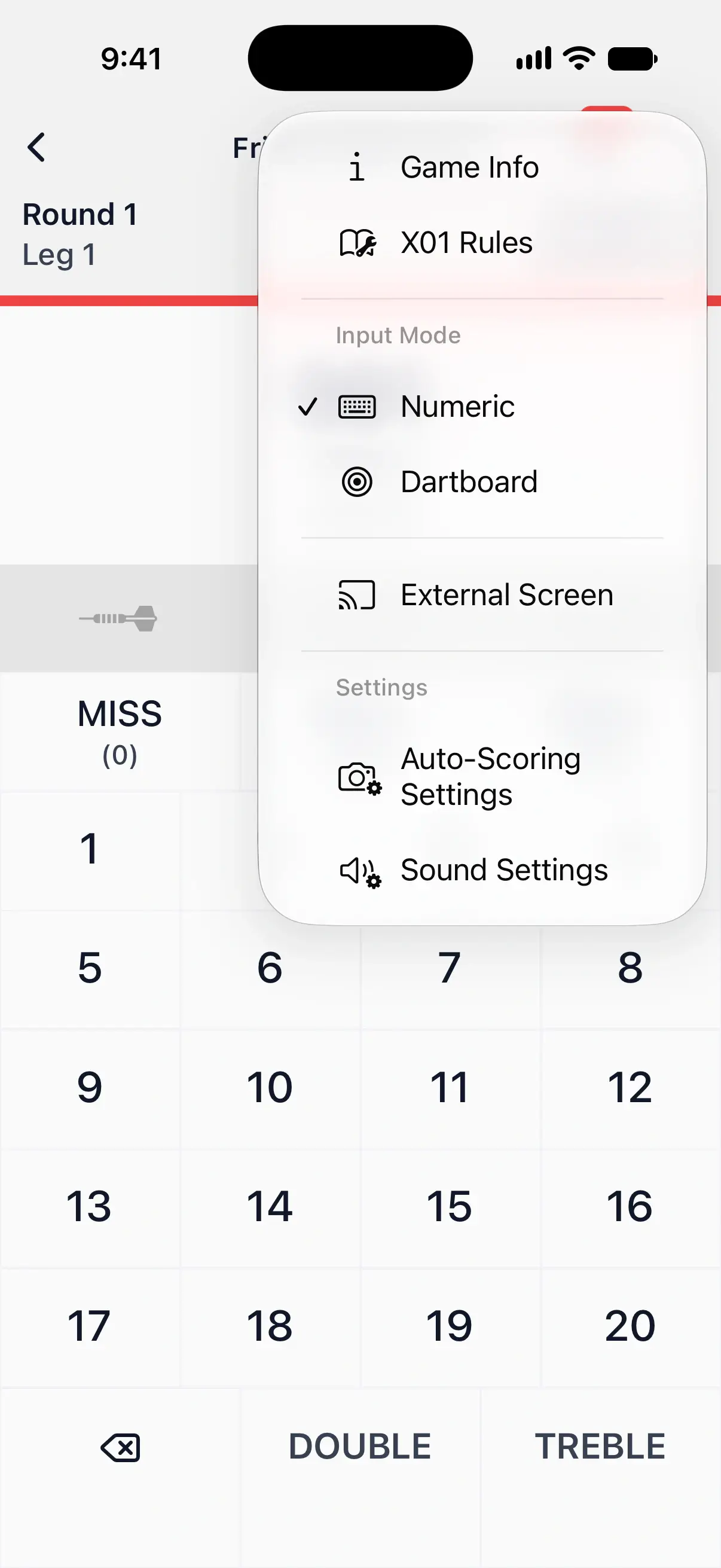
- From the Settings tab, tap Sound Settings in the Gameplay group.
- During a game, tap the menu button at the top right of the game screen, then tap Sound Settings under Settings.
Both open the same settings. Opened from a game, Player Names and Turn Start check that game’s players, and they’re greyed out when it has fewer than 2 human players.

Choose what the caller announces
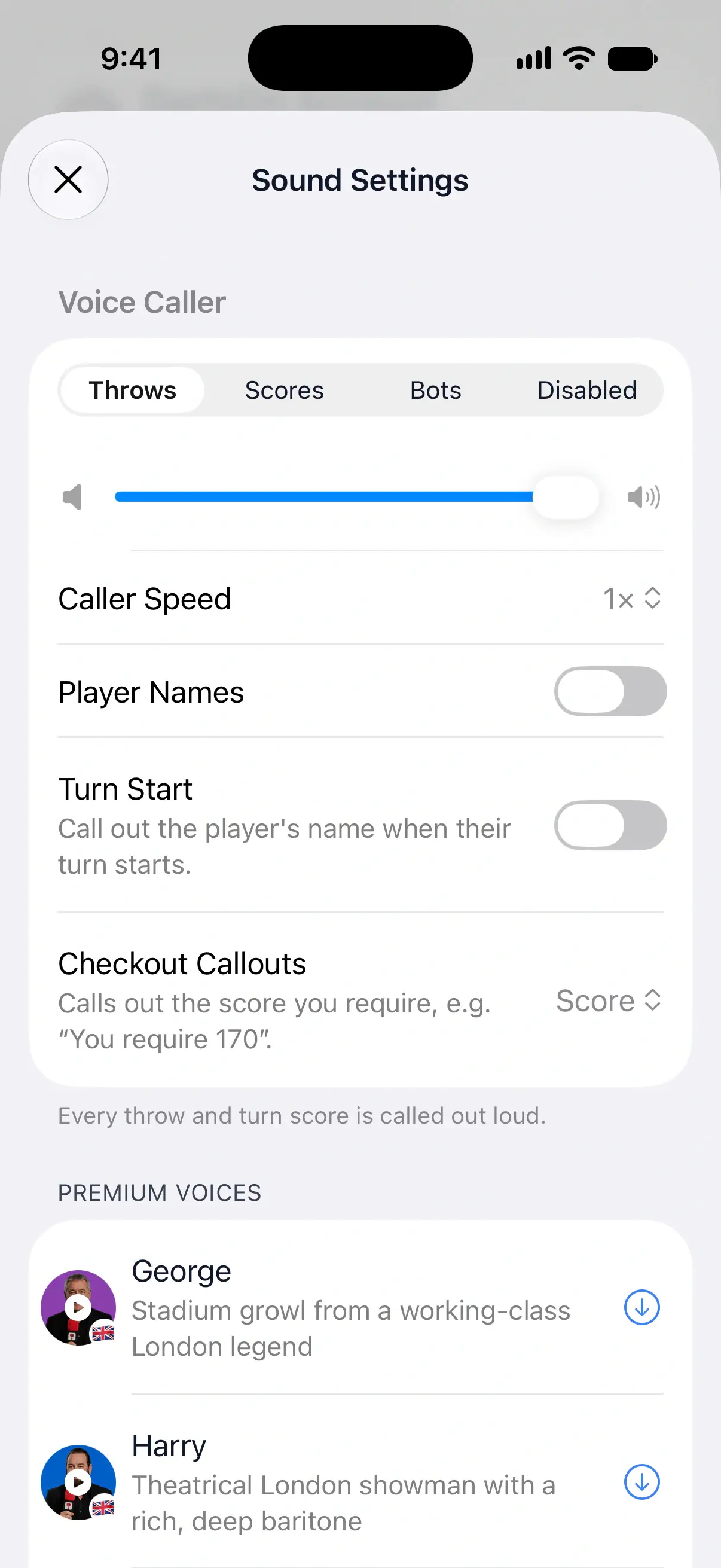
Pick a mode under Voice Caller:
| Mode | What the caller says | When to use it |
|---|---|---|
| Throws | Every dart, then the turn total | Checking each dart while you look at the board, or learning to score |
| Scores | Each turn’s total | Most games. It’s quieter and sounds like a match caller |
| Bots | Only bot turns | Practice against a bot when you don’t need your own scores read out |
| Disabled | Nothing. Score announcements are turned off | Quiet sessions, or when someone else is calling |
New installs start on Scores. In Throws and Scores, the caller also announces events such as game on, game shot and busts. In Bots, it speaks only on bot turns.
Disabled hides the caller’s other settings and the voice list. Bust Sound and Sound Effects stay, so game sounds can still play.
Set the caller’s volume and speed
The slider under the modes sets the caller’s volume. Drag it and DartsOn plays a sample at the new level.
Tap Caller Speed to choose from 0.8× to 1.5×. A sample plays at the speed you pick. A faster caller keeps up better in Throws mode when you throw fast.
The caller’s volume is separate from Sound Effects Volume, so you can keep the caller loud and the effects quiet.
Hear player names
Turn on Player Names and the caller calls players by name, such as “Anna to throw first, game on!” or “Anna requires 170” instead of “You require 170”. It’s off until you turn it on.
Player names are called in X01 and online matches with at least 2 human players.
A prerecorded caller says each name in its own voice. DartsOn fetches a clip of each name over the internet, and until a name’s clip is ready, the caller leaves the name out. System voices read names with text-to-speech.
Choose how a caller says a name
Each name can have up to 6 takes, each said a little differently, and you choose the one the caller uses.
- In Sound Settings, turn on Player Names, then tap your selected prerecorded voice. Its page lists your saved players under Player Names.
- Once a name’s clip has loaded, tap the player’s picture to hear it.
- Tap the player to see the takes. Default is the caller’s plain delivery.
- Tap a take to use it for that player.
- For a new take, tap Generate Another Take, or open the menu beside it to pick a tone: Neutral, Excited, Playful, Confident, Proud, Dramatic, Warm, Cheerful or Soft. When the take is ready, tap its play button to hear it and tap the take to use it.
If a caller can’t say a name, the player’s row says so, and the caller leaves that name out.
Call the player at the start of each turn
Turn Start calls the player’s name when their turn starts, so everyone at the board knows who’s up. It needs Player Names on and at least 2 human players. Bots aren’t called at the start of their turn.
When a player is on a finish and Checkout Callouts is on, the caller announces the checkout instead of the name.
Hear checkouts in X01
Checkout Callouts decides what the caller says at the start of a turn when a player can finish:
| Choice | What you hear |
|---|---|
| Off | Nothing. You work out your own finish |
| Score | The score you require, such as “You require 170” |
| Score + Route | The score and a way to finish it, such as “You require 170. Checkout: Treble 20, Treble 20, Bull” |
Score is the default. Bots’ checkouts aren’t called. The suggested finish shown in the dart slots is a separate setting in Gameplay Settings. Learn about checkout suggestions.
With Score + Route, the spoken route follows your Checkout Routes, including your preferred double or a route you’ve chosen for that score. Changing a route also changes the dart slots and external scoreboards.
Choose the bust call and sound
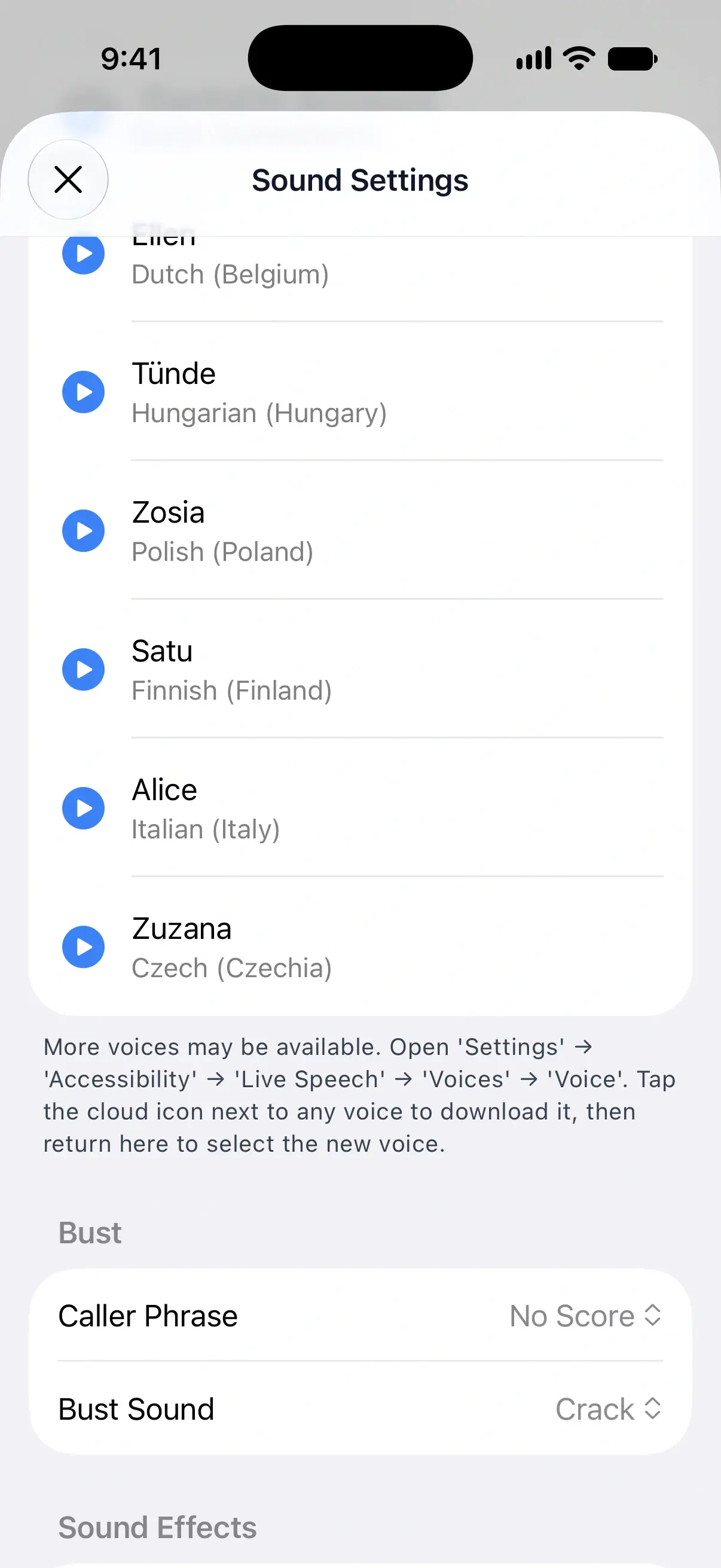
Under Bust, set what happens when a turn busts:
- Caller Phrase chooses what the caller says: No Score, Bust or None. No Score is the default, and DartsOn plays the phrase you pick. The row is hidden while Voice Caller is Disabled.
- Bust Sound chooses the sound effect: Crack or Bonk. Crack is the default, and you hear each one as you pick it.
Set the sound effects volume
Sound Effects are the sounds for game events like a dart landing, a missed dart and the end of a turn. Drag Sound Effects Volume to change them, or all the way to the left to turn them off. The bust sound goes quiet with them.
Turn haptic feedback on or off
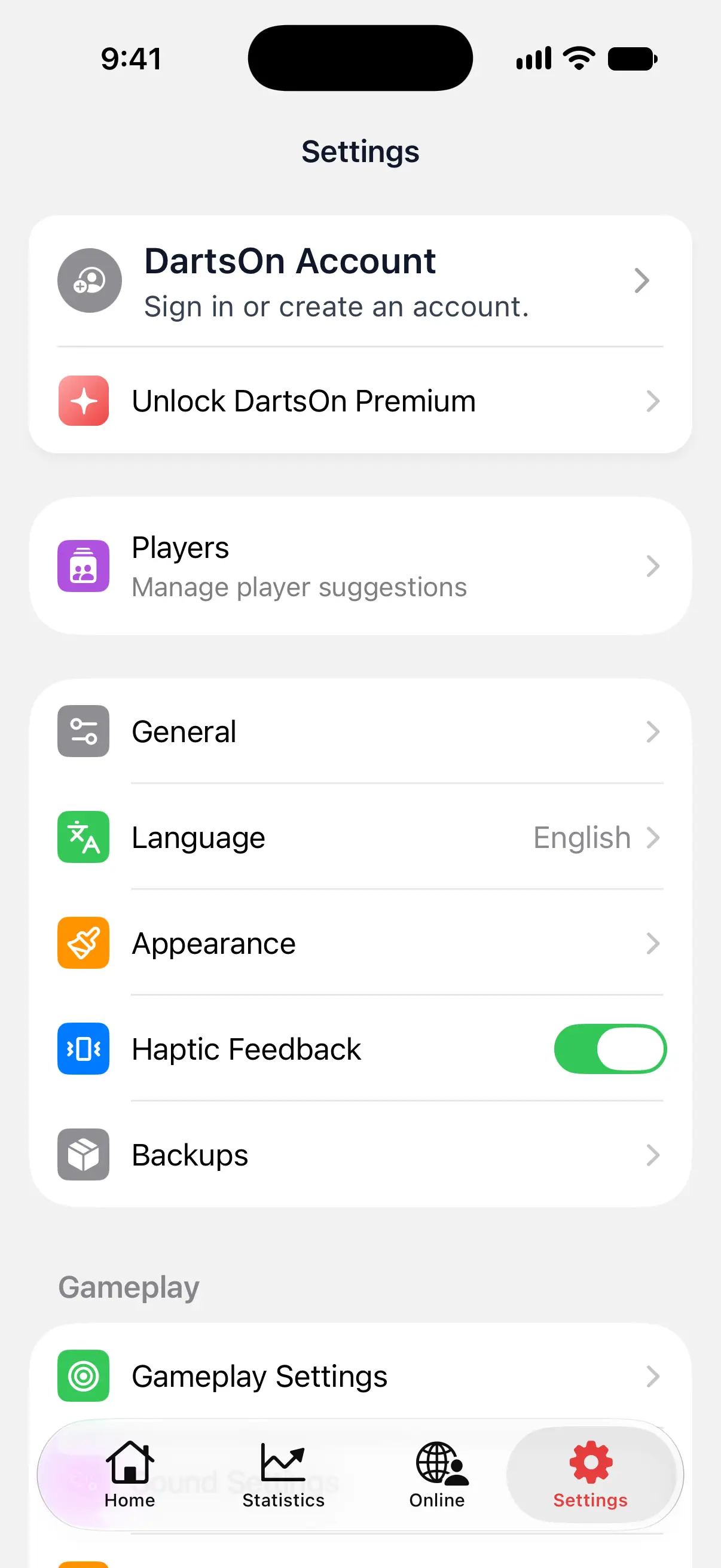
Haptic feedback is the small vibration you feel as you tap keys and enter darts. To change it, open the Settings tab and switch Haptic Feedback on or off.
It’s on by default on iPhone and iPad. On Android, a new install starts with it off.
Questions and answers
How do I stop the caller announcing every dart?
Open Sound Settings and choose Scores under Voice Caller. The caller then announces only each turn's total.
Can the caller tell me what I need to check out?
Yes, in X01. Set Checkout Callouts to Score to hear "You require 170", or to Score + Route to also hear a way to finish, such as "Treble 20, Treble 20, Bull".
Why is Player Names greyed out?
Player Names and Turn Start need at least 2 human players in the game, and bots don't count. Opened from the Settings tab, Sound Settings lets you turn them on for your next games.
How do I turn off every sound in DartsOn?
In Sound Settings, choose Disabled under Voice Caller and drag Sound Effects Volume all the way to the left. That silences the caller, the bust sound and the other game sounds.
Related
- How to choose a caller voice in DartsOn Pick a prerecorded darts caller or a system voice, preview and download voices, and add more text-to-speech voices on iPhone and iPad.
- How checkout suggestions work in DartsOn See checkout and setup suggestions in DartsOn. Pick your preferred double, customize routes for each ending rule, or turn suggestions off.
- DartsOn gameplay settings explained Set how fast bots throw, whether turns and legs move on by themselves, whether checkouts confirm automatically and whether DartsOn suggests checkouts.