
How to challenge a friend to a darts match
Send a friend a challenge to an online darts match, accept or decline the ones you get, and choose how challenges reach you in DartsOn.
A challenge invites one friend to a private one-on-one match that you set up. They have 2 minutes to accept, from anywhere in the app or from a notification.
You need to be friends first. See add friends.
Challenge a friend
Start from either of these:
- On the Online tab, tap Challenge next to an available friend in the friends list.
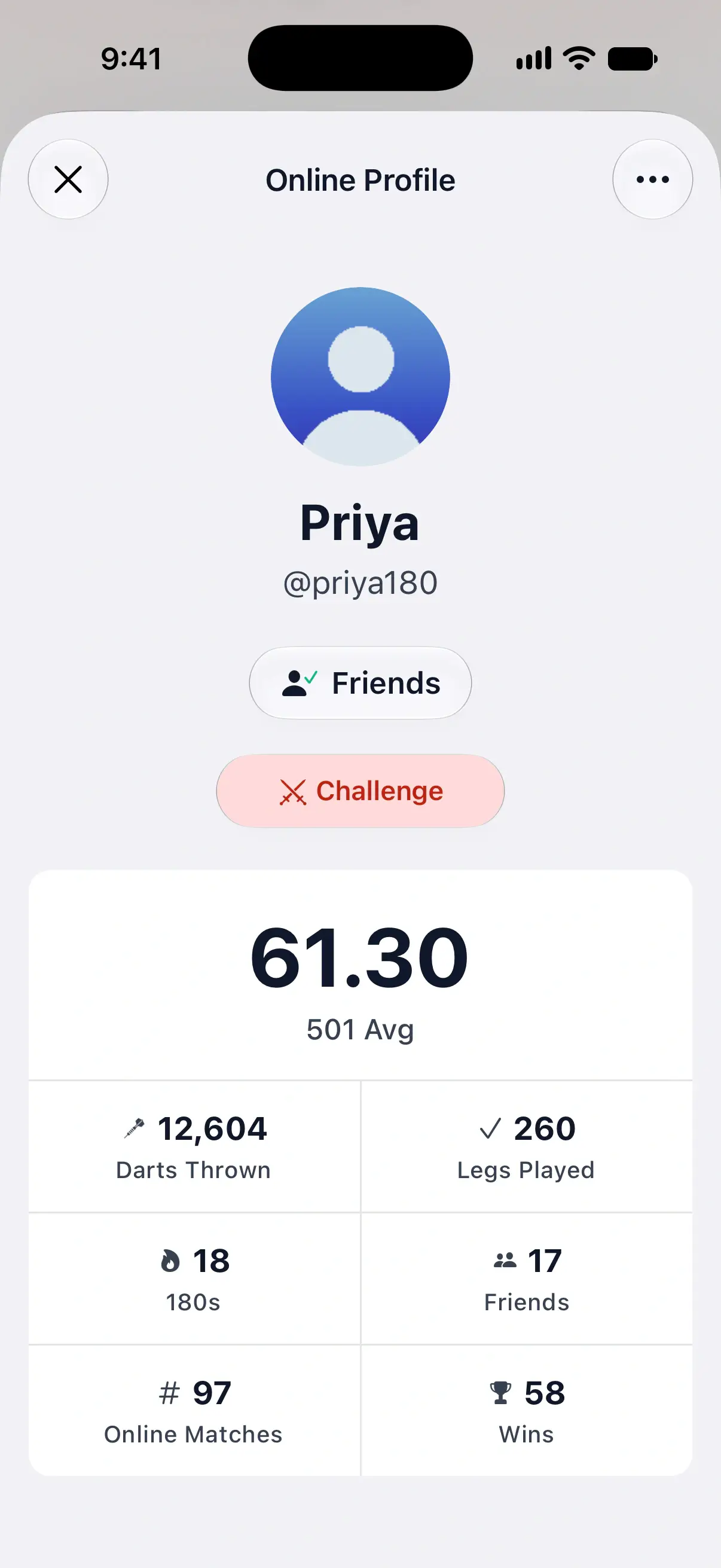
- Open a friend’s Online Profile and tap Challenge under their name.
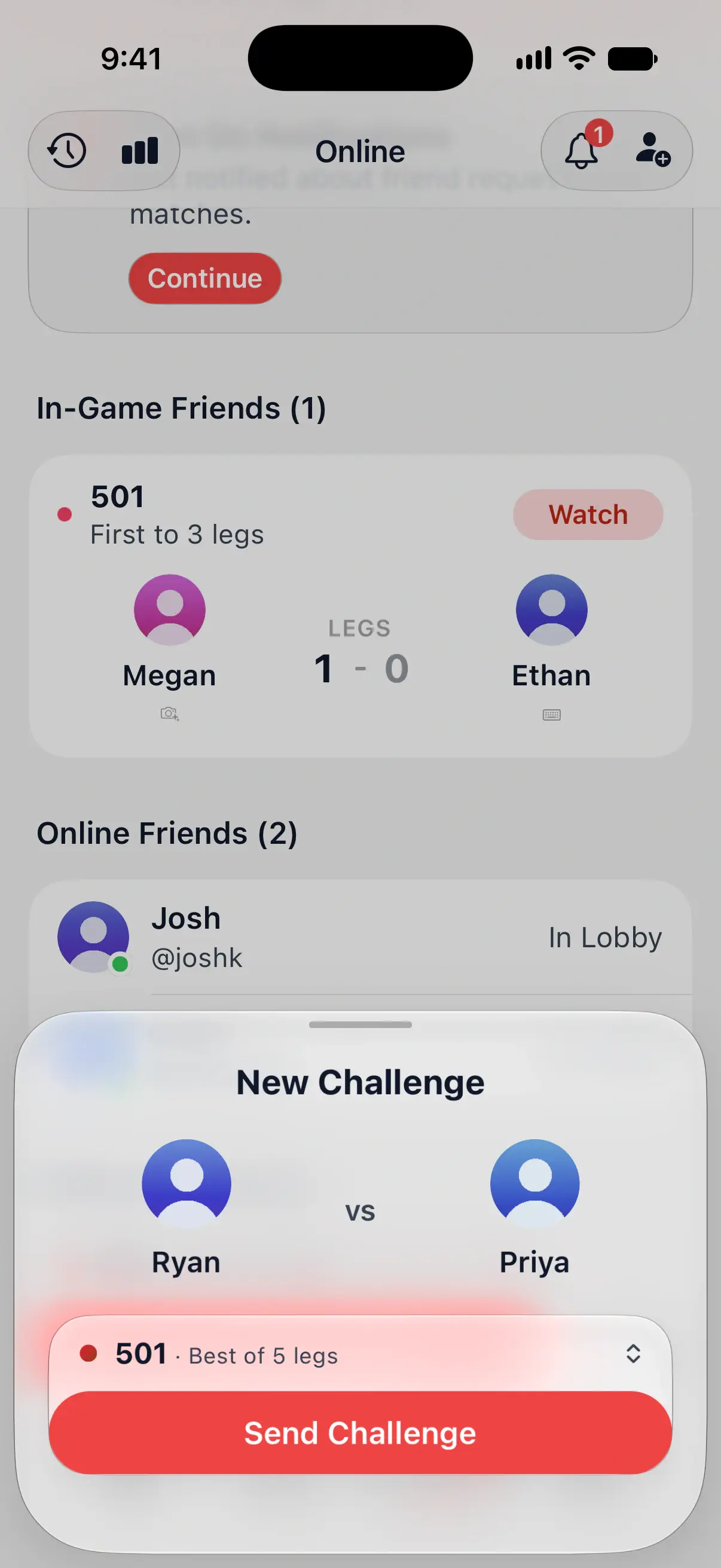
The New Challenge sheet opens, with you against your friend.

Set up the match
The match card above Send Challenge shows what you’ll play, such as 501 · Best of 5 legs.
- To play something else, tap the match card and pick one of your presets, or set up a new one. See match presets.
- Tap Send Challenge.
DartsOn creates a private lobby with your friend invited to the open seat. Their seat shows Challenged and the time they have left.
If you already host a lobby with a free seat, Challenge on a friend’s profile invites them into that lobby instead. With no seat left, it says Your lobby is full. You can also invite friends from a lobby’s open seat. See play a private match.
What happens next
- They accept: your friend joins your lobby, and you start the match. See play an online match.
- They decline: DartsOn tells you “Priya declined your challenge”, and the button changes to Challenge Again.
- Nobody answers: after 2 minutes the challenge runs out. Tap Challenge Again to send another.
You host the match you challenge a friend to. Without Premium, it counts toward your weekly limit on hosted matches once it starts, and a declined challenge doesn’t count. DartsOn Premium removes the limit.
When you can’t challenge someone
On a friend’s Online Profile, the line under Challenge says why it’s off, or what will happen:
| Line | What it means |
|---|---|
| In a match | They’re playing. Watch appears beside it, so you can follow the match. |
| In Lobby | They’re setting up a match with someone else. |
| Priya has Do Not Disturb on | They’ve paused challenges. Try later. |
| Priya is offline and will get a notification | They don’t have DartsOn open, but your challenge reaches them as a notification. |
| Priya is offline | They’re away and have turned off challenges while away. |
Challenge also stays off while you’re playing a match or waiting in someone else’s lobby, which the line shows as You’re in a match or You’re in a lobby.
Answer a challenge
A challenge reaches you on any screen, even in the middle of a local game. It shows “Josh challenged you to 501” with the match format and the time left.
- Tap Join to accept. If you’re playing a local game, DartsOn asks Join Josh’s match? first. Your game is saved, and you can continue it later from Home.
- Tap Decline on a banner or sheet, or the close button beside Join on the Online tab, to turn it down. Your friend is told.
Challenges you haven’t answered also wait at the top of the Online tab until they run out, each with its countdown, a decline button and Join.
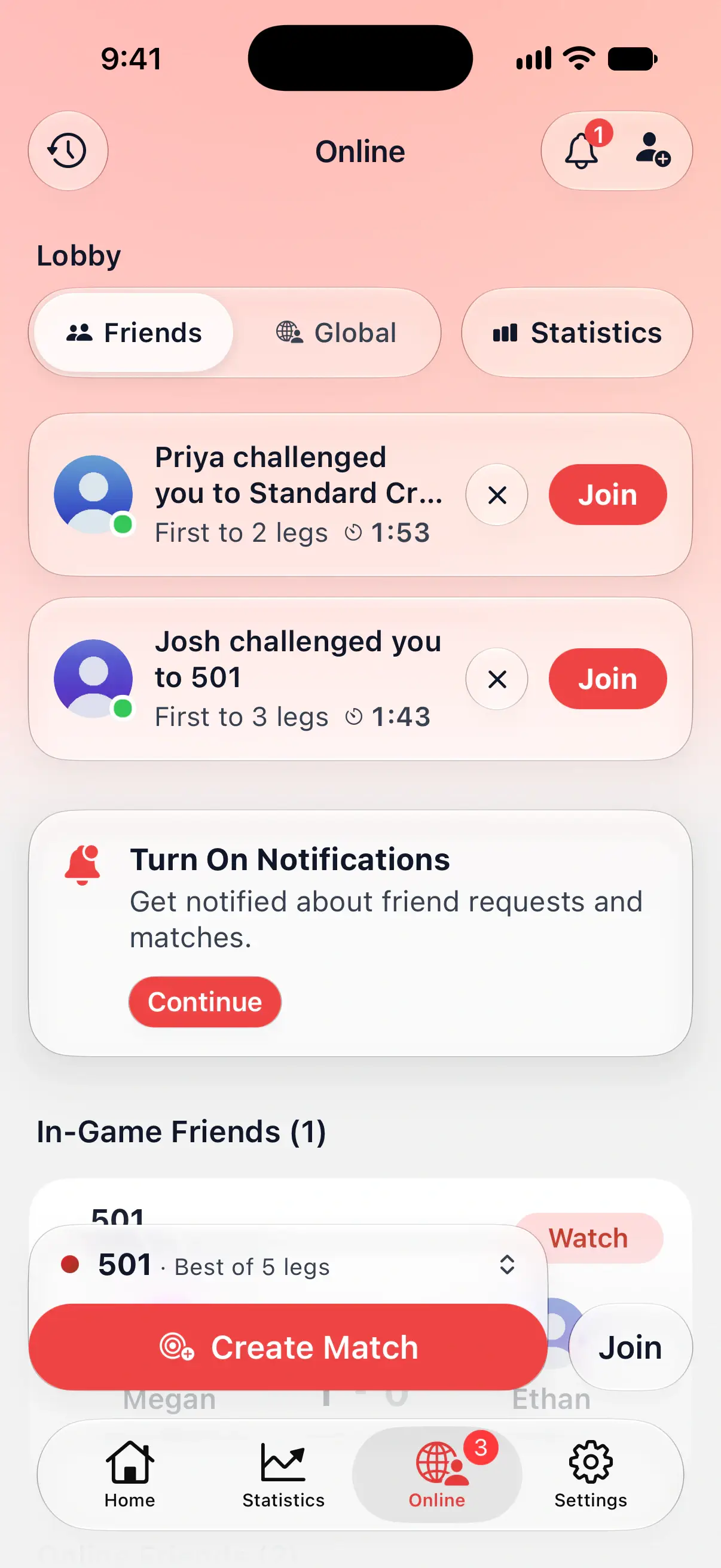
During an online match or lobby, a challenge appears without Join, so it can’t pull you out of the game. Join it from the Online tab when you’re done, if there’s time left.
Banner or sheet
How a challenge appears depends on your settings:
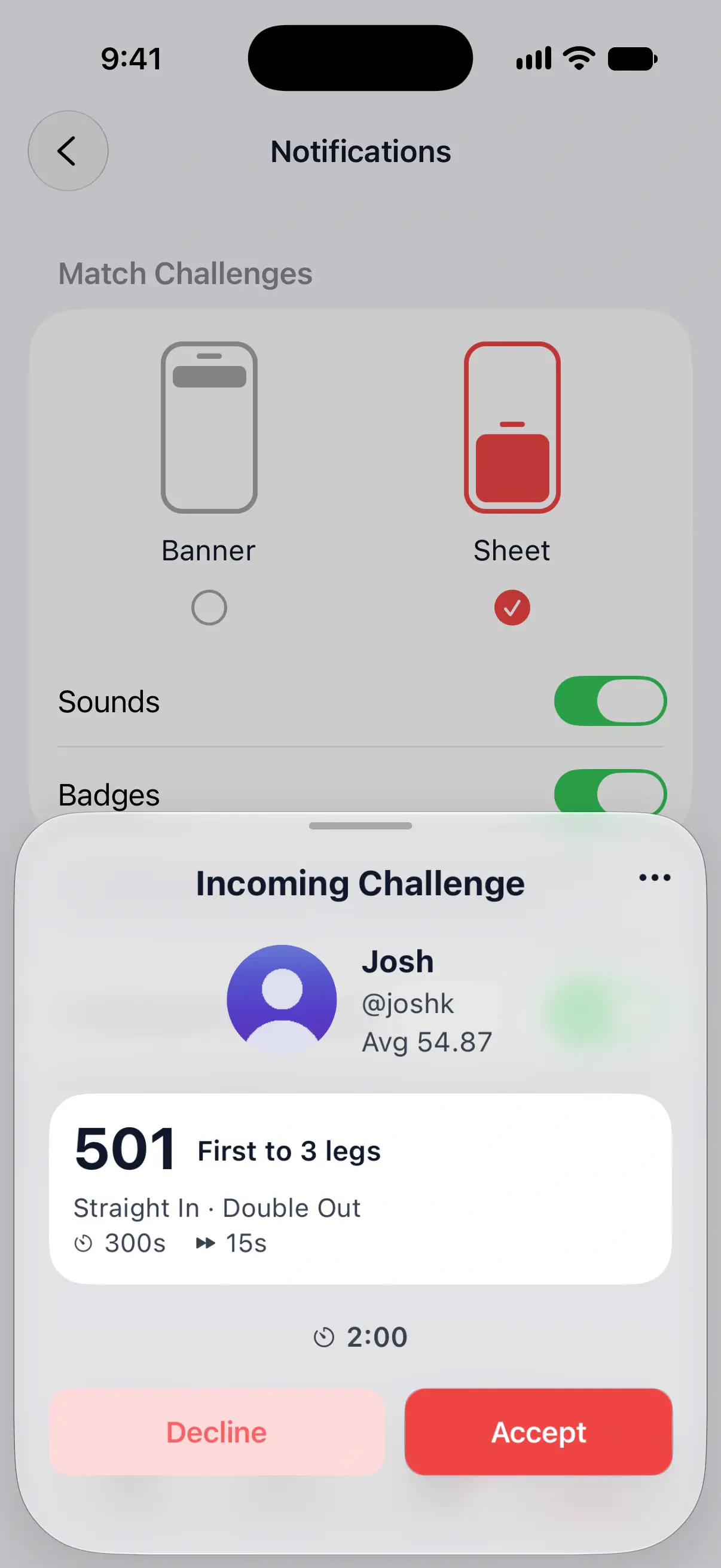
- Banner: a banner slides in at the top with Decline and Join. Tap the banner itself to open your friend’s Online Profile.
- Sheet: an Incoming Challenge card opens with your friend’s 501 average, the match, a countdown, Decline and Accept. During an online match it still comes as a banner.
When you accept, you join your friend’s private lobby and wait for them to start the match.
The … menu on the sheet has Report and Block, in case a challenge isn’t welcome. See report and block players.
Choose how challenges reach you
Go to Settings → General → Notifications. Under Match Challenges:
- Banner or Sheet: pick how a challenge appears while DartsOn is open. A banner keeps you on your screen; a sheet is harder to miss.
- Banner Style: Temporary shows the banner for a few seconds, and you can still join from the Online tab until the challenge runs out. Persistent keeps it on screen until you join, close it or it runs out.
- Sounds: plays a sound when a challenge arrives.
- Badges: shows the number of waiting challenges on the Online tab. Friend requests are counted there either way.
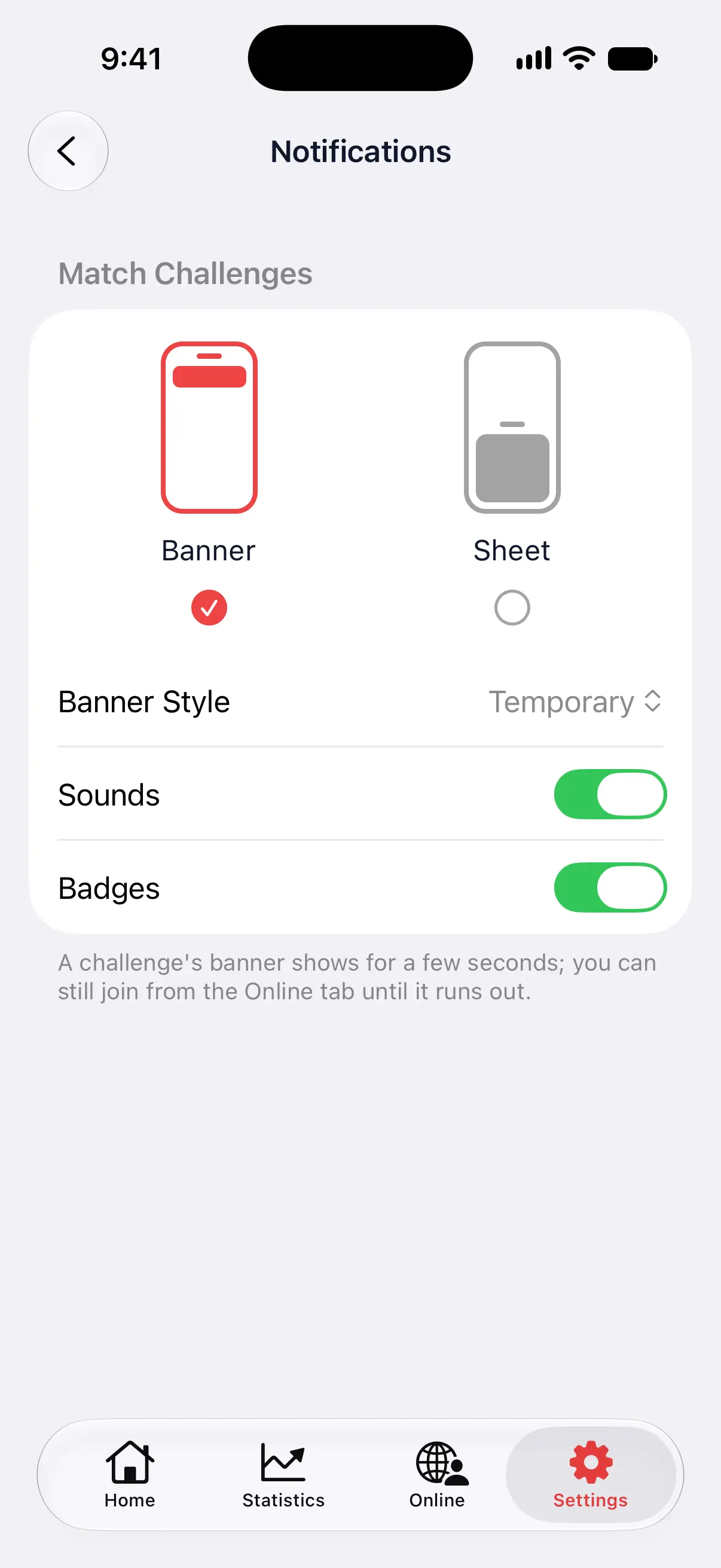
Below them, Challenges While Away decides whether friends can challenge you while DartsOn is closed. On, a challenge reaches you as a notification, as long as you’ve allowed DartsOn notifications. Off, friends can challenge you only while you have DartsOn open.
Pause challenges for a while
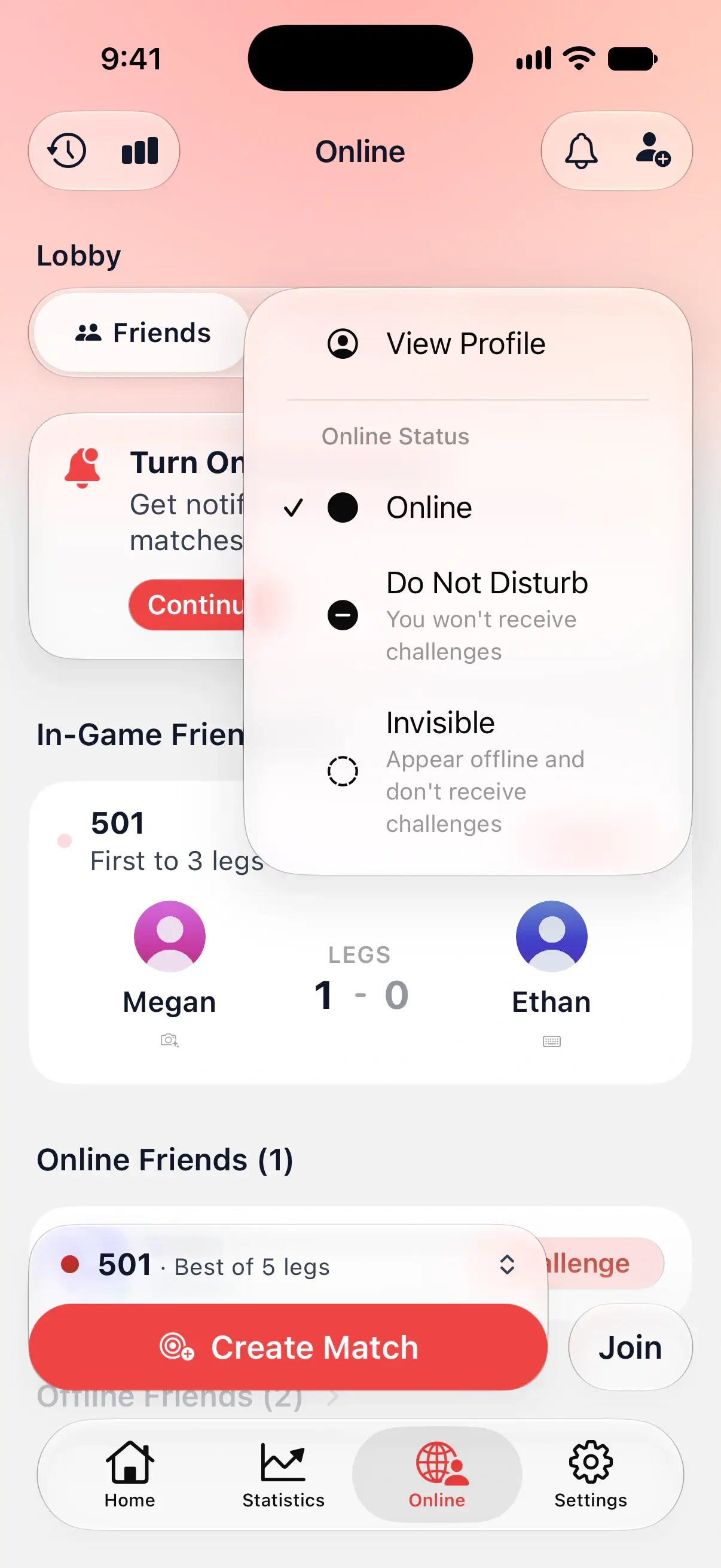
On the Online tab, tap your name next to Friends and Global to set your status:
- Online: friends see you and can challenge you.
- Do Not Disturb: you stay visible, but you won’t receive challenges.
- Invisible: you appear offline and don’t receive challenges.
Get challenges as notifications
While notifications are off, the Online tab shows Turn On Notifications. Tap Continue to allow them. If you said no before, the button reads Open Settings and takes you to DartsOn in your phone’s settings.
A challenge notification reads like the banner, for example “Josh challenged you to 501”.
- iPhone and iPad: tap the notification to join, or press and hold it and tap Join. Friend request notifications have Confirm and Delete.
- Android: tap the notification to join. In your phone’s notification settings for DartsOn, challenges and friend requests have their own categories, Match Challenges and Friend Requests, so you can silence one without the other.
The bell at the top of the Online tab opens Notifications, where friend requests wait for an answer.
Questions and answers
How long does a DartsOn challenge last?
2 minutes. The time left counts down on the challenge, and once it runs out the challenge disappears. Send a new one with Challenge Again.
Can a friend challenge me when DartsOn is closed?
Yes, if notifications are on and Challenges While Away is on in Settings → General → Notifications. Turn it off and friends can challenge you only while you have DartsOn open.
Why is the Challenge button greyed out?
Your friend is in a match, has Do Not Disturb on, or is offline with challenges while away turned off. The line under the button says which. It also stays off while you're playing a match yourself, or waiting in someone else's lobby.
Does a challenge use up my free online matches?
Only if the match starts. You host a match you challenge a friend to, so it counts toward the weekly limit on hosted matches once you start it. Accepting a challenge never counts, since joining is always free.
Related
- How to add friends in DartsOn Find friends by username or QR code, answer friend requests, see who's online or in a match, and remove a friend in DartsOn.
- Online match presets and match settings Save the online darts matches you play most as presets, pick the one Create Match plays, and set the turn timer, auto-advance and throw order.
- How to play an online darts match in DartsOn Score an online darts match with the keypad, dartboard or camera, correct a dart, reconnect after a dropped connection, end a match or ask for a rematch.
- Play darts online | DartsOn Online Play darts online with live scores, camera auto-scoring, live video and audio. Challenge anyone to 501, Cricket, Killer and more on your own dartboards.