
Customize Home and save your favourite darts games
Rearrange DartsOn's Home tiles, save game presets with your players and rules, add shortcuts and hide banners.
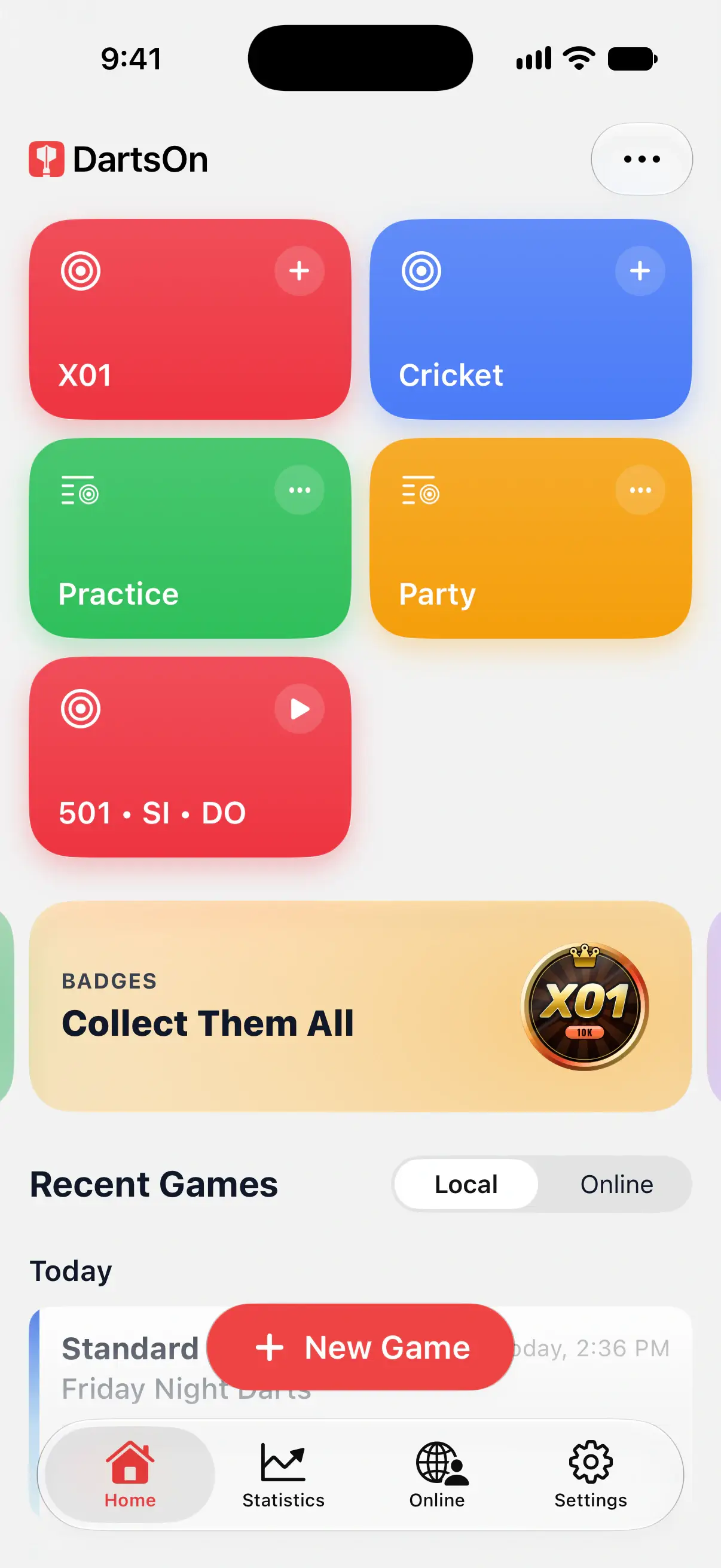
Home starts with tiles for X01, Cricket, Practice and Party. Below them, banners point to features you can try, followed by Recent Games. You can change the tiles and hide banners to suit how you play.
Open a game from a tile
Tap X01 or Cricket to open that game’s setup. Practice and Party open their groups of games. Check the players and rules, then tap Create Game.
The New Game button at the bottom opens the full list of games. See create a game.

Save a game preset
A Home preset saves a local game’s players and settings, so you can set up your usual game without choosing them again.
- To save an existing setup, hold a local game under Recent Games and choose Star Game Preset. You can add it to Home with Add to Home.
- To make a new setup, hold a tile and choose Rearrange Home. Tap + at the top, choose New Game Preset, pick a game, set its players and rules, then tap Save Preset.
- In Edit Home, New Game Preset also creates one. It goes under Starred; tap its plus to put it on Home.
Tap a preset tile to open its saved setup. It gives you a chance to change it before you start the game.
These presets are separate from the online match presets on the Online tab.
Change a preset or rearrange tiles
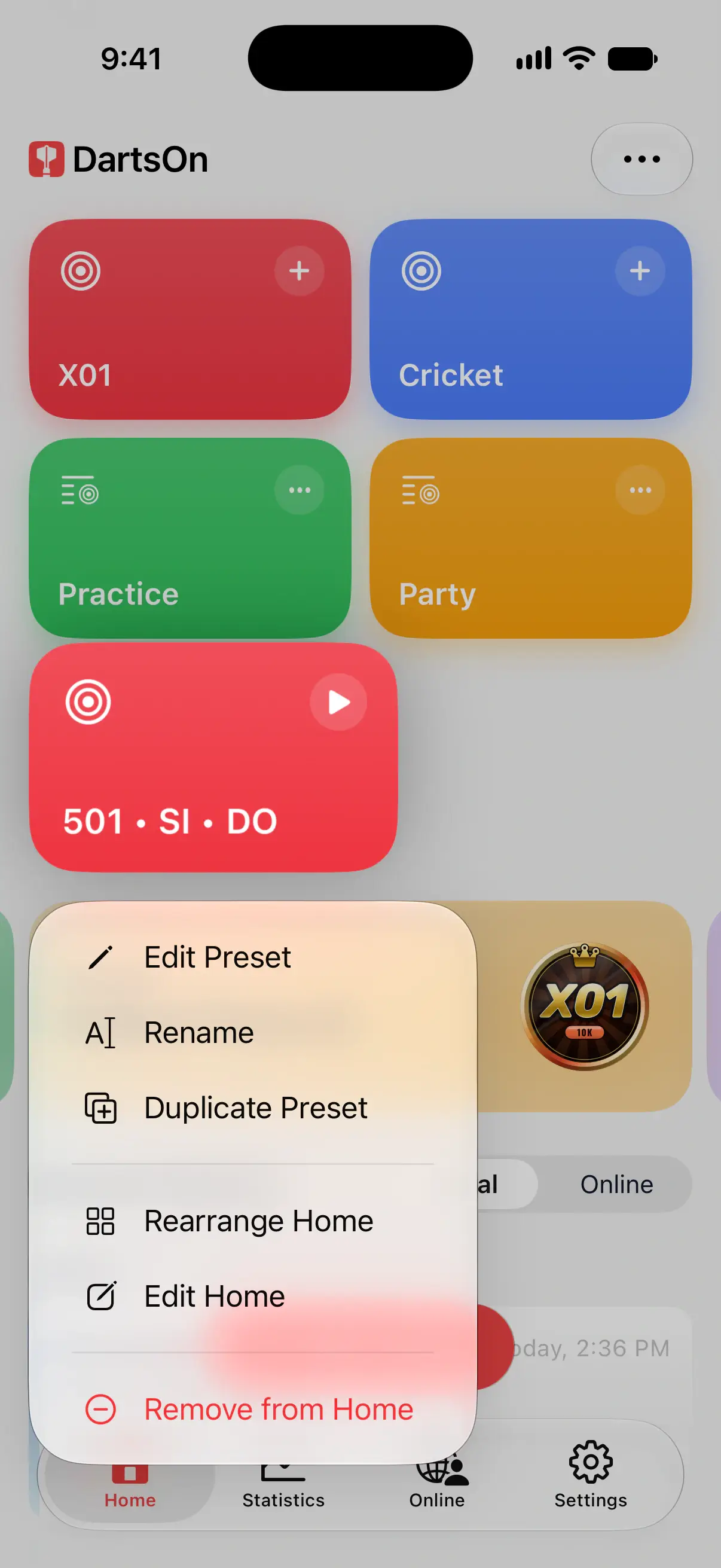
Hold a tile to open its menu:
- Rearrange Home lets you drag tiles into a new order.
- Edit Home opens the full tile list.
- Remove from Home hides that tile.
- A preset also has Edit Preset, Rename and Duplicate Preset.
Add tiles and shortcuts
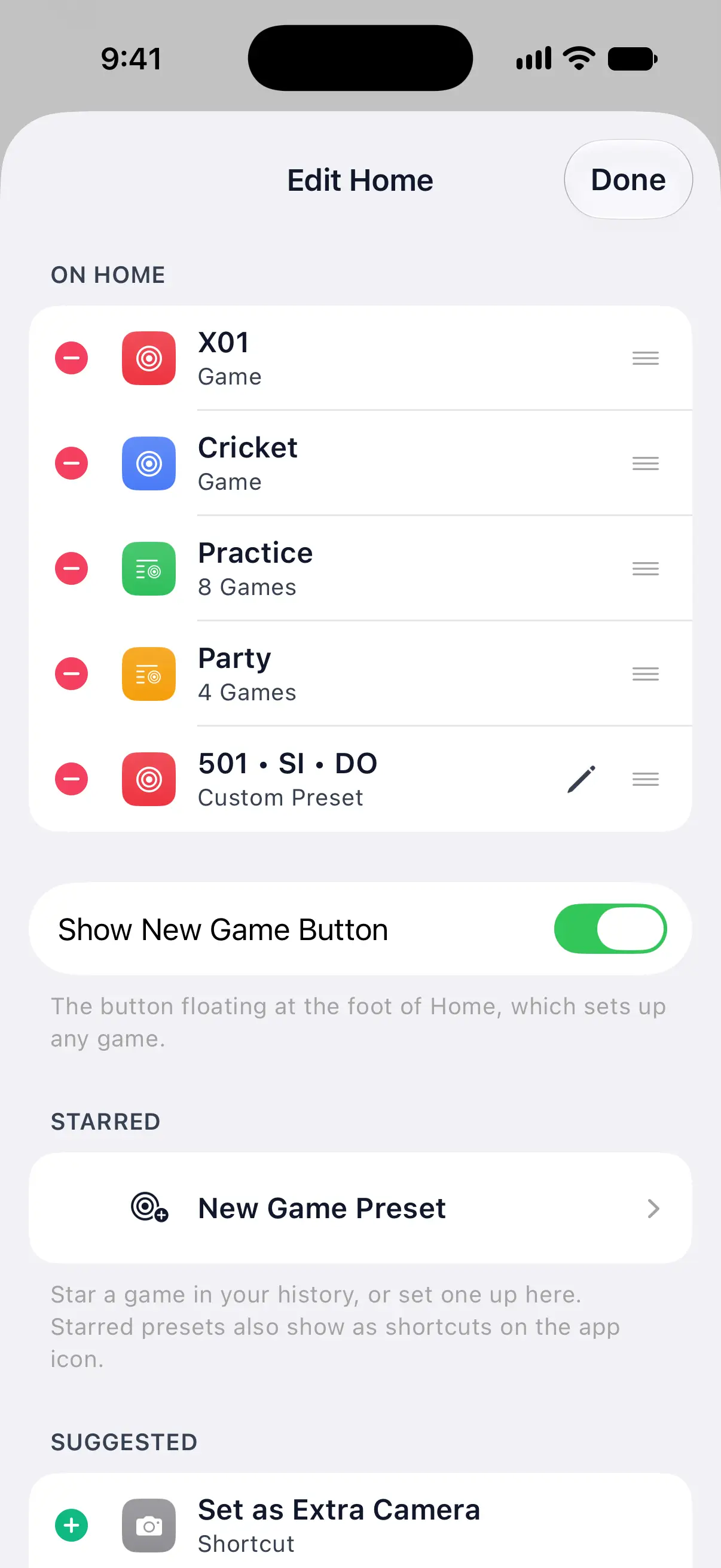
Open ••• → Edit Home:
- Under On Home, drag the handles to reorder tiles, or tap a minus to remove one.
- Under Starred, tap a preset’s plus to add it. Its pencil menu changes or removes the saved preset.
- Under Suggested, add game tiles or shortcuts, such as Set as Extra Camera and Rule Book.
- Show New Game Button controls the button floating at the bottom of Home.
Reset Home restores the original tiles. It keeps your starred presets.
Hide or restore banners
Hold a banner and choose Hide Banner. Show Hidden Banners in Edit Home, or in another banner’s menu, brings hidden banners back. The banners shown depend on the features available to you and what you’ve already tried.
Find recent games
Under Recent Games, choose Local for games scored on your device, including games synced to your account, or Online for your online matches. Tap a game to continue it or read its summary. See manage games and match history.
Questions and answers
Does tapping a Home game preset start the game immediately?
No. It opens the saved setup, including your players and rules. Check or change it, then tap Create Game.
Does removing a tile delete my game?
No. Remove from Home hides the tile. Your game stays in Recent Games, and a starred preset remains under Starred in Edit Home.
Are Home presets the same as online match presets?
No. Home presets save local game setups, including players. Online match presets set the rules for matches you create or challenge friends to from the Online tab.
Related
- Get started with DartsOn Set up DartsOn, start your first darts game, pick how to enter your darts and find your way around the Home, Statistics, Online and Settings tabs.
- How to create a darts game in DartsOn Start a new darts game in DartsOn. Name it, pick one of 14 games, set the starting score, in and out rules and match length, then tap Create Game.
- Continue, duplicate or delete your darts games Find your games on the DartsOn Home tab, continue an unfinished game, duplicate or delete one, rename it in Game Info or start a rematch from the summary.
- Online match presets and match settings Save the online darts matches you play most as presets, pick the one Create Match plays, and set the turn timer, auto-advance and throw order.